No invented facts
The model is told to draw no text, numbers or rulers. Every detail on the final image is one you typed, so nothing appears that you did not confirm.
Jewelry Studio · Listing images
A good infographic answers the questions buyers ask before they message you: metal, size, length, clasp. Upload a product photo, generate an image with clean space, and type your real specs on top.
Updated · Image25 Jewelry Studio
15 credits · Fast · Medium · 1 image
Includes one reference photo. Every new generation costs 15 credits.
Email sign-in keeps your selection. Google sign-in leaves this page; reselect your photo and settings after returning.
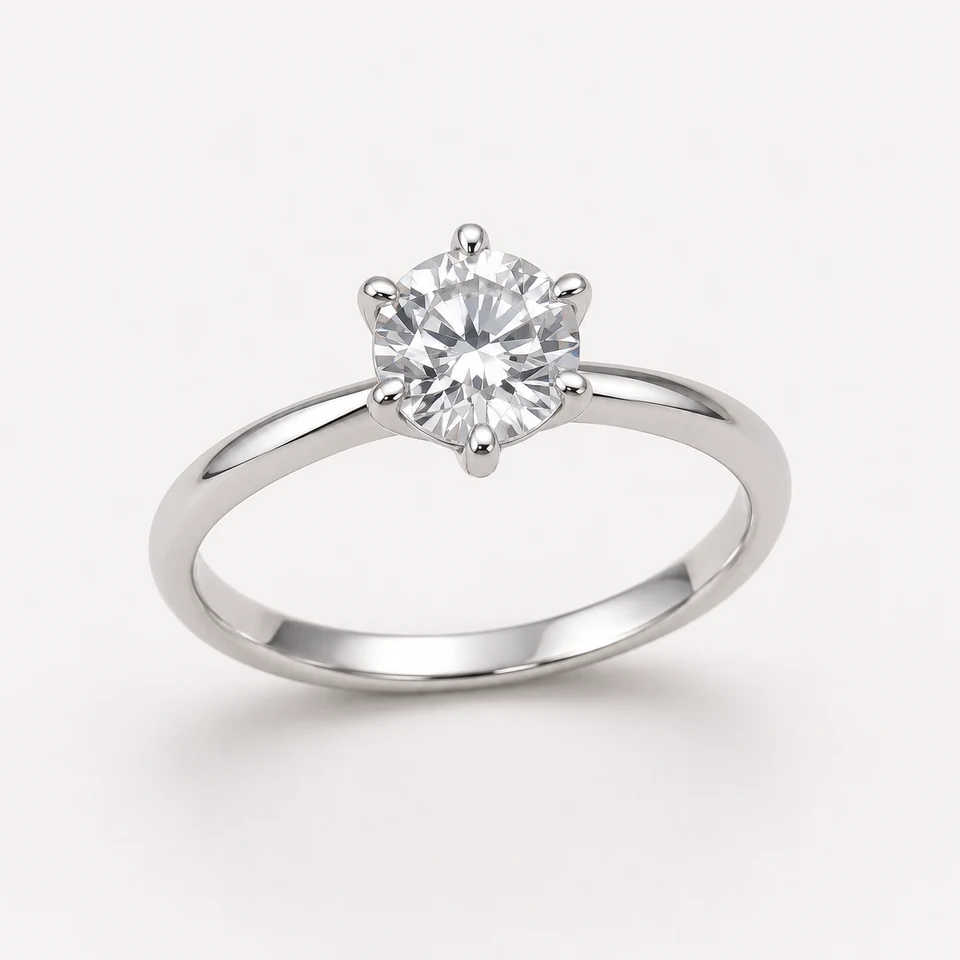 Specs on the right · Clean Studio · Ring
Your text layer
Type your own text; it is drawn on top of the image in your browser, never by the AI, and you can change it any time for free. Enter only details you have measured or confirmed for this piece.
A jewelry listing infographic here has two layers. The AI makes the image layer from your product photo, with an empty area on one side. You type the title and up to five details, and the editor draws them on top in your browser. The image costs 15 credits; editing the text is free and never invents a fact.
01
It is a supporting listing image that pairs the piece with the facts buyers need: what it is made of, how big it is, how long the chain is, how it fastens. Marketplaces and stores show several images per product, and a clear spec image often answers the questions that would otherwise arrive as messages or returns.
Image models are poor at text and worse at facts. Ask one for an infographic and it will happily invent a metal, misspell a measurement or draw a ruler that does not match the piece. This tool keeps the two jobs apart: the model only makes the picture, with an empty area reserved, and every word and number comes from you.
Because the text is a separate layer, you can correct a typo, change a length or translate the details without paying for a new image. You can also add text to an image you already have, at no cost.
02
Use one PNG, JPEG or WebP of the whole piece in soft light. Choose the jewelry type, a layout (specs right, left or below) and a backdrop.
One image costs the usual credits. Check the piece against your photo and that the text area is empty and calm.
Add a title and up to five details you have measured or confirmed, tick the confirmation box, and download the PNG. Change the text as often as you like for free.
03
Pick the details buyers ask about most for each type.
| Jewelry | Most useful details | Where the facts come from |
|---|---|---|
| Necklaces | Chain length, pendant size, chain type, clasp | Measure end to end, including the clasp |
| Rings | Ring size, band width, stone size, metal | Ring mandrel, calipers, supplier records |
| Earrings | Drop length, width, post or hook type, weight | Ruler or calipers, findings supplier |
| Bracelets | Inner length or diameter, width, clasp, extender | Measure the inside, then the extender |
| All pieces | Metal and plating, stone type, care, origin | Supplier documents and hallmarks |
04
Keeping text out of the model protects accuracy.
The model is told to draw no text, numbers or rulers. Every detail on the final image is one you typed, so nothing appears that you did not confirm.
Text is drawn with real fonts, so “sterling” stays sterling and 45 cm stays 45 cm.
Change a length or fix a typo without paying for a new image. The image layer stays the same.
The editor checks how light the text area is and picks dark or white text, so specs stay readable on white or on velvet.
05
06
Two layers, two kinds of checks.
| Check | Good result | Fix if |
|---|---|---|
| Piece | Matches your photo in every detail | Stones, chain or clasp changed: regenerate |
| Text area | Empty, calm and evenly lit | Objects or shadows in it: regenerate |
| Specs | Measured, with units, spelled right | Edit the text; it is free |
| Readability | Clear at thumbnail size | Shorten lines or remove a detail |
| Consistency | Same terms as the listing text | Align the wording |
| Stray text | No letters drawn by the model | Regenerate the image layer |
07
The most asked necklace questions, answered in one image.
Example: Chain 18 in / 45 cm · Pendant 12 mm · Lobster clasp.
Band width and stone size help buyers judge the look.
Example: Band 2 mm · Stone 6 mm · Sizes 5–9.
State the metal, any plating and how to care for it.
Example: 925 sterling silver · Polish with a soft cloth.
Tell buyers what makes the piece yours.
Example: Hand-hammered · Made to order in 5 days.
08
Most problems have a quick fix.
Regenerate, or choose another layout. Busy backdrops such as flat lay can creep into the empty area; Clean Studio keeps it calmest.
This is rare because the prompt forbids it, but it can happen. Reject the image and regenerate; never keep model-drawn numbers.
Shorten each line, remove a detail or choose a calmer backdrop. On velvet the editor switches to white text automatically.
Make one image layer, then download one version per variant with its own length or size. Only the text changes, so every variant costs nothing extra after the first image.
Use your own image: upload it in the text layer, choose where the text goes and download. It costs nothing.
09
One image layer can serve a whole product family.
Generate the image once, then download one version per variant with its own length or size line.
Make one image layer per metal from a photo of that metal, so the picture always matches the specs.
Before you publish
The tool draws exactly what you type. It does not check your measurements, materials or claims, and it never adds facts of its own. Measure the real piece and use the same details in your listing description.
The image layer is AI-generated from your photo. Check that the piece matches before you publish, and follow your marketplace’s rules for supporting images.
Questions
You upload a product photo and choose a layout and backdrop. The AI makes the image with an empty area; then you type a title and up to five details, which the editor draws on top in your browser. You download the finished PNG.
No. The model is told to draw no text at all. Every word and number comes from what you type, so the image shows only facts you entered.
Yes, as often as you like, for free. The text is a separate layer, so changing it never costs credits or changes the image.
Yes. Use your own image in the text layer, pick where the text goes, and download. Nothing is generated, so it costs nothing.
The details buyers ask about most: chain length and pendant size for necklaces, ring size, band width and stone size for rings, drop length and findings for earrings, inner length for bracelets, plus metal and care.
Most marketplaces allow text on supporting images but not on the main image. Check your marketplace’s current image rules before uploading.
Each image costs 15 credits on the default Fast setting, including your reference photo. New accounts that use Google sign-in or a Gmail address get 20 free credits, enough for one image. Free-credit images carry a watermark and are for personal use; use paid credits for store and marketplace images.
Your upload is private and scheduled for deletion after one day. On a free account, generated images stay in My Creations for 14 days; paid plans and credit packs keep them longer.
Upload a product photo, generate an image with clean space, and add your measured details as an editable layer.
Upload a jewelry photo