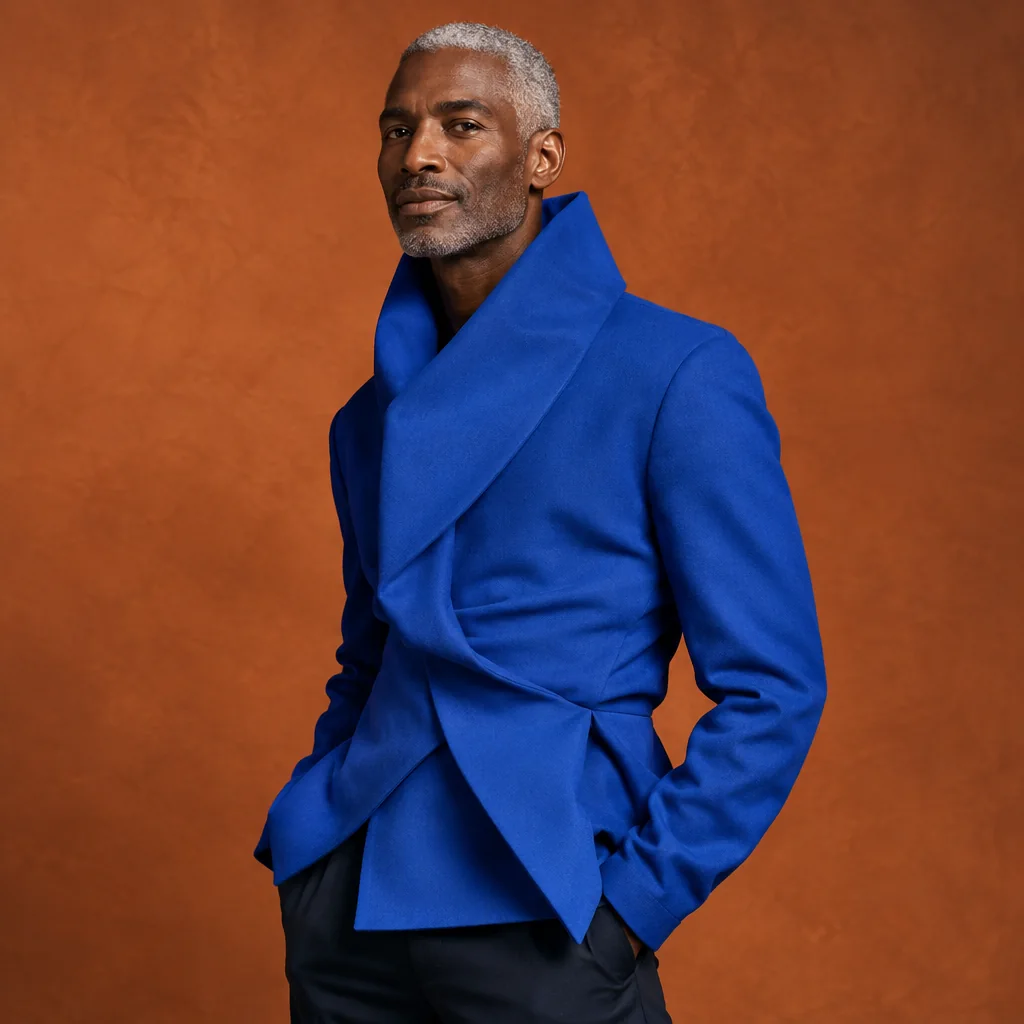
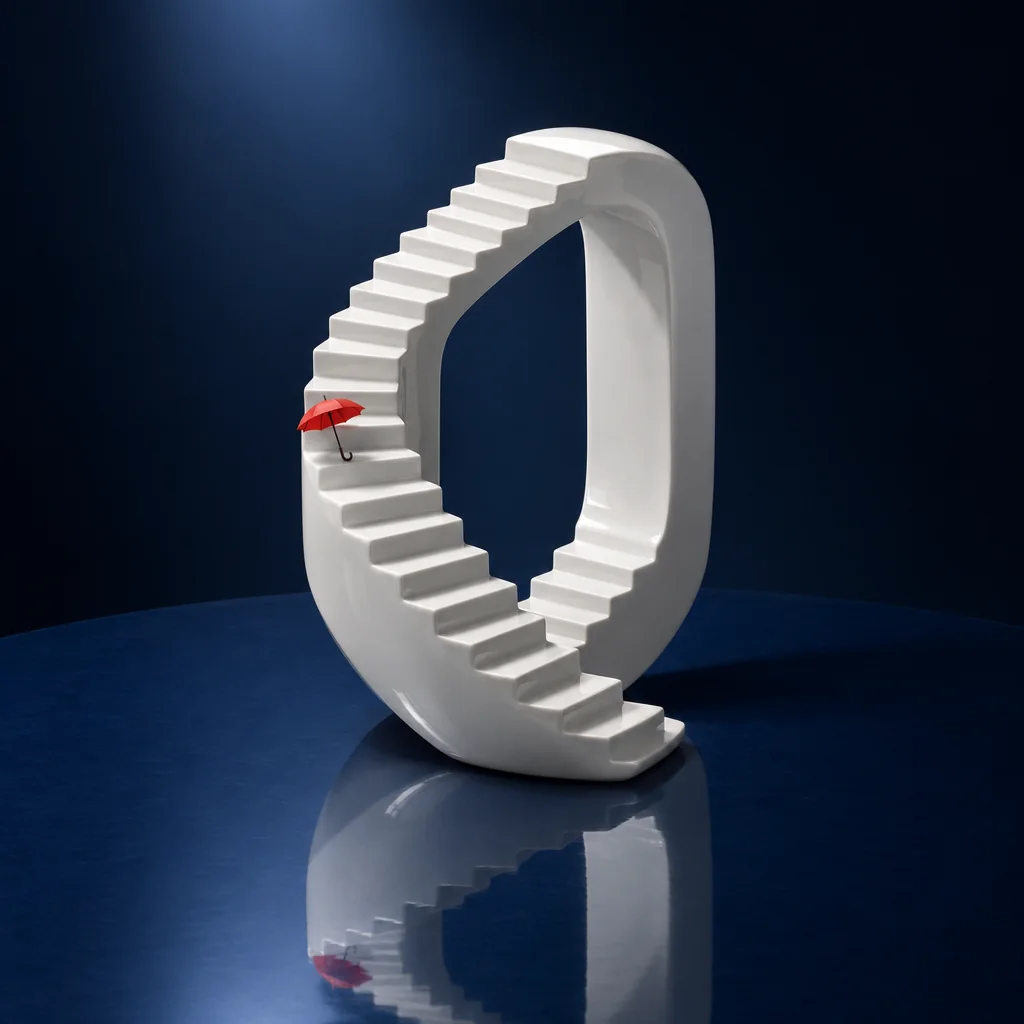
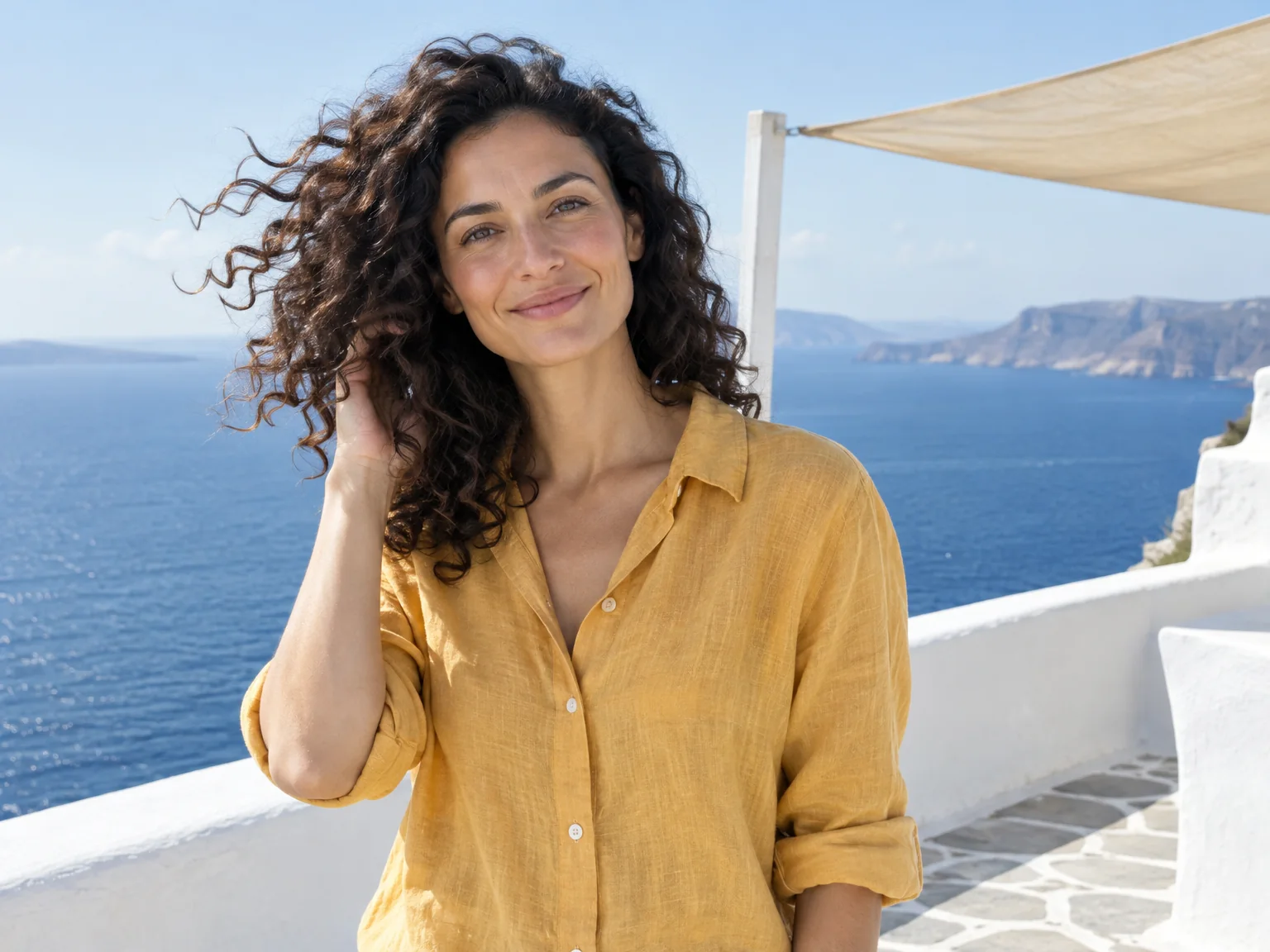
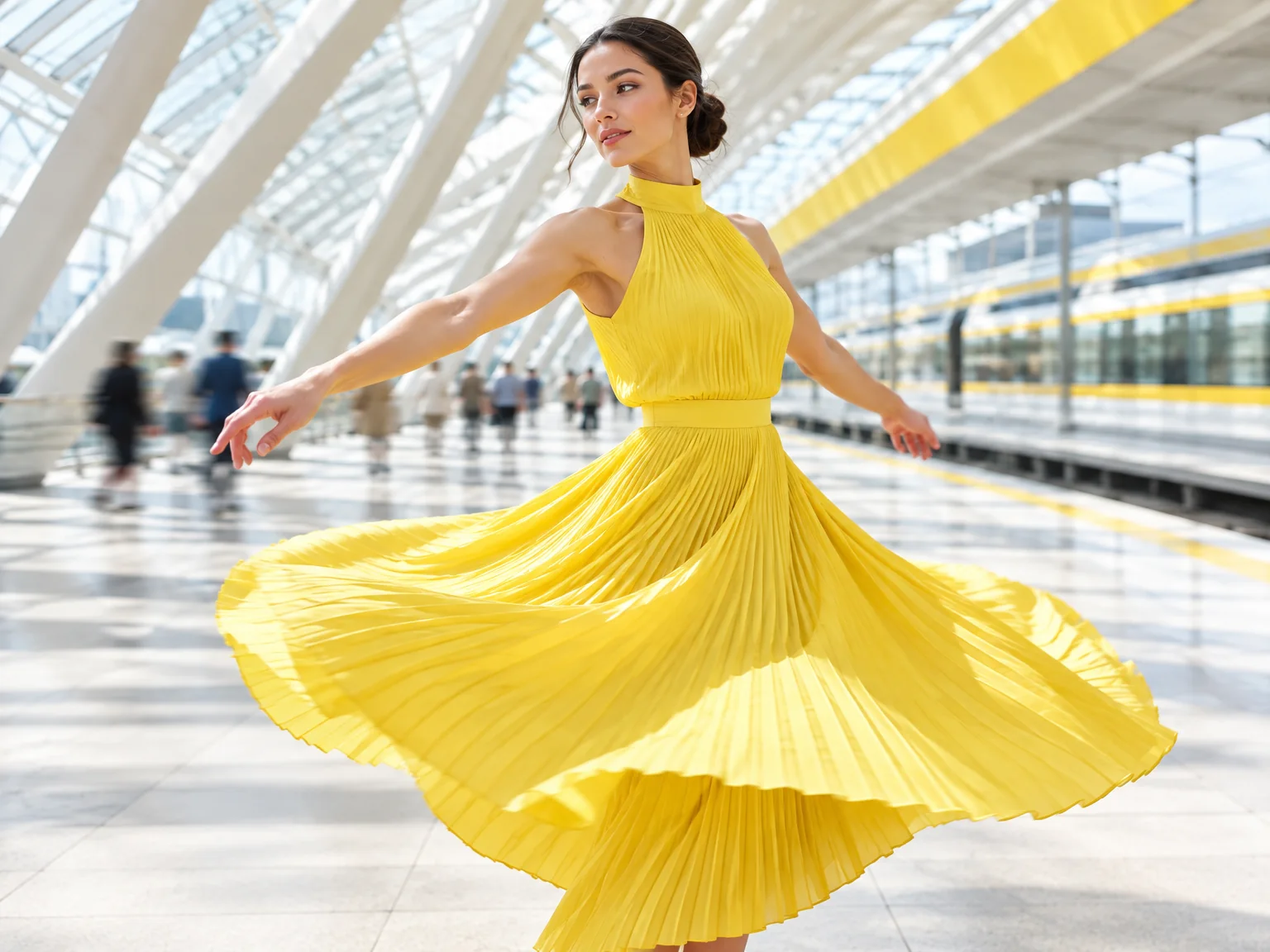
Save up to 50% on annual plans

Claim Now

GPT Image 2.5:
Bring Your Ideas to Life in Stunning Detail

Create and edit detailed images with GPT Image 2.5. Describe your idea or upload a reference image, choose Fast or Precision mode, and select a supported aspect ratio—from product shots to imaginative artwork.

Explore the gallery

Made with GPT Image 2.5

A quick look at different subjects, styles and compositions.

GPT Image 2.5 Inspiration Gallery

Find your next idea. Hover or click an image to explore its prompt, then choose Click to use to make it your own.

How to Use GPT Image 2.5 on Image25

Image25 provides an interface for creating images with GPT Image 2.5. The options, credits, and account features described on this page are provided by Image25.

You write a text prompt, optionally add reference images, pick a format and quality option, and Image25 sends the request to the model and returns the finished image to your browser, ready to preview and download.

  1. 1

    Describe your idea

    Write what you want to see: the subject, where it is, the light, and the style. Specific details give the model more to work with than a single keyword. With any signed-in account you can also add up to 16 reference images for the model to follow.

  2. 2

    Choose your settings

    Choose an aspect ratio, then select Fast (Flare) for everyday work or Precision (Sunburst) for finer detail.

  3. 3

    Generate and refine

    Review the result. If something is off, change one part of the prompt — the lighting, the angle, the background — and generate again.

  4. 4

    Download your image

    When you are happy with a result, download the file and use it in your own project, following the terms linked on this page.

What Can You Create with GPT Image 2.5?

Each example below pairs a GPT Image 2.5 result with the exact prompt behind it. Read how the wording shaped the image, then try the prompt yourself and change it to fit your idea.

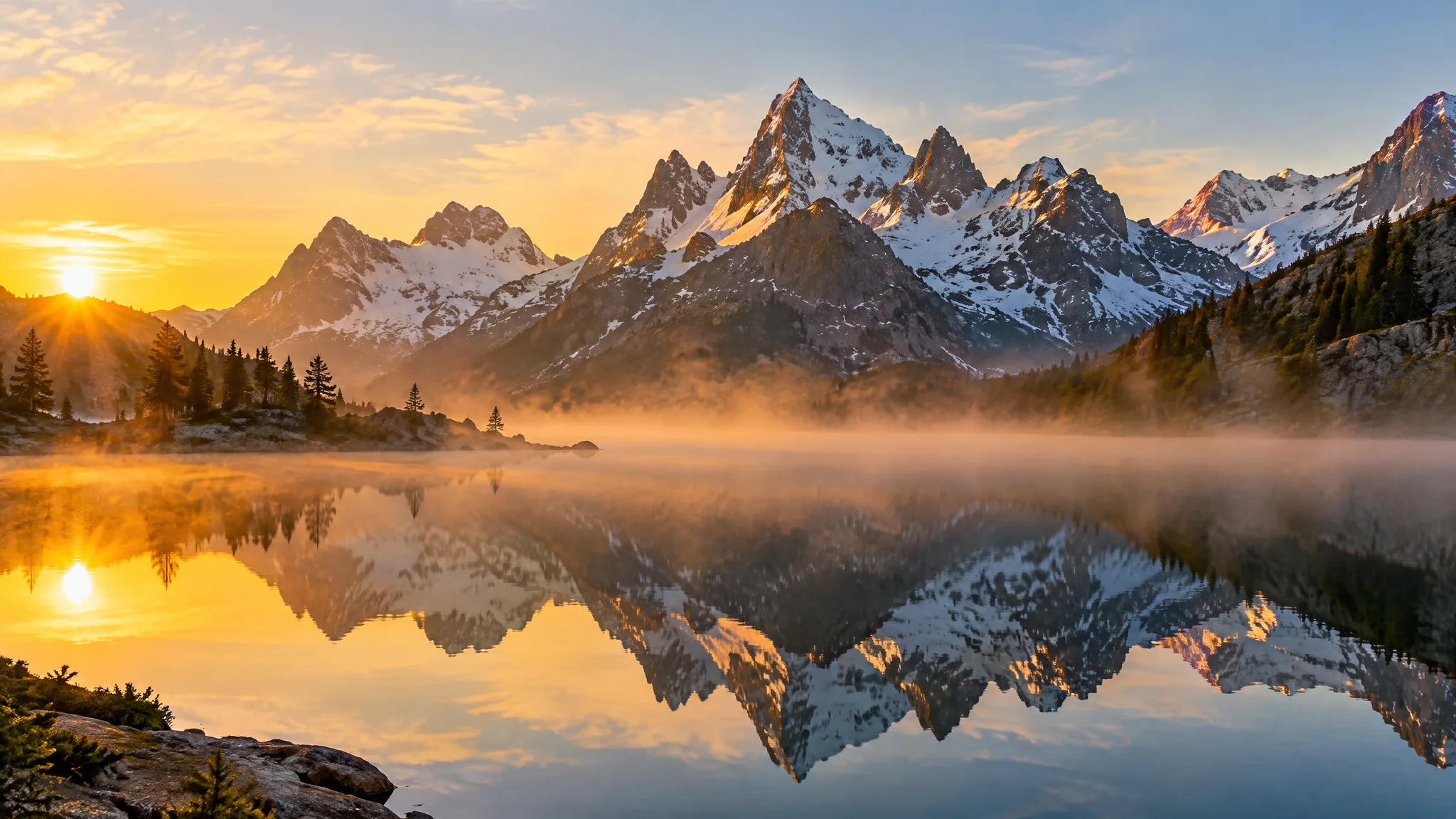
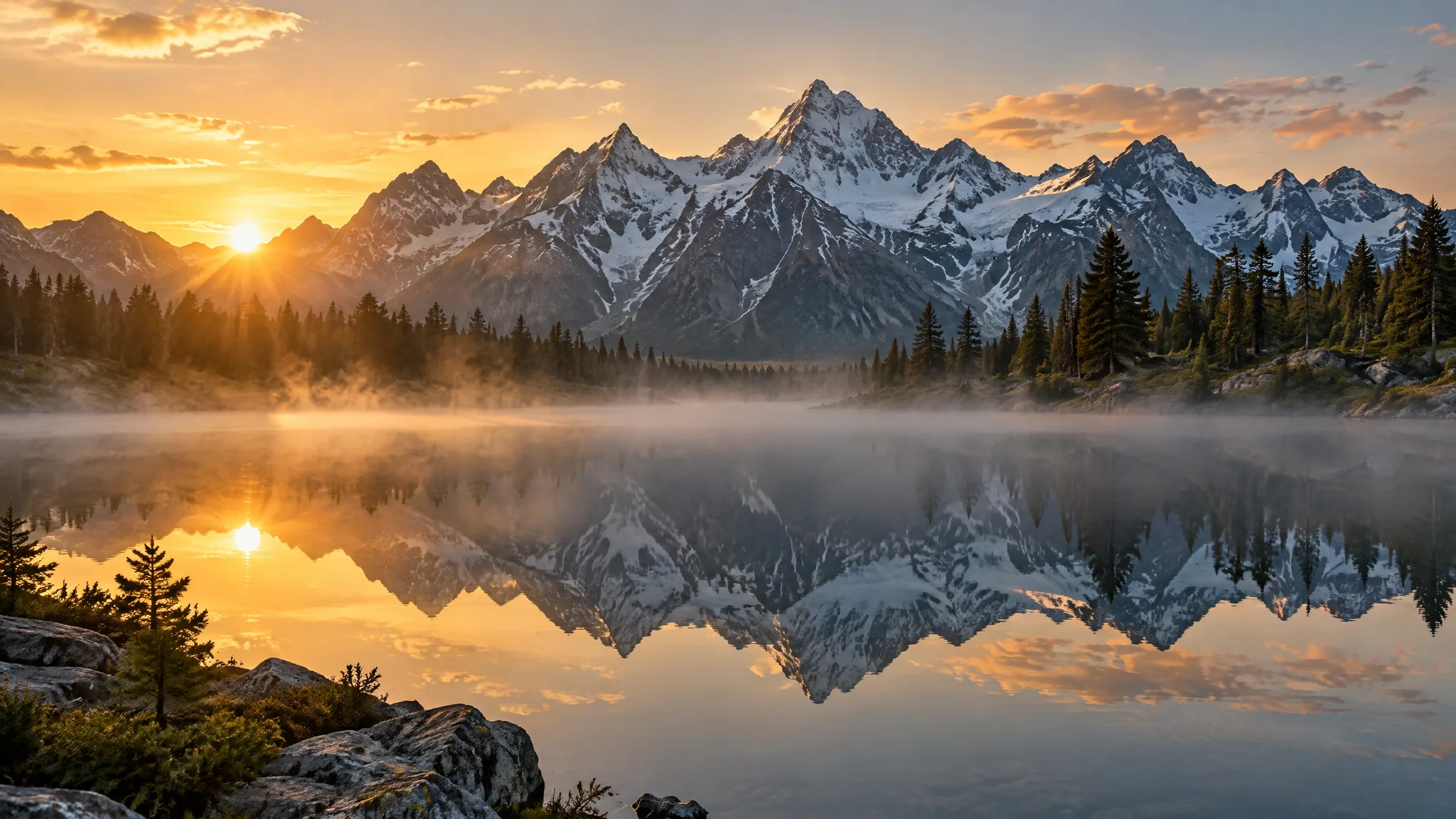
Snowy mountain peaks reflected in a misty alpine lake at sunrise

Photographic scenes with believable light

For realistic images, describe the scene the way a photographer would plan it: the time of day, the direction of the light, the lens feel, and the mood. Naming "golden light" and "low mist" in this prompt gives the model a clear lighting setup instead of leaving it to chance.

Prompt · 16:9
A still alpine lake at sunrise, jagged snowy peaks mirrored in the water, low mist over the surface, warm golden light, landscape photography

Explore GPT Image 2.5 Text-to-Image Creation

A text prompt is all the Image25 generator needs, and any signed-in account can add reference images too. These three habits help you get closer to the picture in your head with fewer attempts.

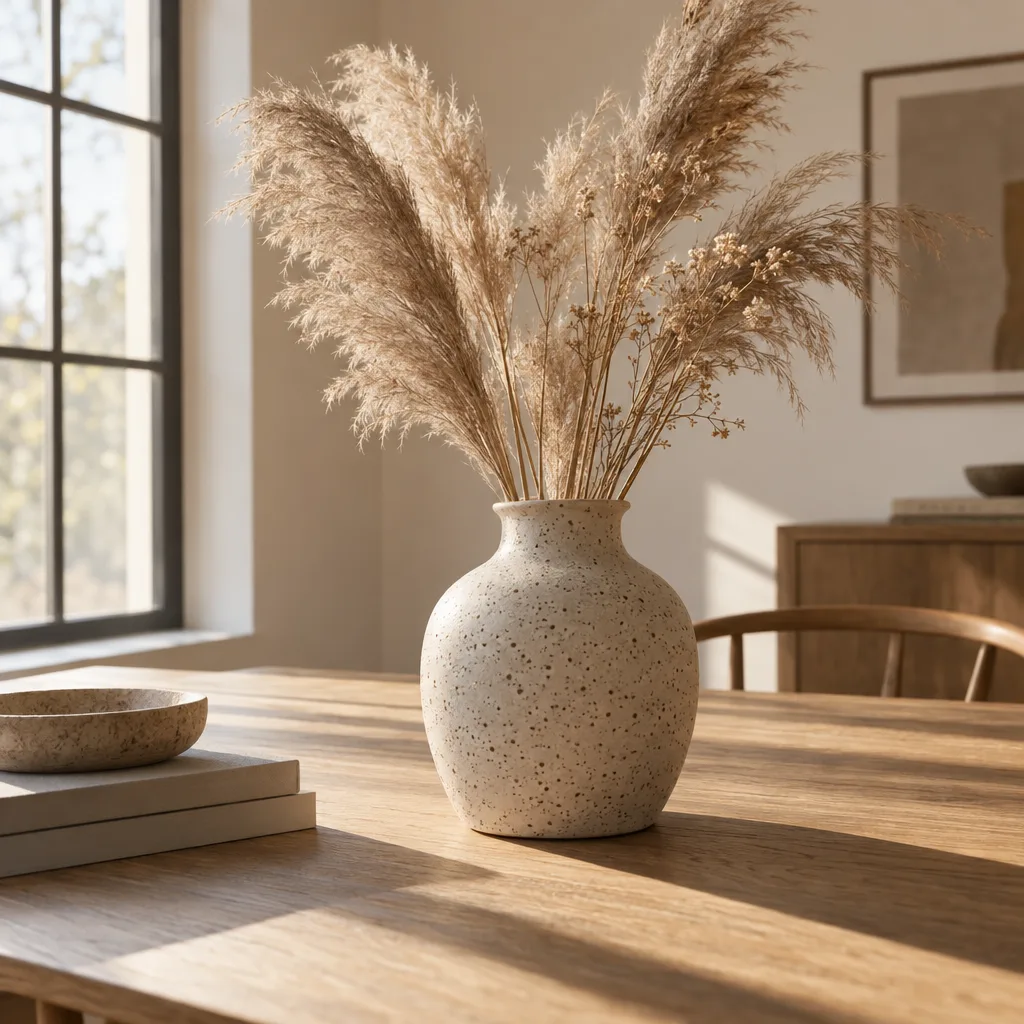
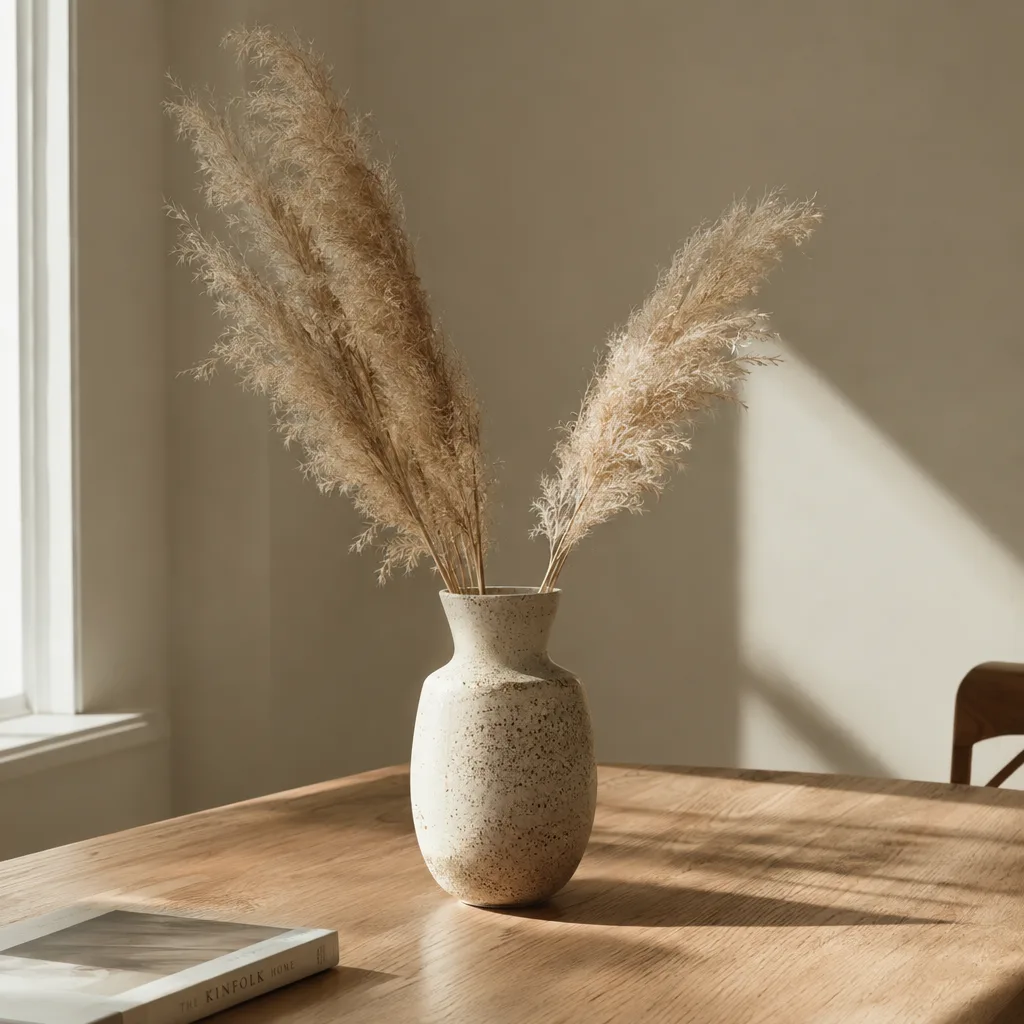
Speckled ceramic vase with dried grass on an oak table in soft window light
Sunlit ceramic vase · 1:1

Turn words into images

Start with a subject and add the context around it. "A ceramic vase" leaves most decisions to the model; "a handmade speckled ceramic vase with dried pampas grass on an oak table, soft morning window light" describes the object, the setting and the light in one sentence. GPT Image 2.5 on Image25 reads the whole prompt, up to 2,000 characters, so you can be as specific as the idea needs. Short prompts are fine for exploring; longer ones give you more control over the final image.

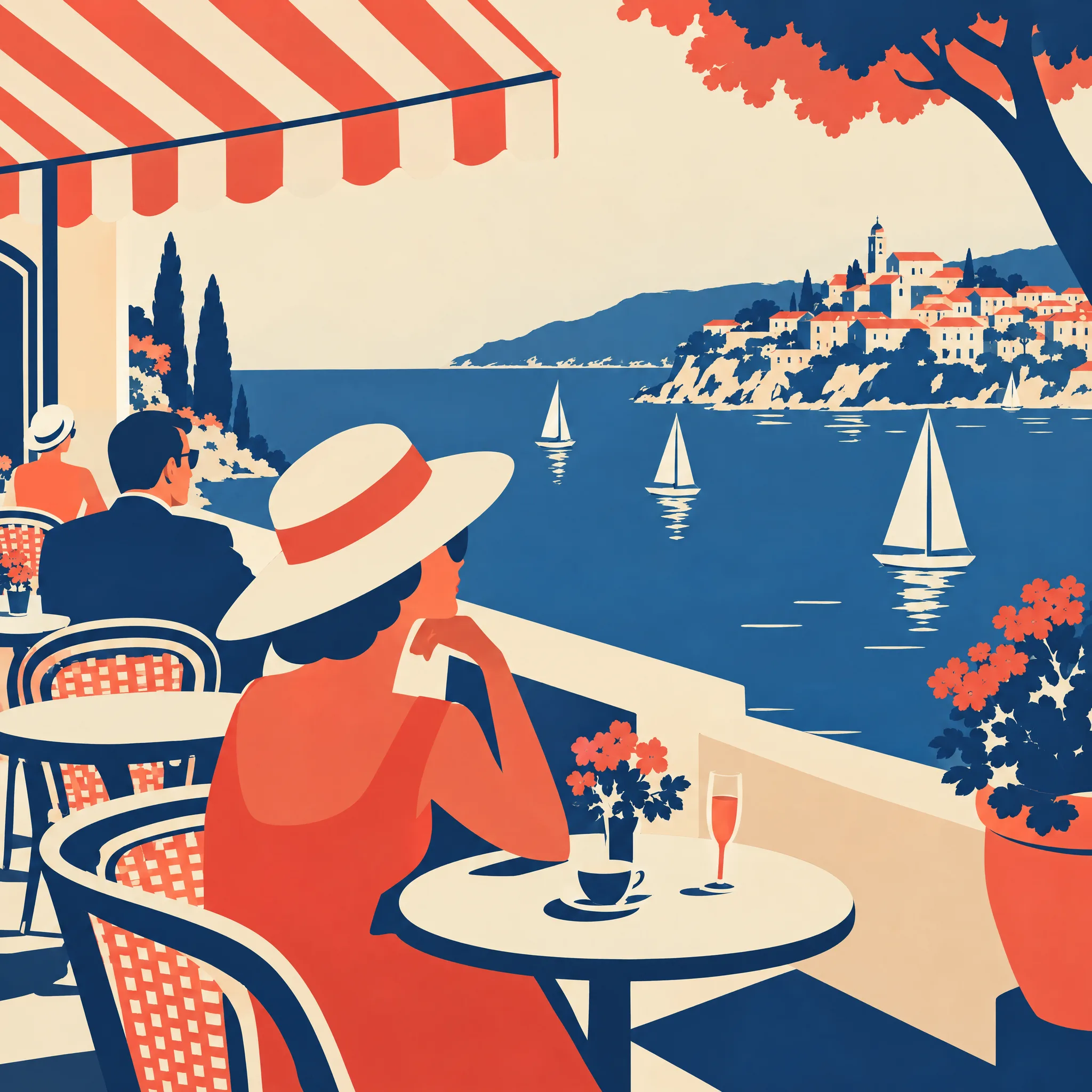
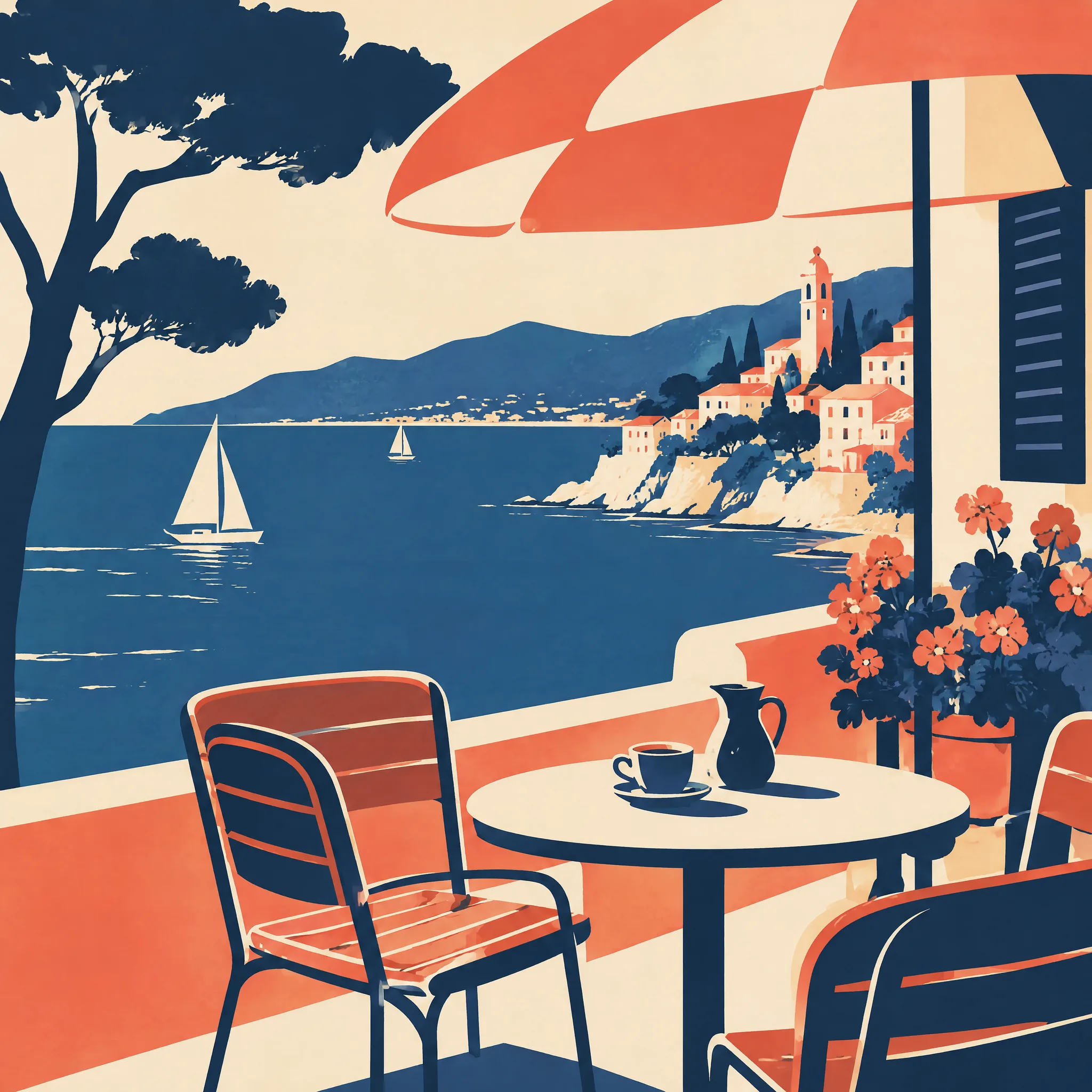
Retro flat-color poster illustration of a seaside café terrace in coral and navy
Retro café poster · 1:1
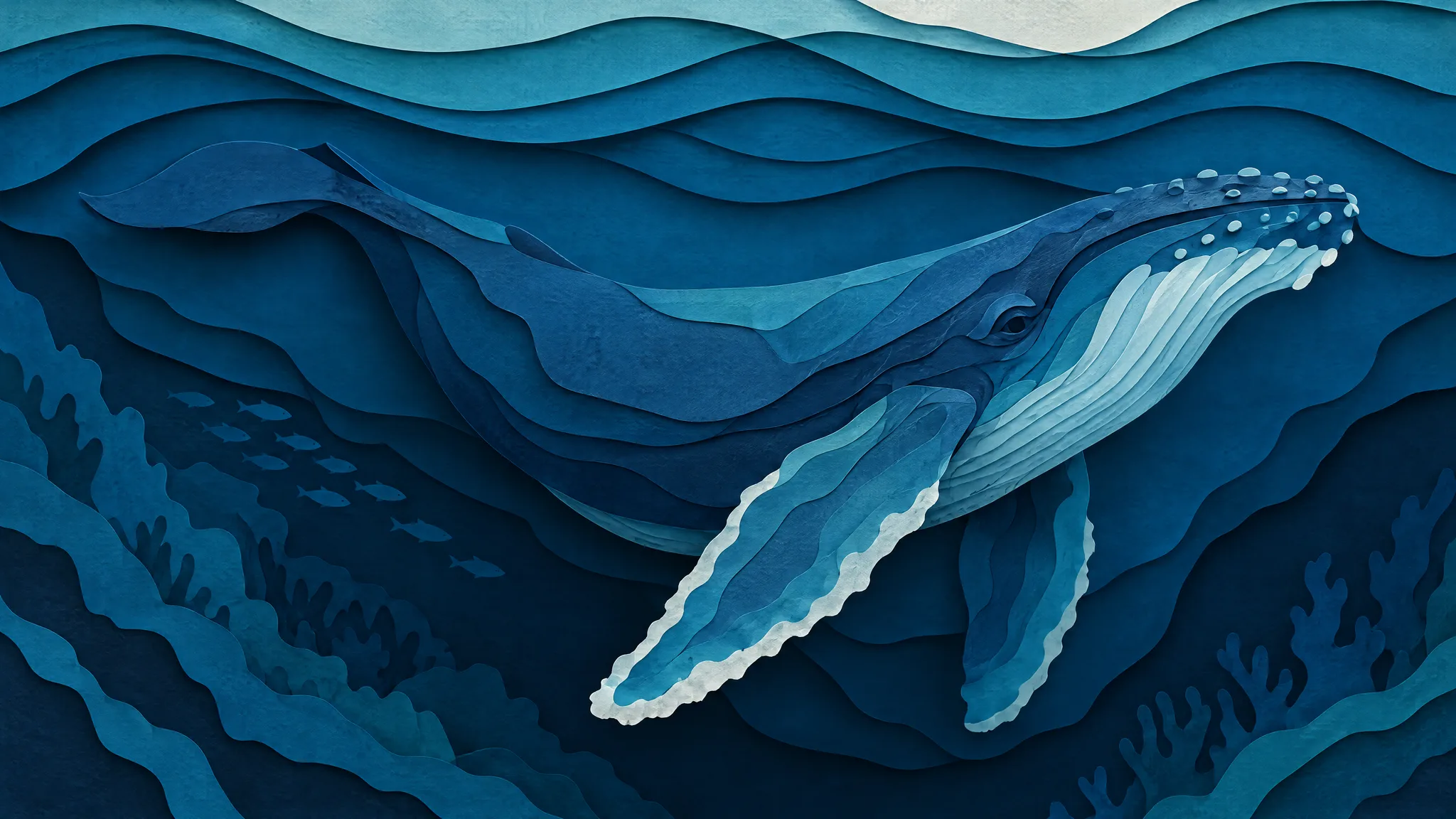
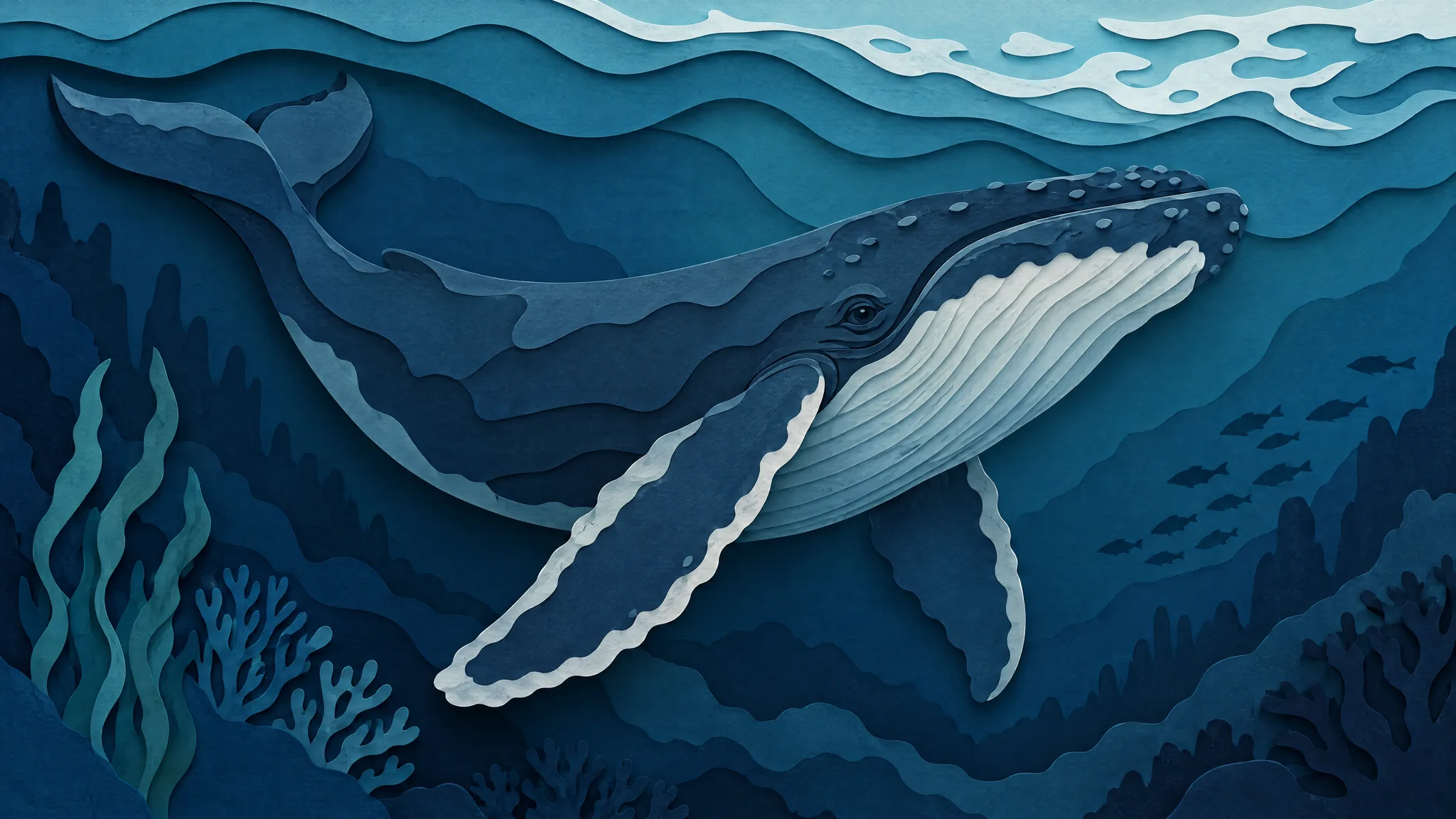
Layered paper-cut illustration of a humpback whale among blue waves
Paper-cut whale · 16:9

Explore different visual styles

Style is part of the prompt. The same idea can be a documentary photo, a flat retro poster or a layered paper-cut scene depending on the words you use for the medium, the palette and the texture. Try keeping the subject fixed and changing only the style description between generations — it is the fastest way to find a look. To restyle a photo of your own, add it as a reference image while signed in and describe the style you want.

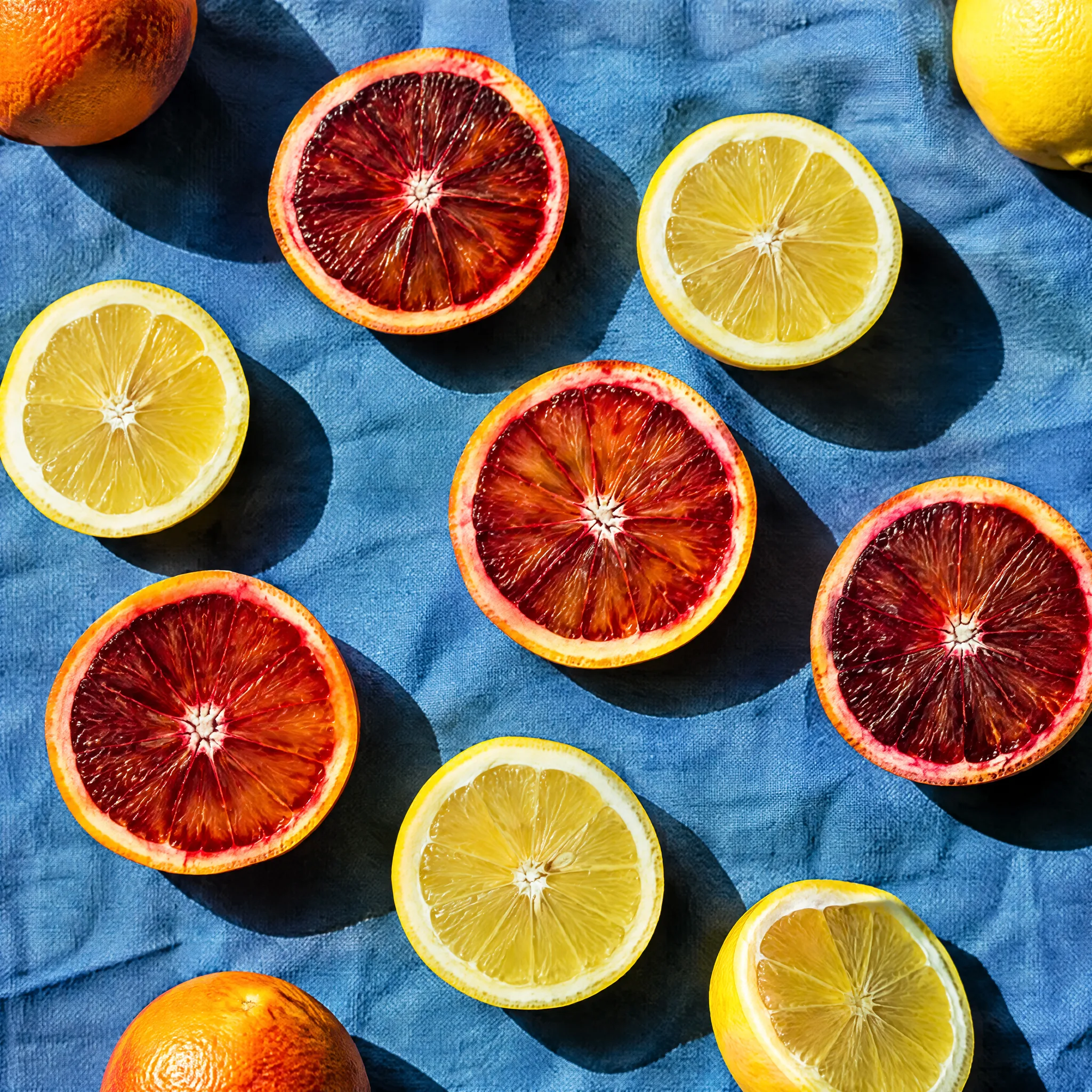
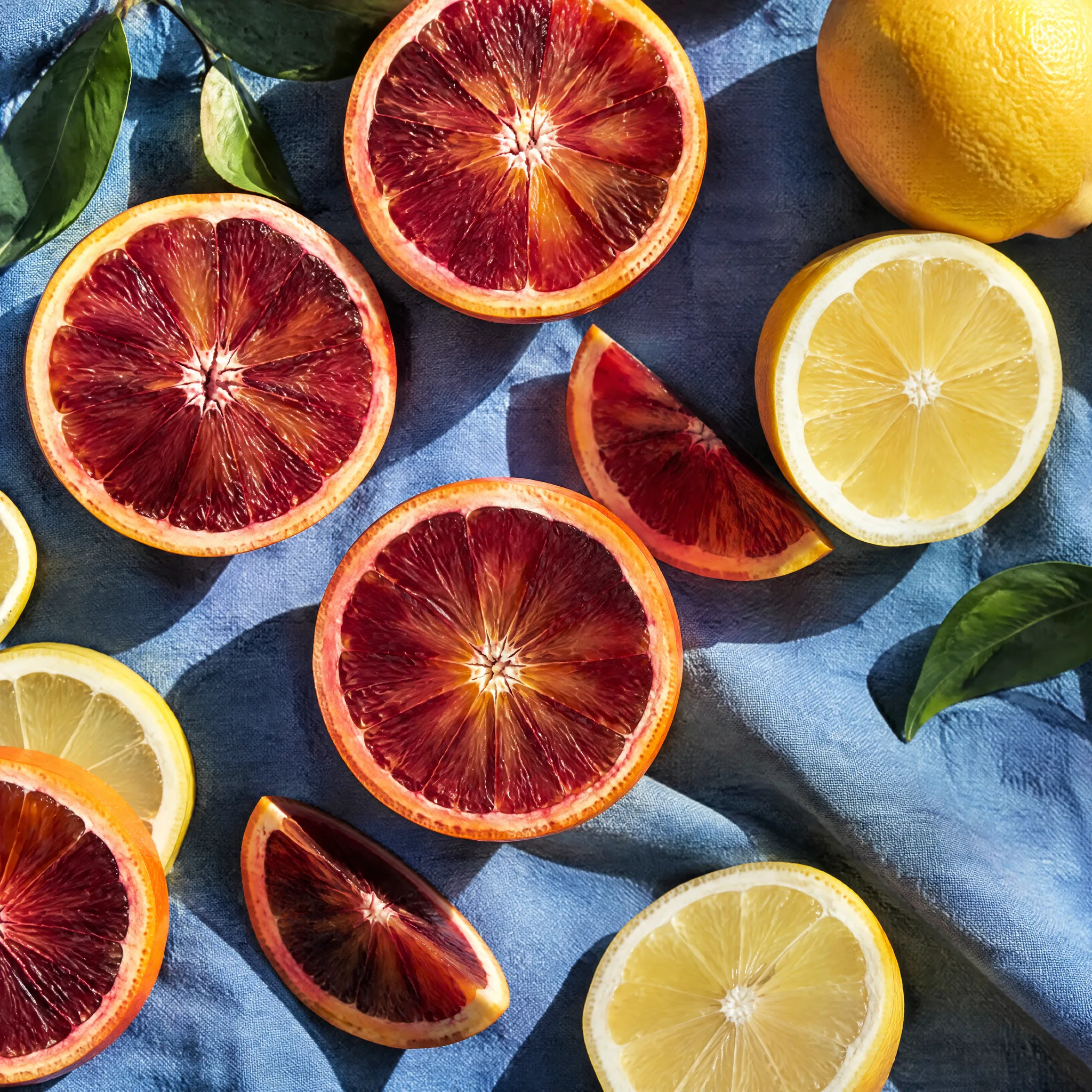
Overhead flat lay of sliced blood oranges and lemons on blue linen
Citrus still life · 1:1
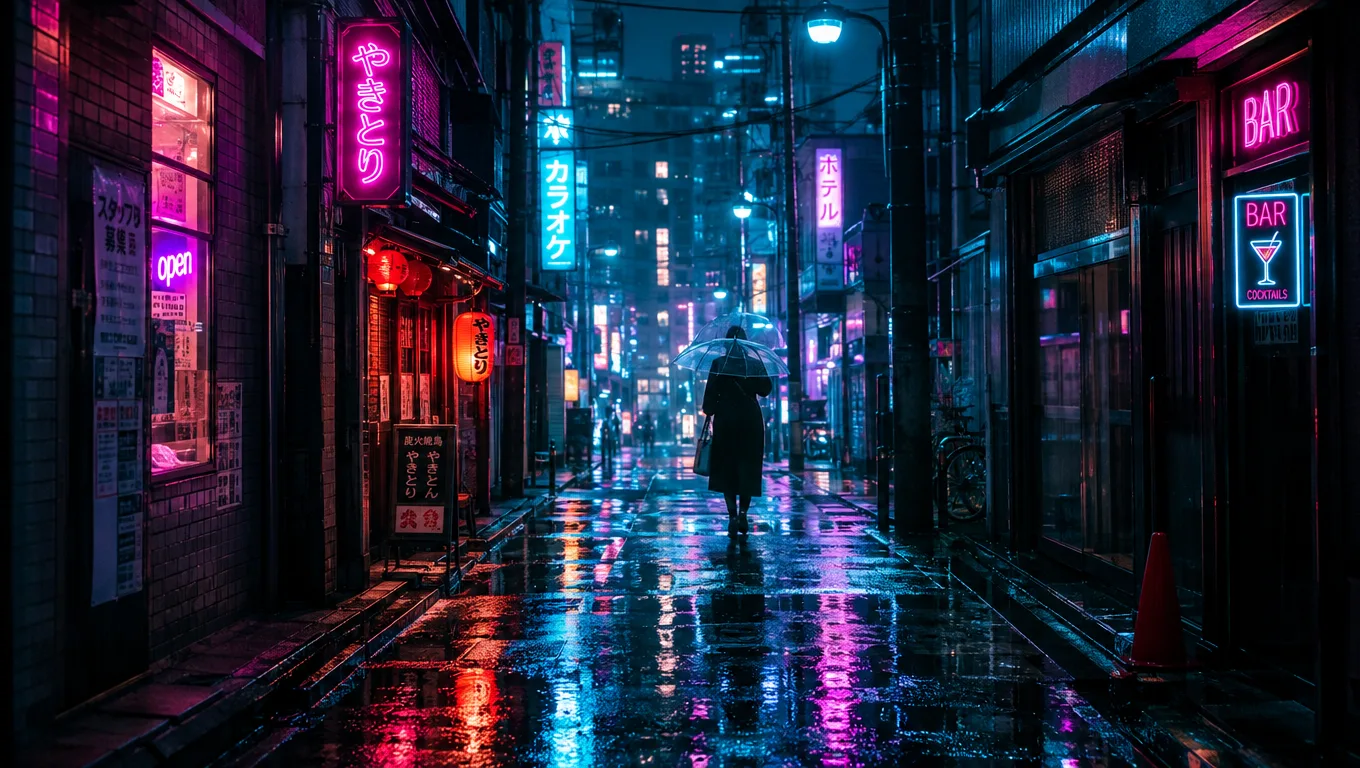
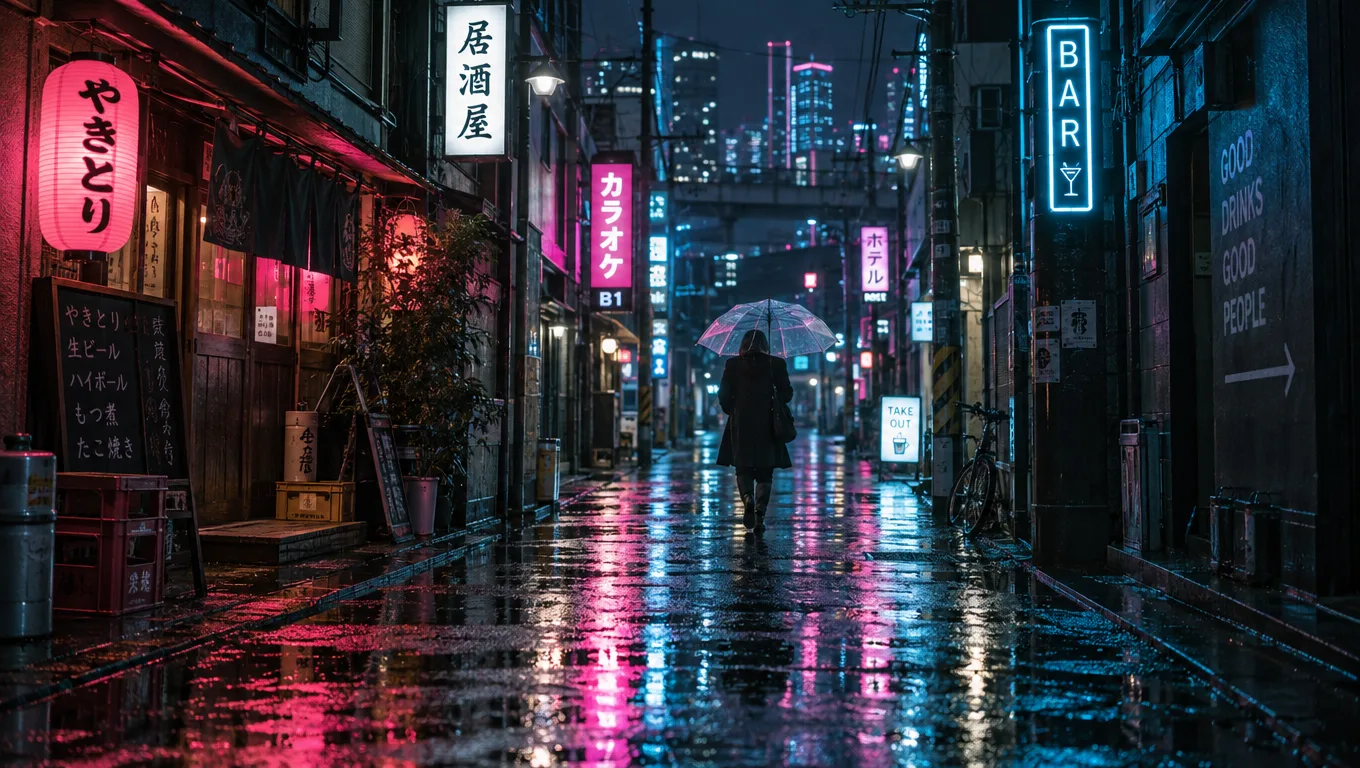
Rainy night alley with neon signs reflected in puddles and a figure holding a clear umbrella
Neon rain alley · 16:9

Find the right composition

Choose from square, portrait, landscape, ultrawide or automatic aspect ratios. The model decides the exact pixel dimensions for the selected shape. Describe placement in the prompt — "subject on the left, open sky on the right" — when you need space for your own headline or layout.

Get More from GPT Image 2.5 on Image25

Once you have made a few images, these details help you choose settings, compare results and finish a project with confidence.

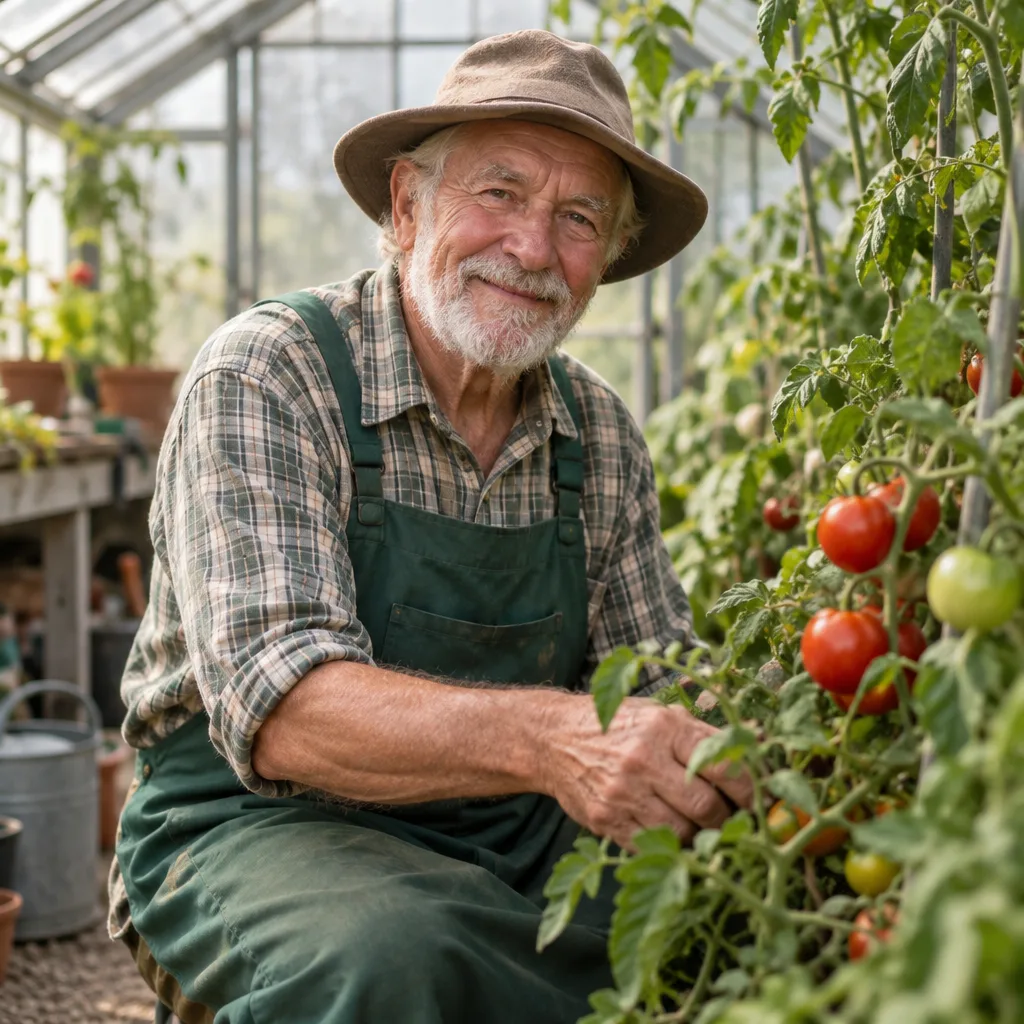
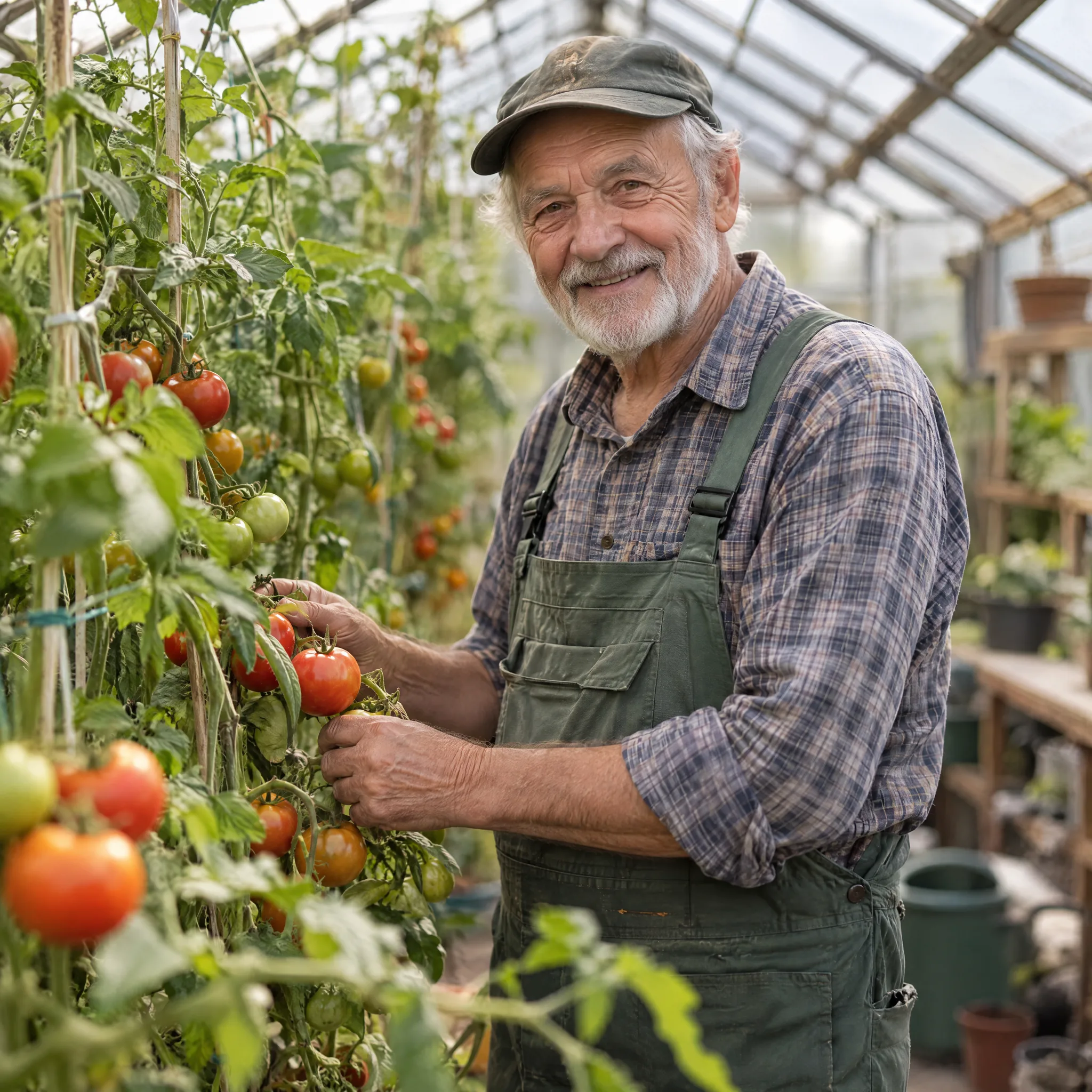
Elderly gardener smiling among tomato plants inside a glass greenhouse

Choose a quality option for your next image

Image25 offers two modes for GPT Image 2.5, with Auto (Low), Low, Medium, High, X High and Max quality. Auto uses the lowest quality and credit cost for the selected mode. Fast (Flare) is the default and starts at 10 credits per Medium image. Precision (Sunburst) renders finer detail, starts at 15 credits per Medium image, and is available with any paid plan or credit pack. Choose an aspect ratio and quality before generating. The model determines the exact pixel size.

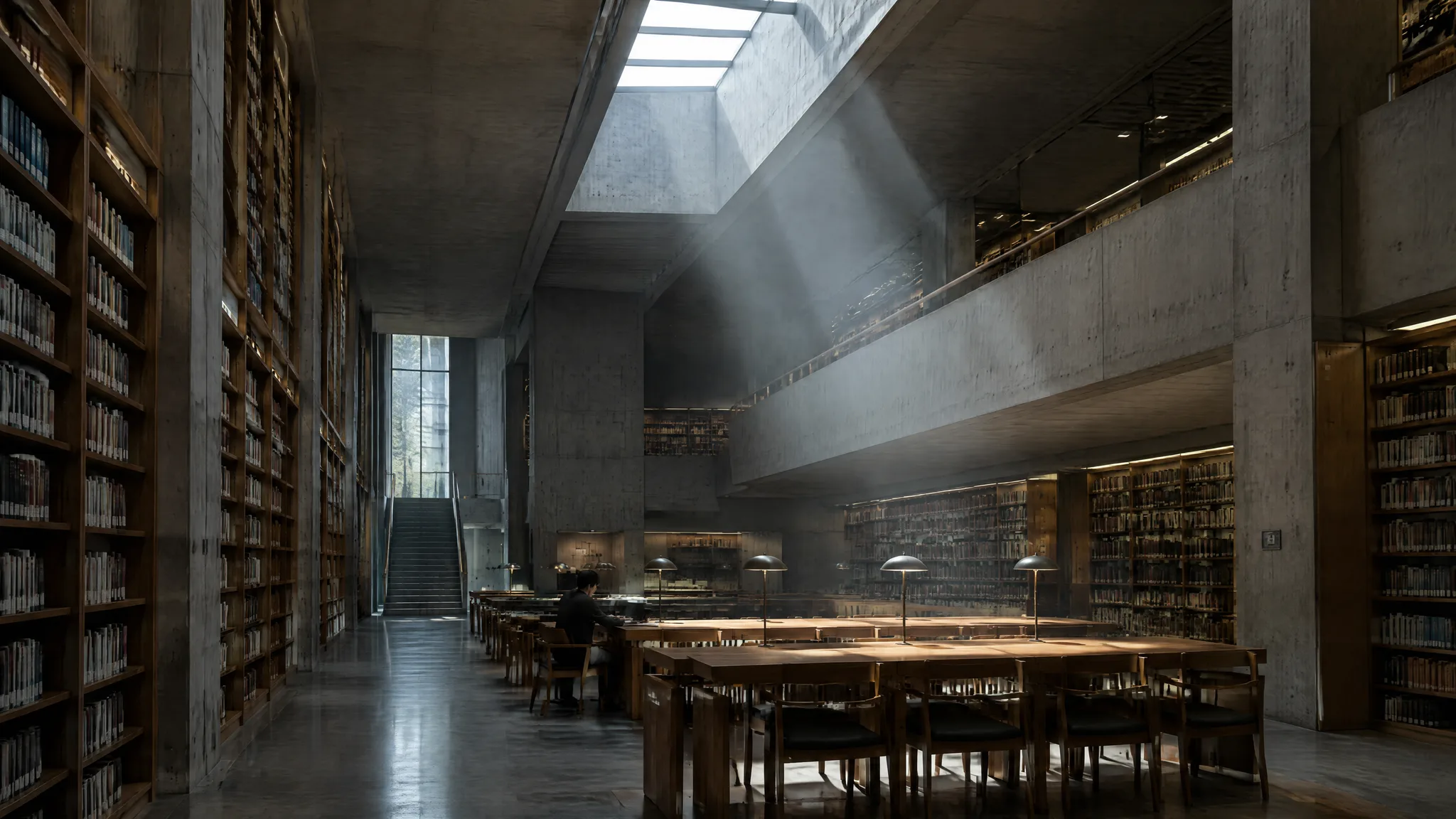
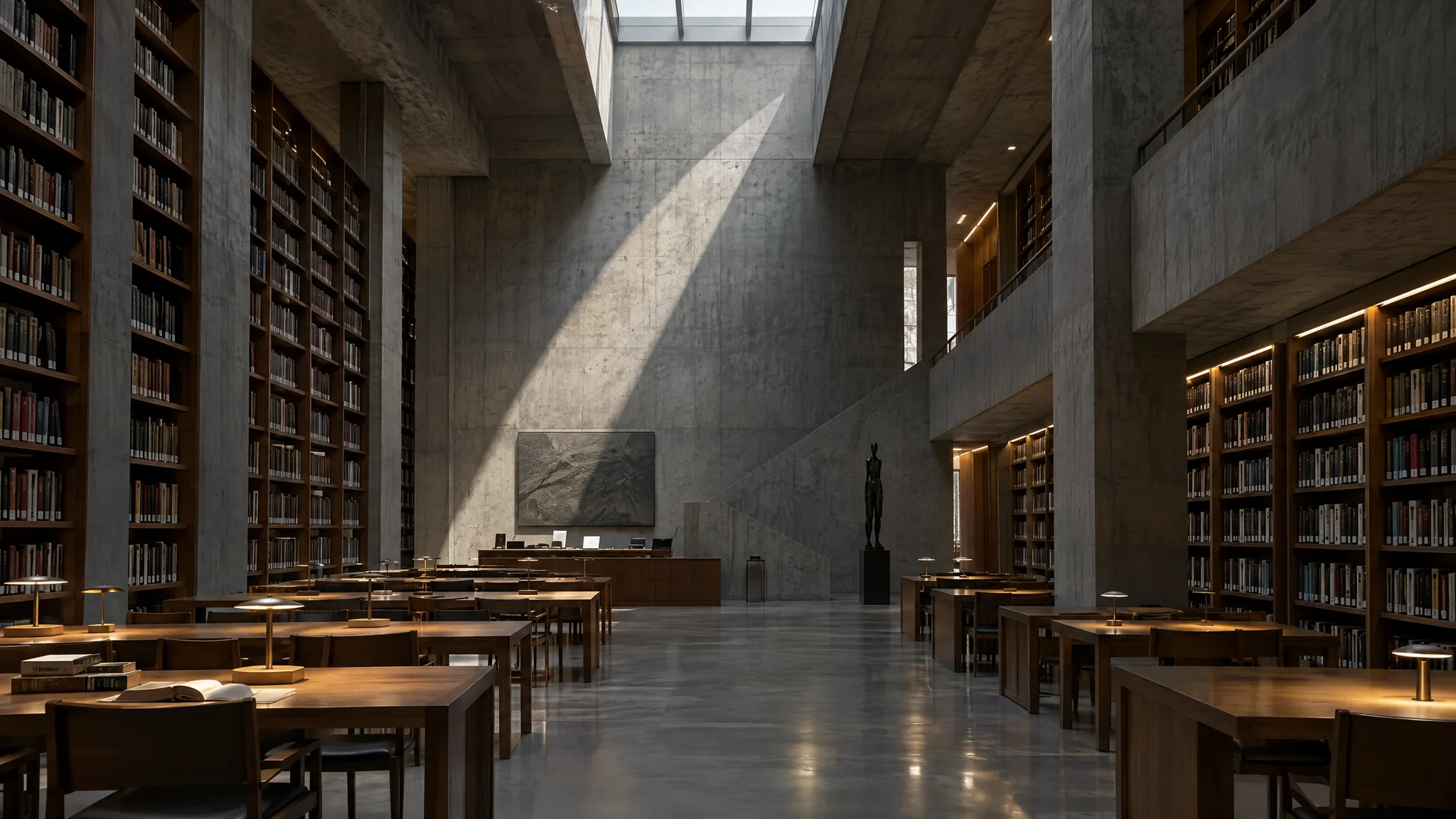
Concrete library interior with a skylight beam falling across reading tables

Inspect image detail before downloading

Aspect ratio describes the shape of an image, not its pixel size. Choose 1:1 or 16:9 for the shape, then check the preview for the details that matter to you — hands, edges, small text-like shapes and textures are where generated images most often need another attempt. The download button saves the generated file.

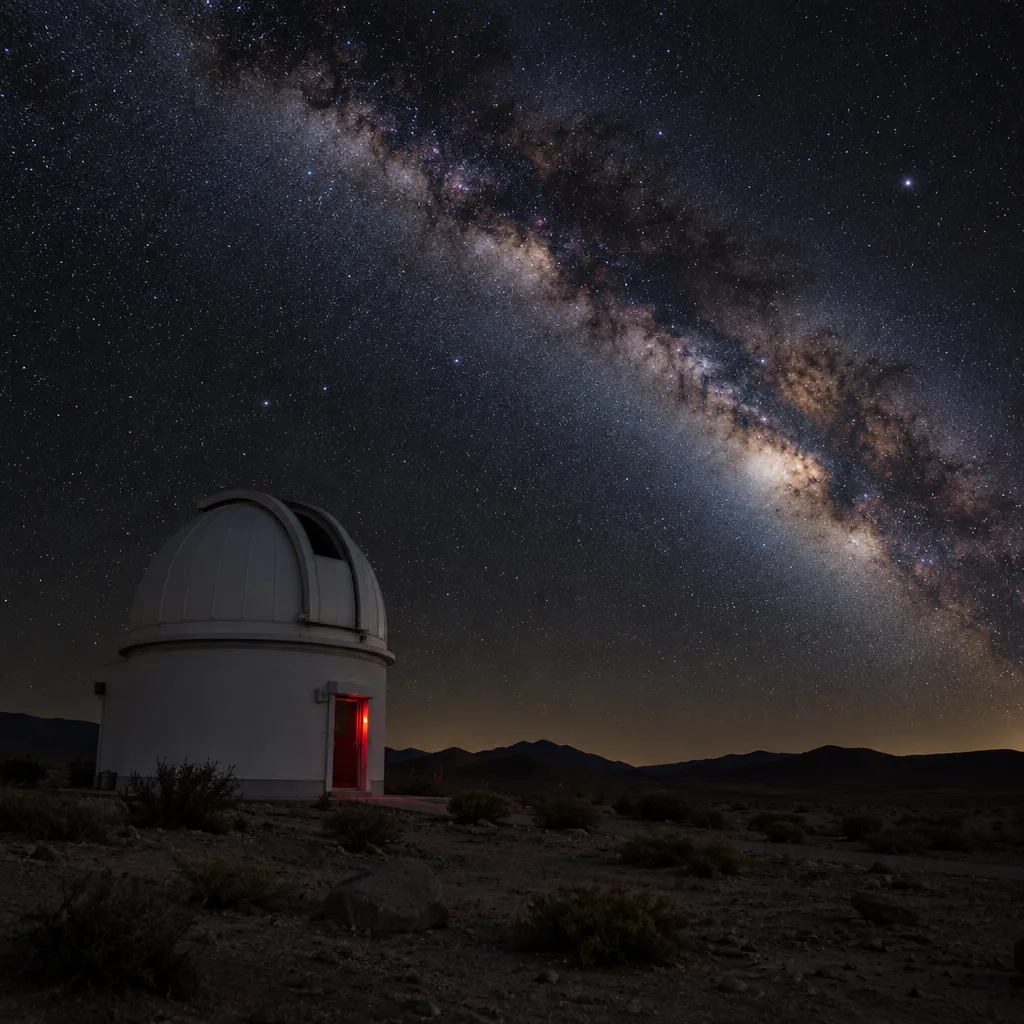
White observatory dome in the desert under the Milky Way at night

Refine an idea one generation at a time

Keep your prompt and change one element per attempt: the camera angle, the time of day, the background. Changing several things at once makes it hard to tell which word made the difference. Your prompt and settings stay in the generator after each run. A generation usually takes up to a minute; if one fails, the credits reserved for it are released and you can simply try again.

Overhead flat lay of sliced blood oranges and lemons on blue linen

Understand image usage before publishing

Under the Image25 terms you keep any rights you have in what you submit, and you are responsible for having the rights needed to use generated output. Generation also runs through third-party model providers whose terms may apply. Treat concept images as concepts: do not present a generated product scene as a photo of a real item, and check facts before using images for education or news.

Layered paper-cut illustration of a humpback whale among blue waves

Plan your credits and keep your results

Each generation uses credits: new accounts using Google sign-in or Gmail registration receive free starter credits, and subscriptions add a monthly allowance. Other email registrations do not receive signup credits. Generated images are stored privately: for 14 days on a free account, for as long as your subscription is active, for 90 days after a subscription ends, and for 12 months after your last credit-pack purchase. You can review plans and credit allowances on the pricing page and manage a subscription from your billing settings.

GPT Image 2.5 for Content, Design, and Business Ideas

Different jobs need different prompts. Start from the task you have today and use these directions as a first draft.

  • Content creators

    Need a cover for a blog post or a visual for a social thread? Describe the article’s core idea as a scene rather than a literal headline, add a mood and a color palette, and choose 16:9 for covers or 1:1 for feeds. Generate a few variations, pick the one that reads best at small sizes, and pair it with your own title text.

  • Marketing teams

    Use prompts to sketch campaign themes and ad concepts before committing to a shoot or a designer’s time. Describe the audience, the setting and the feeling the campaign should have. Treat the results as mood and direction for discussion; final ads still need your brand assets and review.

  • E-commerce concepts

    Plan product scenes before a photo shoot: a kitchen counter at dawn, a beach towel on warm sand, a studio backdrop in your brand colors. From text alone the model invents the product; adding your own product photo as a reference image keeps it closer. Either way the result is generated, so check shape, labels and colors, and never present it as an unedited photo of the item you sell.

  • Designers

    Explore composition and style quickly. Keep a subject fixed and vary the medium, palette or framing to build a mood board, or generate wide 16:9 scenes with open space to test layouts. The results are a starting point for your own work in your usual design tools.

  • Education

    Create illustrations that make a lesson more concrete: a cross-section of a volcano, a medieval market, a watercolor of the water cycle. Ask for a clear, simple style and a plain background. Generated images can contain inaccuracies, so check every detail before sharing them with students.

  • Small businesses

    Make website headers, seasonal promotion visuals and social posts without a large budget. Describe your shop’s atmosphere — cozy café, bright florist, calm studio — and generate a wide header and a square post from the same idea. Add your logo and text afterwards so they stay accurate.

Ideas for what to make next

Four different needs, each shown with an original GPT Image 2.5 result.

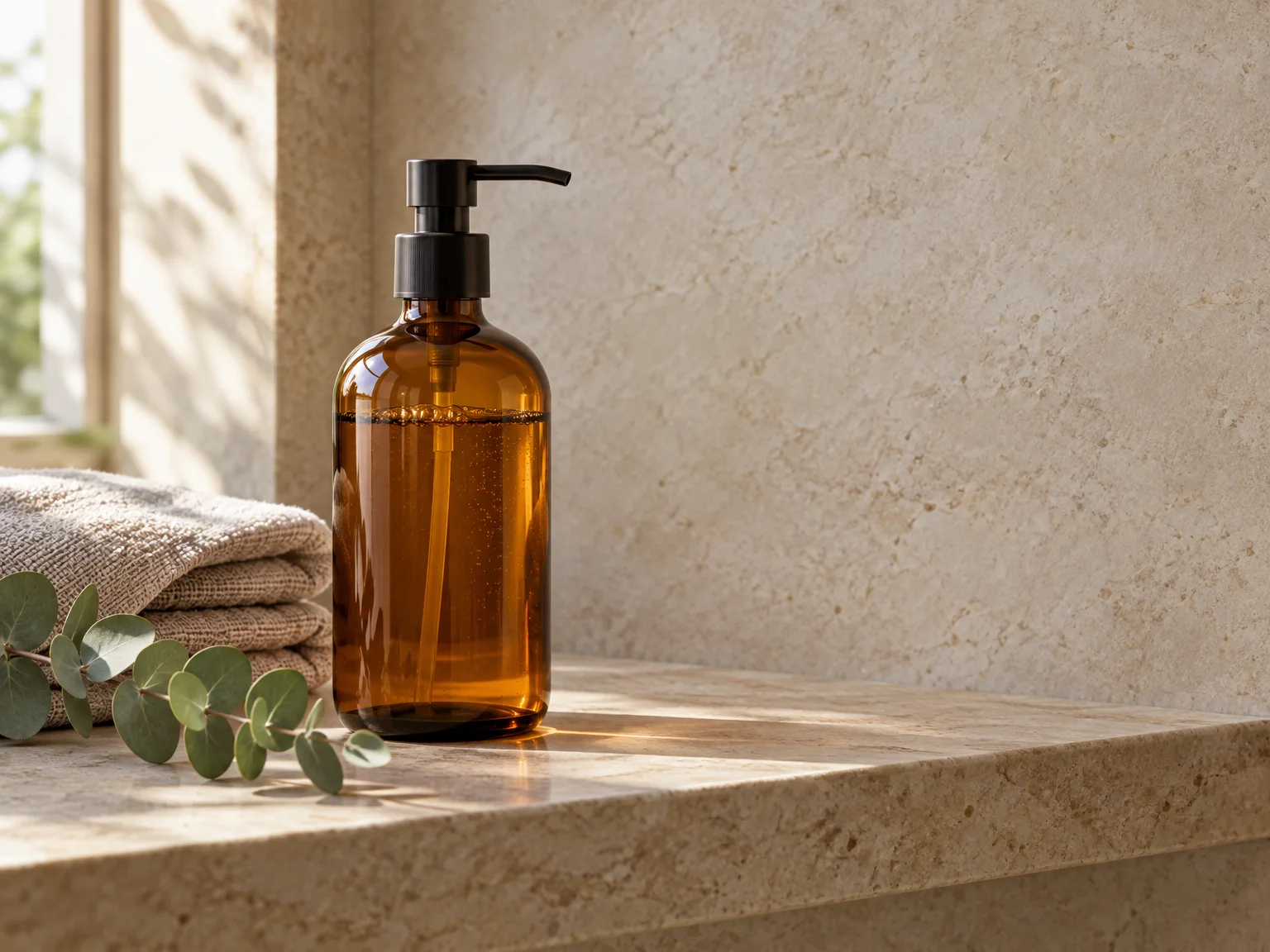
Amber soap bottle on a bathroom shelf

Product photography

Show packaging in a believable setting with room for campaign copy.

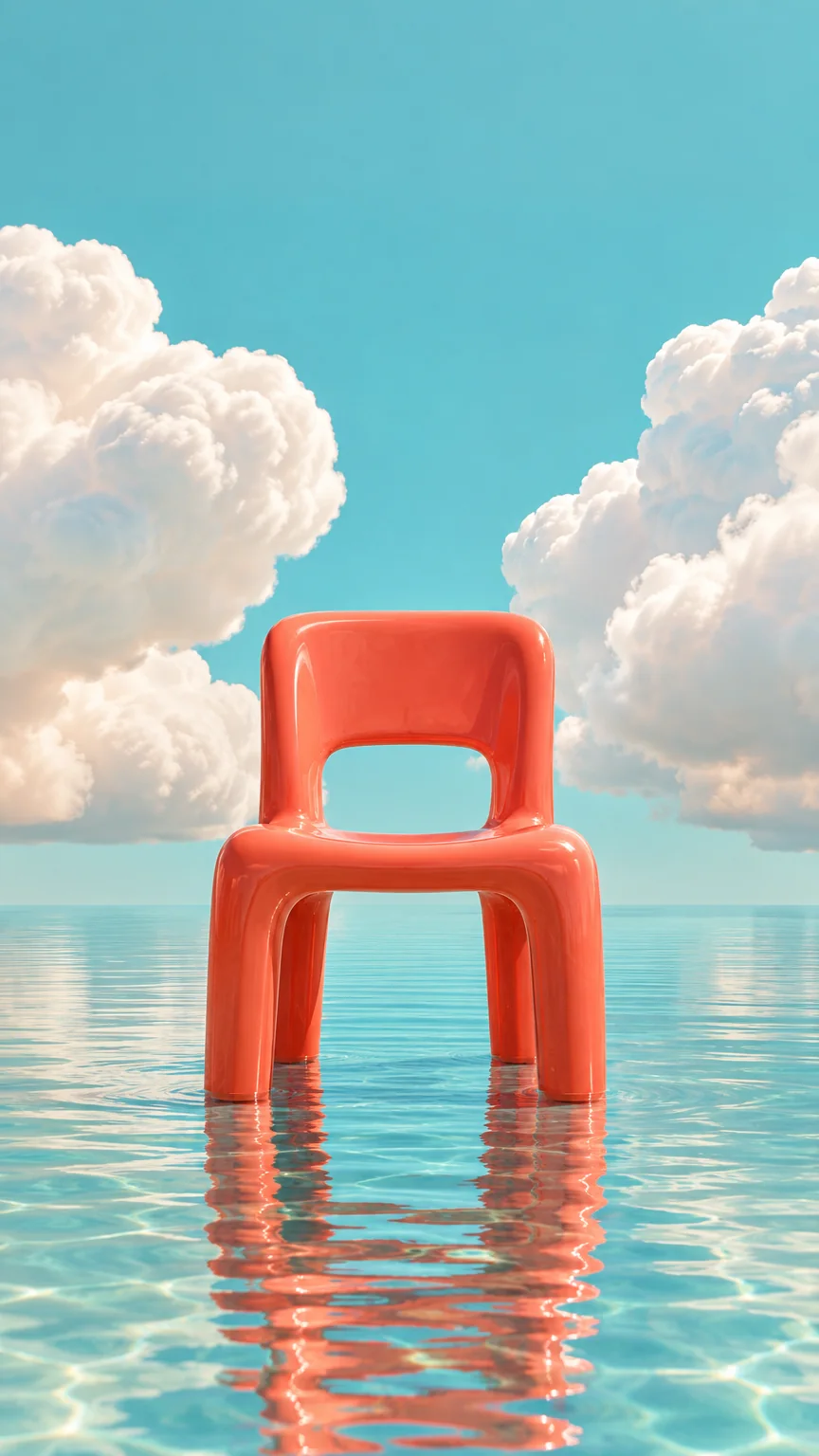
Coral chair reflected in shallow water beneath clouds

Vertical social visuals

Build a portrait composition for a story or mobile-first campaign.

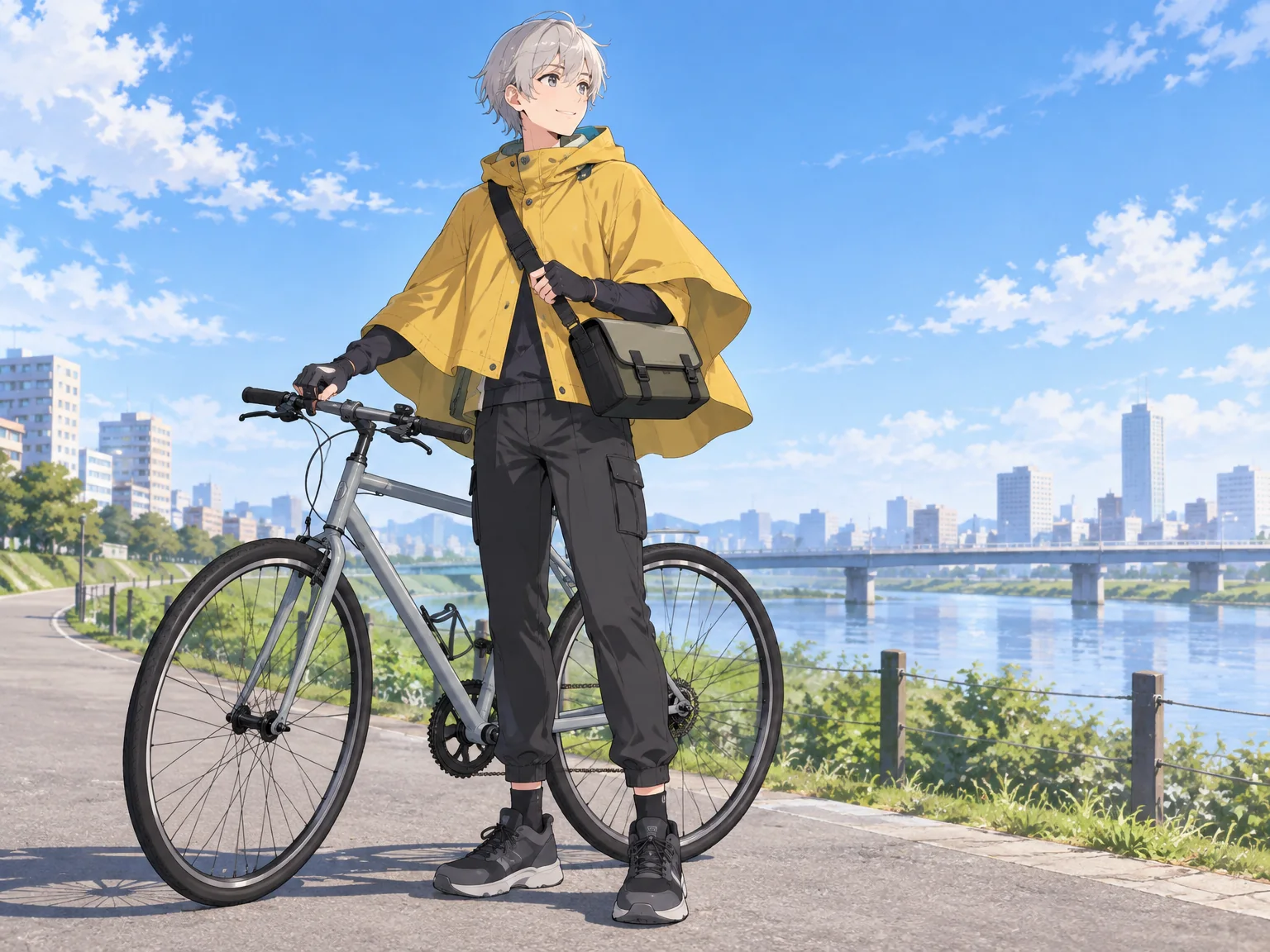
Anime bicycle courier

Original illustrated characters

Explore a distinctive character and a consistent visual mood.

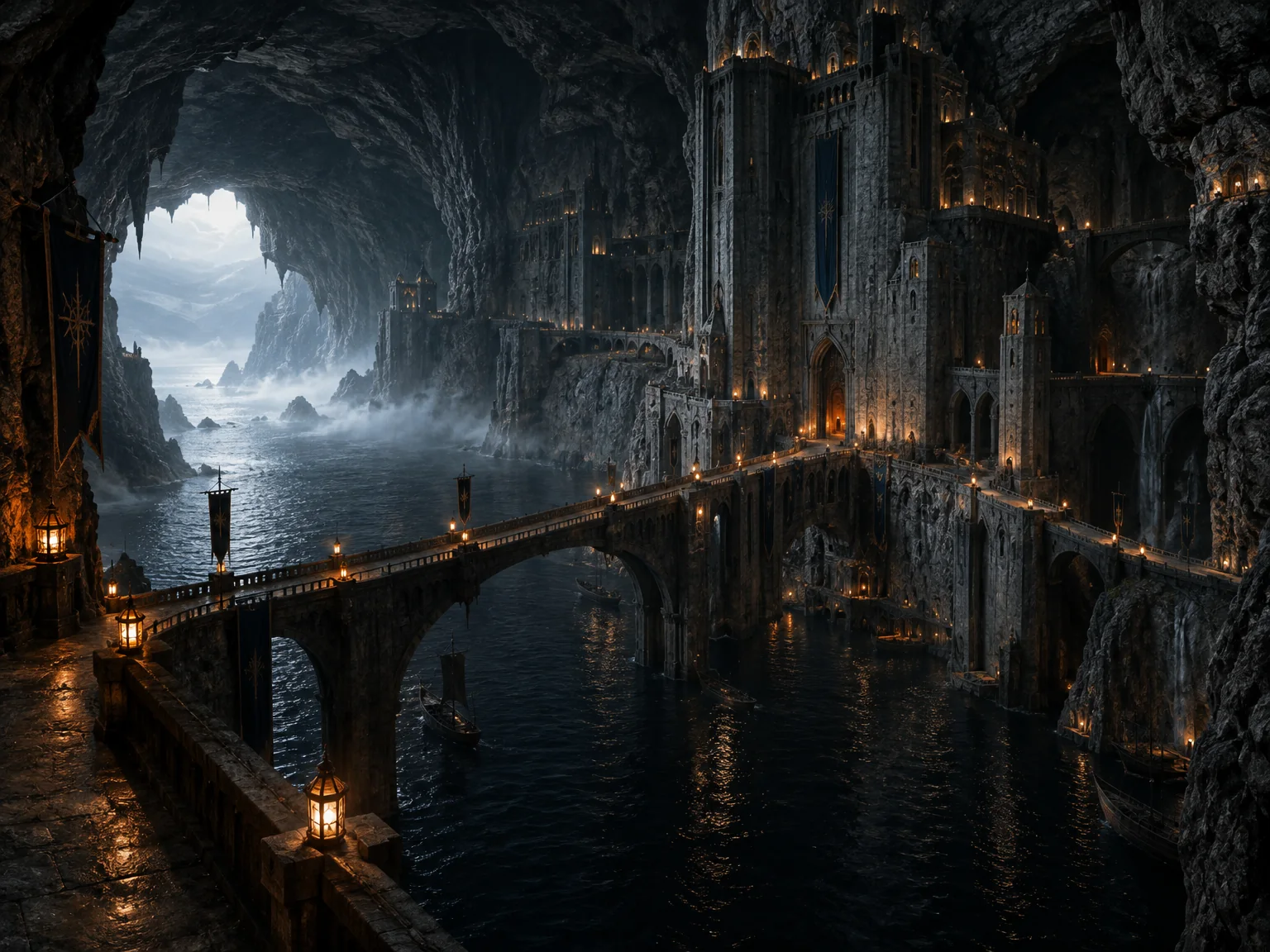
Fantasy fortress inside a sea cave

Fantasy worldbuilding

Turn a setting idea into a detailed environmental concept.

From Prompt to Result with GPT Image 2.5

These examples were made by the Image25 team. Each shows the goal, the exact prompt and settings, and what we noticed about the result — not a customer testimonial.

Speckled ceramic vase with dried grass on an oak table in soft window light

Example by Image25

Sunlit ceramic vase

Goal
A calm square image for a blog post about slow mornings.
Prompt
A handmade speckled ceramic vase with dried pampas grass on an oak table, soft morning window light, long gentle shadows, calm neutral palette, editorial product photo
Settings
1:1 · Flare
What we noticed
Naming the light source ("morning window light") produced soft directional shadows. For a 16:9 cover, add "empty space on the right" to leave room for a headline.
Rainy night alley with neon signs reflected in puddles and a figure holding a clear umbrella

Example by Image25

Neon rain alley

Goal
A moody night scene to explore the look of a city-themed campaign.
Prompt
A narrow city alley at night in the rain, glowing neon shop signs reflected in puddles, a lone figure with a clear umbrella, cinematic wide shot, teal and magenta tones
Settings
16:9 · Flare
What we noticed
Specifying the two dominant colors kept the palette consistent. Removing "lone figure" gives an empty scene that works better as a background.
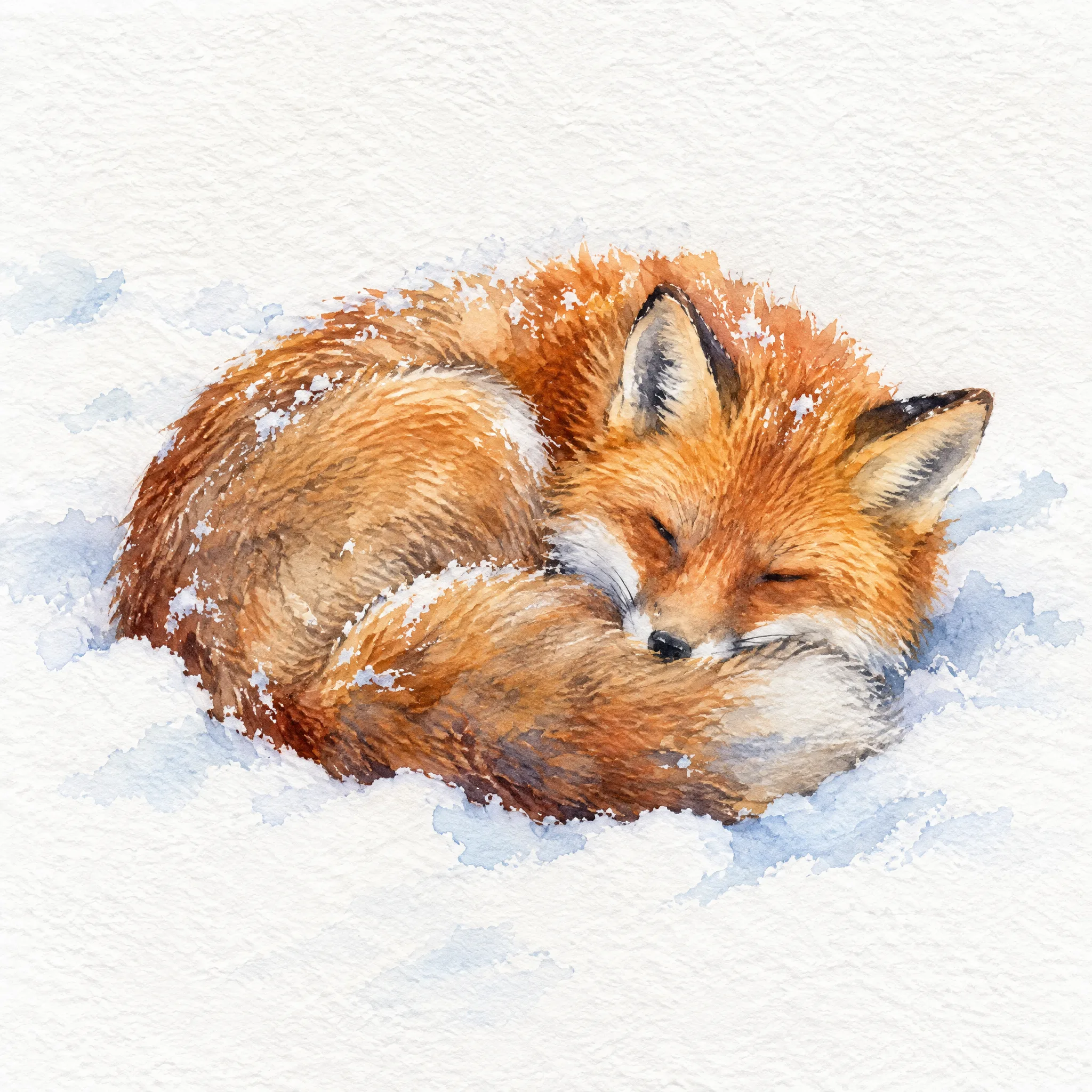
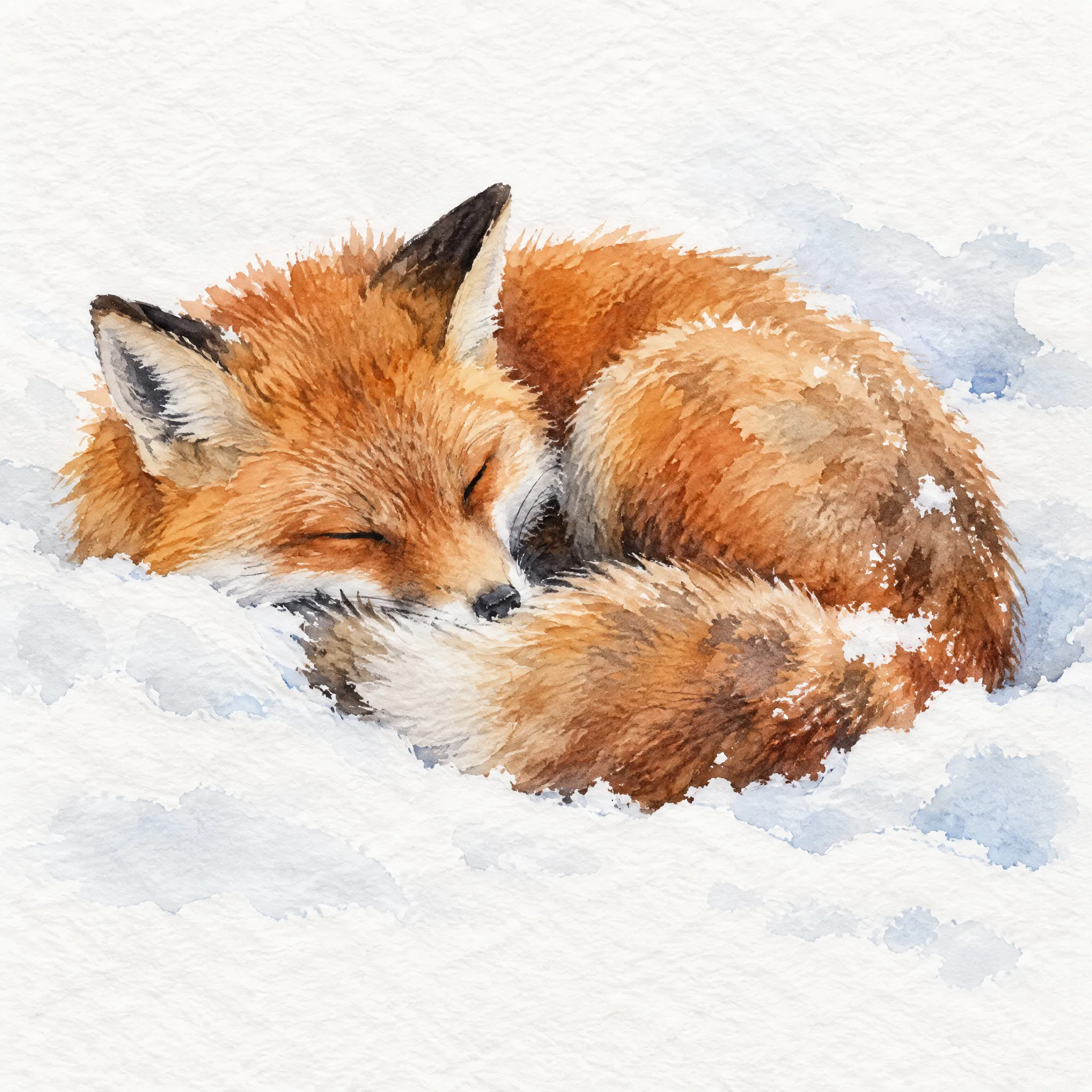
Watercolor illustration of a red fox sleeping in snow with soft blue shadows

Example by Image25

Watercolor fox

Goal
A gentle illustration for a children’s lesson about winter animals.
Prompt
A red fox curled up asleep in fresh snow, loose watercolor illustration, visible paper texture, soft blue shadows, minimal background
Settings
1:1 · Flare
What we noticed
The medium words ("loose watercolor", "paper texture") mattered more than the subject for the final look. Check animal details before using an image in teaching material.

Choose how to create

Two GPT Image 2.5 modes, with a clear credit price before you generate.

GPT Image 2.5

Flare · Fast

A starting point for exploring ideas and making everyday images. Fast · Medium is available to every account.

From 10 credits · Medium quality

GPT Image 2.5

Sunburst · Precision

A finer-detail option for images that need more careful rendering. It unlocks with a paid plan or credit pack.

From 15 credits · Medium quality

Explore Flare and Sunburst in detail

Both modes support the same creative controls. Compare their results and credit costs before choosing.

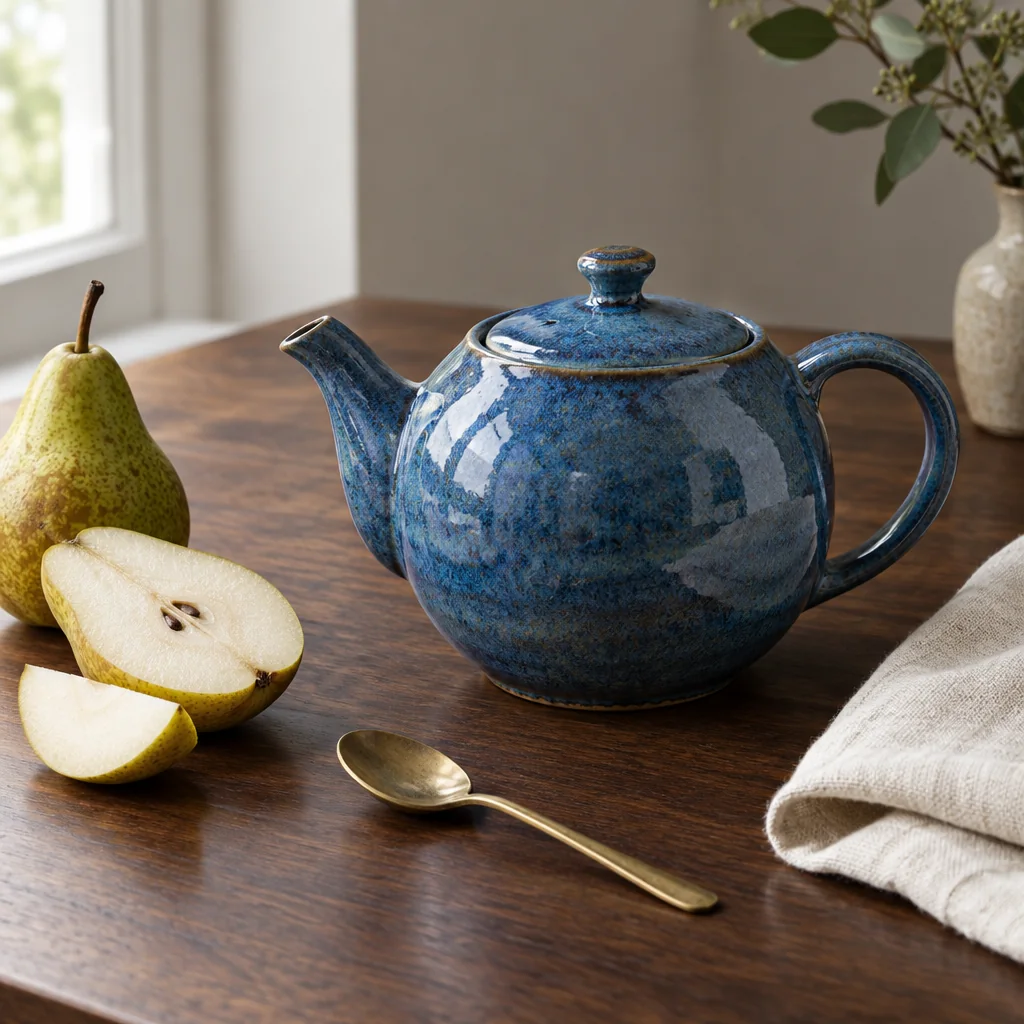
Blue teapot generated with Flare

Flare · Fast

A starting point for exploring ideas and making everyday images. Fast · Medium is available to every account.

Shared prompt: Editorial product photograph of a handmade blue ceramic teapot on a dark walnut table, a folded cream linen cloth, a sliced pear and a small brass spoon nearby, soft window light from the left, fine ceramic glaze texture, believable reflections, careful object edges, natural shadows, balanced square composition, no people, no text, no logos.

Generated at Medium quality · 1:1 · Auto background

Quality
Auto, Low, Medium, High, X High, Max
Aspect ratios
1:1, 3:2, 2:3, 4:3, 3:4, 16:9, 9:16, 21:9, auto
Background
Auto, Transparent, Opaque
Reference images
Up to 16 on signed-in accounts; +5 credits each

The model determines the output pixel size; there is no selectable resolution setting.

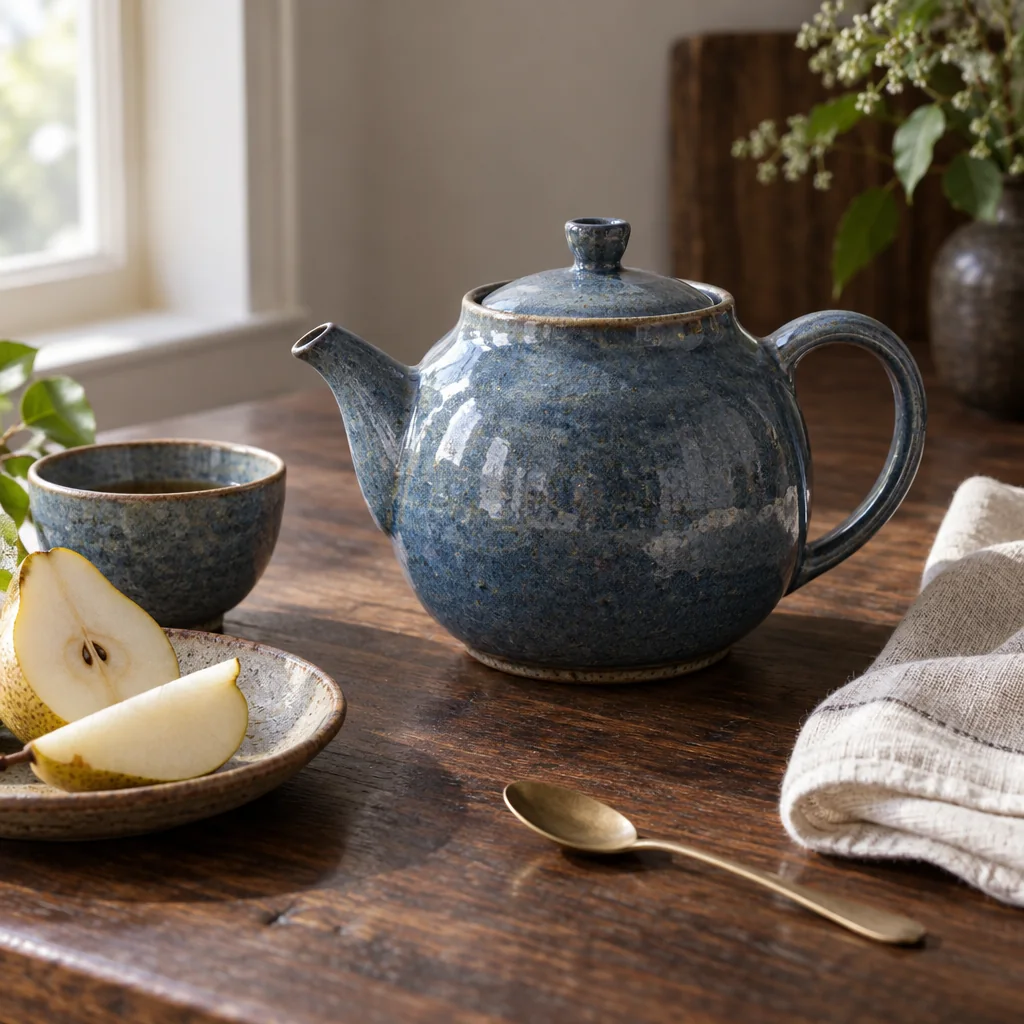
Blue teapot generated with Sunburst

Sunburst · Precision

A finer-detail option for images that need more careful rendering. It unlocks with a paid plan or credit pack.

Shared prompt: Editorial product photograph of a handmade blue ceramic teapot on a dark walnut table, a folded cream linen cloth, a sliced pear and a small brass spoon nearby, soft window light from the left, fine ceramic glaze texture, believable reflections, careful object edges, natural shadows, balanced square composition, no people, no text, no logos.

Generated at Medium quality · 1:1 · Auto background

Quality
Auto, Low, Medium, High, X High, Max
Aspect ratios
1:1, 3:2, 2:3, 4:3, 3:4, 16:9, 9:16, 21:9, auto
Background
Auto, Transparent, Opaque
Reference images
Up to 16 on signed-in accounts; +5 credits each

The model determines the output pixel size; there is no selectable resolution setting.

Pick a plan for your ideas

Your plan supplies monthly credits. Every generation shows its exact credit cost before you create.

Basic

$9.90 / month

$95.90 billed yearly · Save 19%

1,000 credits / month

View plan

Pro

$29.90 / month

$179.40 billed yearly · Save 50%

3,000 credits / month

View plan

Max

$79.90 / month

$479.40 billed yearly · Save 50%

10,000 credits / month

View plan

Credits per image

Fast · Medium10
Fast · High40
Fast · Auto (Low)10
Fast · Low10
Fast · X High200
Fast · Max400
Precision · Medium15
Precision · High50
Precision · Auto (Low)15
Precision · Low15
Precision · X High240
Precision · Max480
Nano Banana 2.1 · 1K25
Nano Banana 2.1 · 2K30
Nano Banana 2.1 · 4K70
Seedream 5.0 Flash · 1K15
Seedream 5.0 Flash · 2K15
Seedream 5.0 Pro · 1K25
Seedream 5.0 Pro · 2K70

Each reference image adds 5 credits.

Explore tools and guides

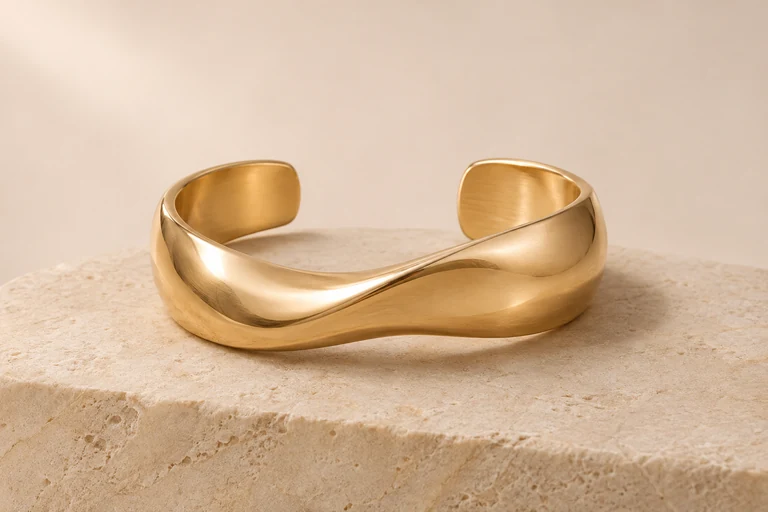
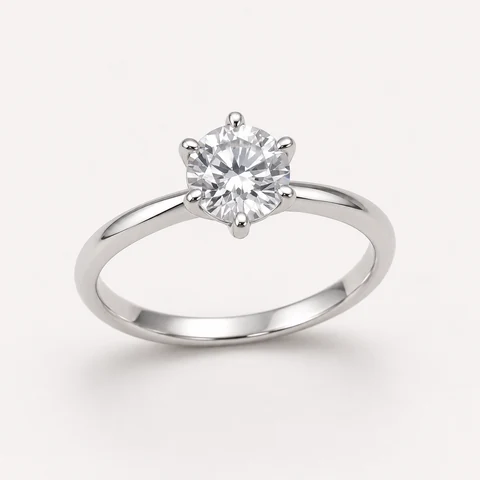
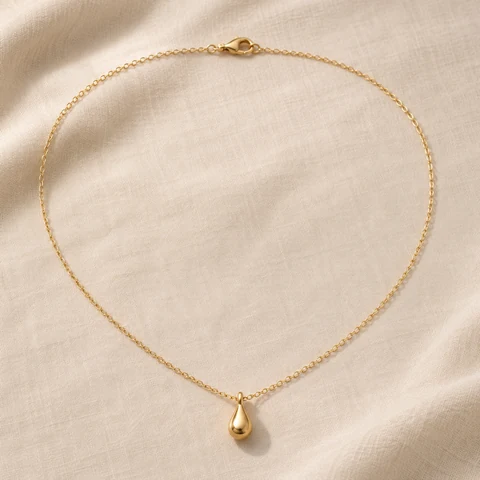
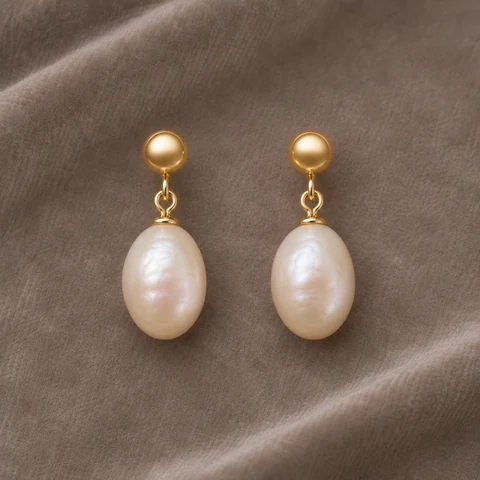
Find a tool for your next image, from product photography and jewelry design to portraits and illustration. Follow a guide to prepare your photos and plan your next step.

AI Jewelry Studio

GPT Image 2.5 FAQ

Getting started and results

GPT Image 2.5 is the image model behind the Image25 generator. On Image25 you use it by writing a text prompt on the homepage, choosing a format and quality option, and generating. Image25 handles the request, stores the result privately for your account and lets you download it.

Credits, plans and support

Still have a question? Contact support · About Image25 · Plans and credit pricing

Start Creating with GPT Image 2.5

Write a prompt, choose a format and quality option, and see your first image in about a minute.

View pricing