Draw one view
A single three-quarter or front view renders best. Several views on one page can merge into one confused piece; crop to the view you want.
Jewelry Studio · Edit & variations
A sketch is the fastest way to capture an idea, but it is hard for a customer to picture. Upload the drawing, choose a metal and a backdrop, and get a photorealistic concept render that follows your lines.
Updated · Image25 Jewelry Studio
15 credits · Fast · Medium · 1 image
Includes one reference photo. Every new generation costs 15 credits.
Email sign-in keeps your selection. Google sign-in leaves this page; reselect your photo and settings after returning.
Studio white · Yellow gold
Clean product render on white.
Jewelry sketch to render turns a pencil or digital drawing of a ring, pendant, earrings or bracelet into one photorealistic concept render. It follows your outline, proportions and stone positions, and you choose the metal and a studio, velvet or linen backdrop. One render costs 15 credits. It is a concept image, not CAD or a manufacturing drawing.
01
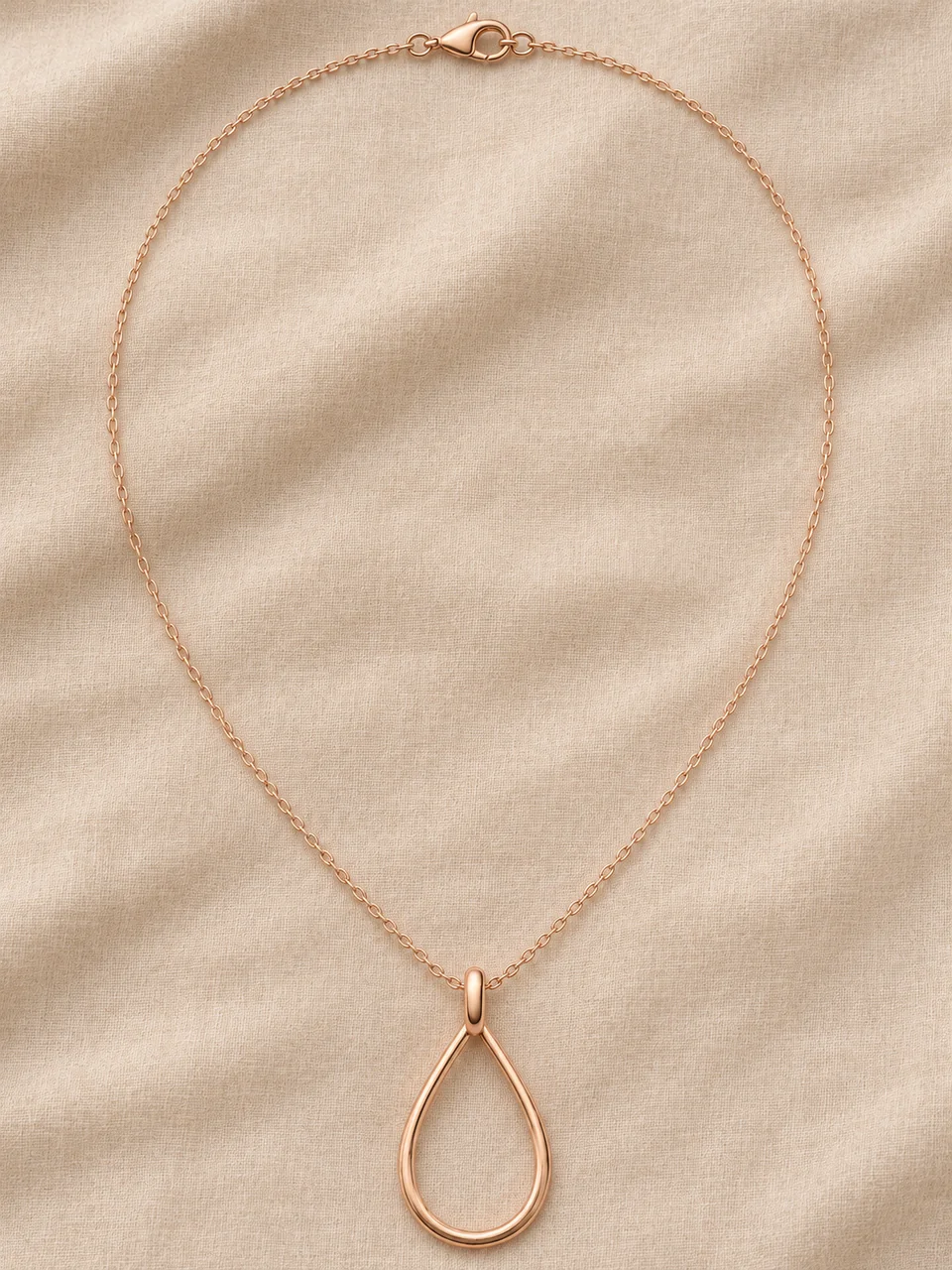
Two pencil sketches, rendered in three metals and settings.
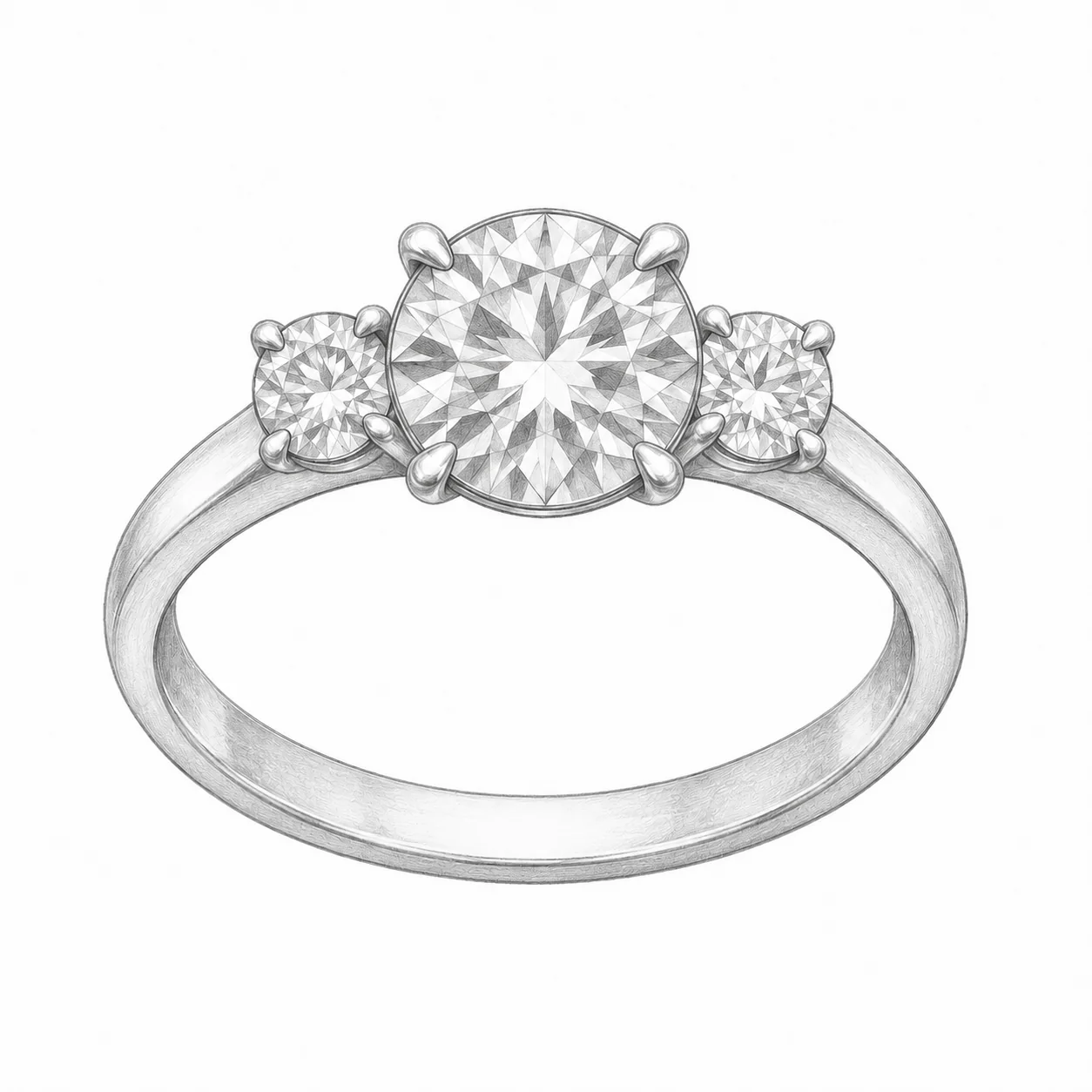 Before
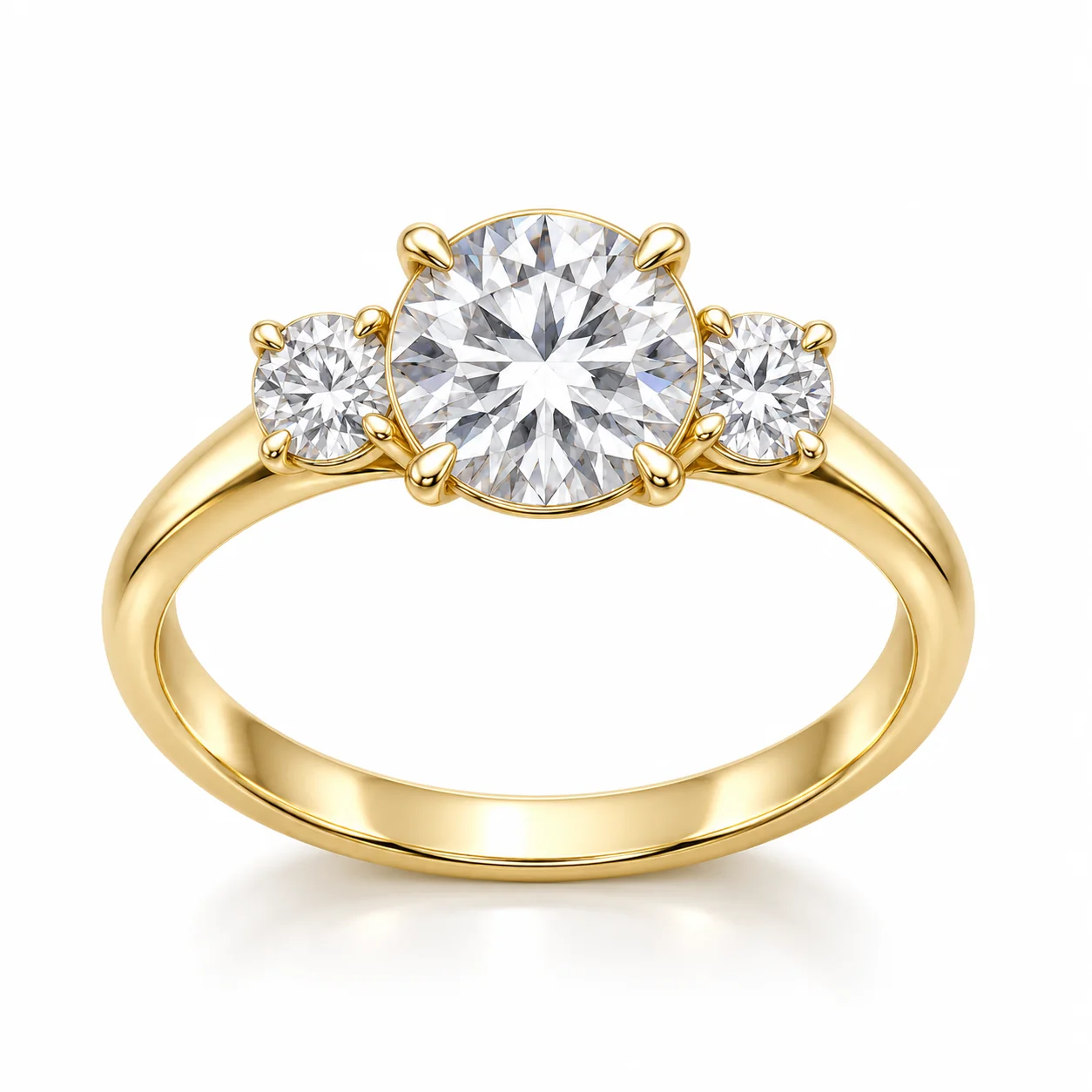 AfterBefore
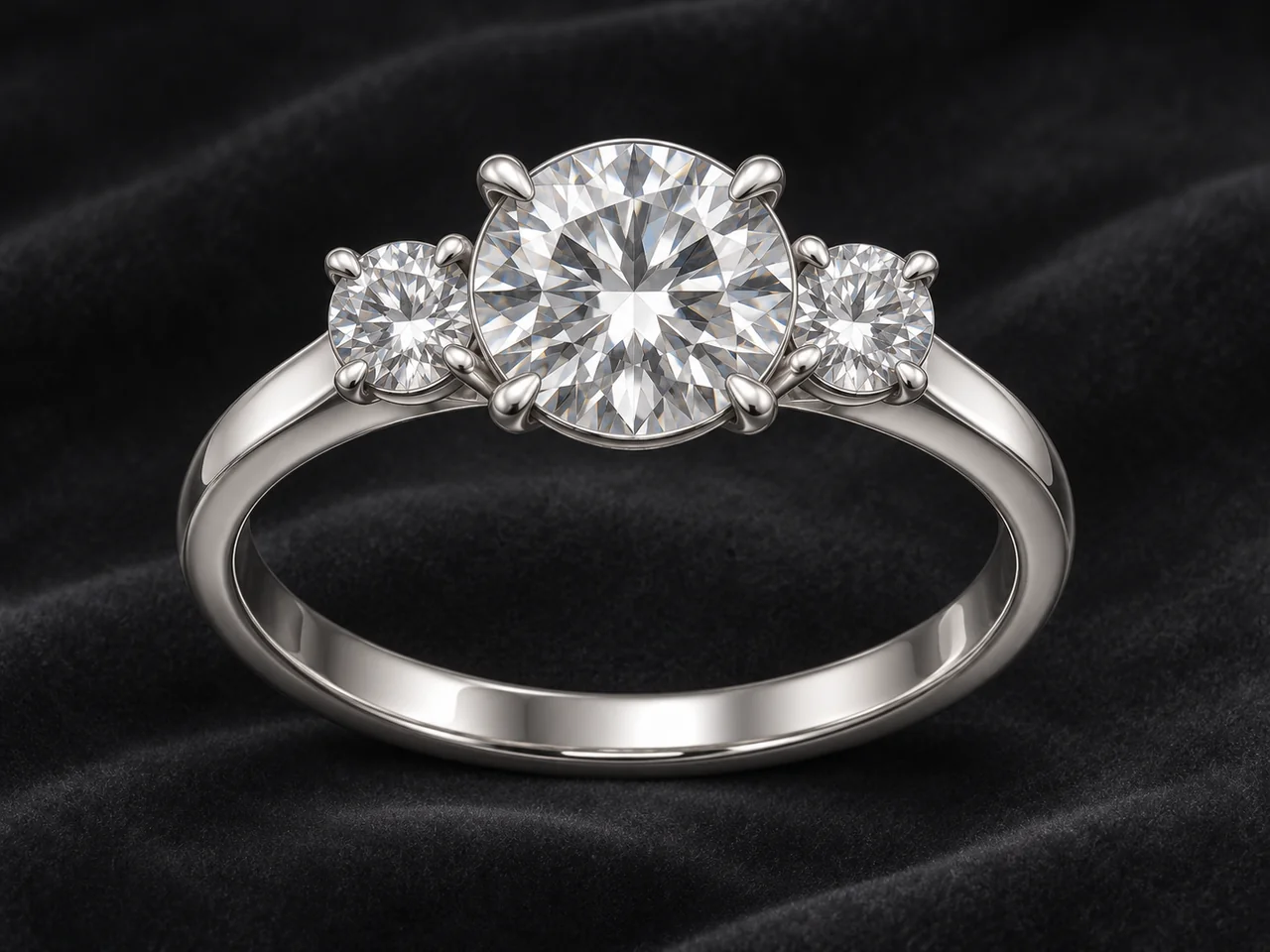 After
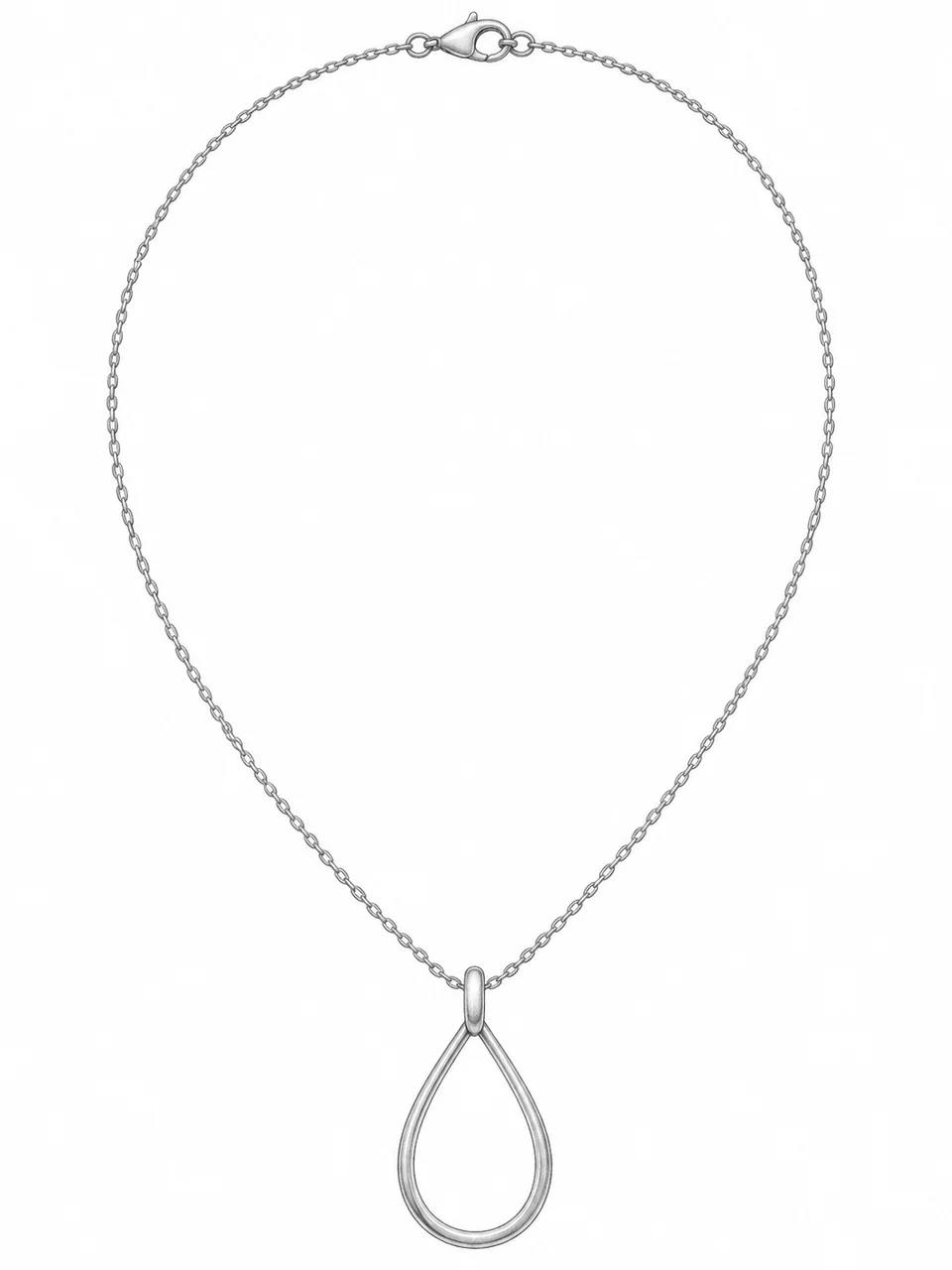 Before
 After
02
It turns a drawing into a picture of the piece as if it were made. You upload a sketch, and the model renders the design in polished metal, with stones where you drew them, on the backdrop you choose. It is told to follow the outline, proportions, stone positions and stone count exactly and to add nothing that is not drawn.
Designers use it to show clients an idea before investing in CAD or a wax model. Makers use it to judge proportions and to decide whether a design is worth developing. A render is often easier to discuss than a sketch because people see metal and sparkle rather than lines.
A render is a concept. It does not check whether the piece can be made, how much metal it needs or whether a stone will sit securely. Those questions belong to CAD, your bench jeweler and real samples.
03
Shoot the drawing straight on in even light, or export a digital sketch. Crop to the piece, choose the jewelry type and upload one PNG, JPEG or WebP.
Pick Studio white, Dark velvet or Warm linen, then Yellow gold, White gold, Rose gold or Silver. Use the notes to name stone colors, for example “the center stone is a pale blue oval”.
Check the outline, proportions and stone count against your drawing. If something is off, clarify the sketch or the notes and generate again.
04
Pick the backdrop that suits how the render will be used.
| Style | Look | Best format | Best for |
|---|---|---|---|
| Studio white | Clean product render with soft reflections | 1:1 | Client approvals and catalogs |
| Dark velvet | Display-case look with restrained light | 4:3 | Fine jewelry and gemstone pieces |
| Warm linen | Natural surface and daylight | 3:4 | Handmade and everyday designs |
05
The clearer the drawing, the closer the render.
A single three-quarter or front view renders best. Several views on one page can merge into one confused piece; crop to the view you want.
Gaps in a line can become gaps in the metal. Close shapes that should be solid and leave open only what should be open.
Draw each stone as a clear circle, oval or shape. The render keeps the count you draw, so small marks you did not mean as stones should be erased.
Pencil cannot show color. Name stone colors and any finish, such as hammered or brushed, in the notes.
06
07
The render should look like your sketch, made.
| Check | Good result | Reject if |
|---|---|---|
| Outline | Matches the drawn silhouette | Shapes added, removed or reshaped |
| Proportions | Same relative sizes as the sketch | The stone or band grew or shrank |
| Stones | Same count, shapes and positions | Extra stones or missing stones |
| Metal | The metal you chose | Another metal or mixed metals |
| Details | Drawn details kept | New engraving, filigree or texture |
| Text | No text or marks | Sketch notes rendered as engraving |
08
A render and a CAD model answer different questions.
It is fast and cheap, good for exploring directions and getting a client’s first reaction.
A CAD model has real dimensions, wall thicknesses and stone seats. It is what a caster or printer works from.
Narrow down a design with renders, then invest in CAD for the one you choose.
A customer should know when an image is a concept. Make the piece and photograph it before you list it as available.
09
Show a client what their sketch could look like before quoting.
Example: a three-stone ring sketch in white gold on velvet.
Test a collection idea before buying materials.
Example: three pendant sketches in rose gold on linen.
See a design in metal for a portfolio or critique.
Example: a cuff sketch in silver, Studio white.
Mix renders with references to explain a direction.
Example: four earring sketches rendered for a launch.
10
Most failed results have a simple cause.
Small marks and shading can be read as stones. Erase stray marks, or state the stone count in the notes, such as “one center stone, two side stones”.
Faint or broken lines give the model room to invent. Darken and close the outline, then photograph the sketch again.
Handwritten labels inside the drawing can be rendered as text. Move notes outside the crop or into the notes field.
A purely front-on sketch gives little depth. Draw a three-quarter view, or describe the depth in the notes.
Before you publish
The model guesses depth, thickness and the back of the piece from a flat drawing. It does not know dimensions, metal weight or whether a stone can be set securely. Use CAD and your bench jeweler for those decisions.
Renders are concepts. Label them as such, and photograph the made piece before you sell it.
Questions
Upload a photo or scan of your sketch, choose the jewelry type, a render style and a metal, and generate. The model renders the design in metal, following your outline, proportions and stone positions, and adds nothing that is not drawn.
One view of one piece, drawn with dark, clean, closed lines on plain paper and photographed straight on. Heavy shading and several views on one page give less predictable renders.
Yes, in the notes. Stones are colorless unless the sketch or the notes give a color, for example “the center stone is a pale blue oval”.
No. A render is a concept image. CAD defines real dimensions and stone seats for manufacturing. Use renders to choose a direction, then CAD to make it.
You can show it as a concept, for example for a made-to-order piece, if you label it clearly. Do not present it as a photo of a piece in stock.
It shows the view you drew. The model invents depth, which may not match your intent, so judge the render from the front and use CAD for the full piece.
Each image costs 15 credits on the default Fast setting, including your reference photo. New accounts that use Google sign-in or a Gmail address get 20 free credits, enough for one image. Free-credit images carry a watermark and are for personal use; use paid credits for store and marketplace images.
Your upload is private and scheduled for deletion after one day. On a free account, generated images stay in My Creations for 14 days; paid plans and credit packs keep them longer.
Upload a clean sketch, choose a metal and a backdrop, and compare the render with your lines.
Upload a sketch