Polished
Mirror-like and reflective. The default for every metal here; reflections change with the new color.
Jewelry Studio · Edit & variations
Choosing a metal is one of the first decisions in a design and one of the most common customer questions. Upload one design image and preview it in another metal, with everything else left alone.
Updated · Image25 Jewelry Studio
15 credits · Fast · Medium · 1 image
Includes one reference photo. Every new generation costs 15 credits.
Email sign-in keeps your selection. Google sign-in leaves this page; reselect your photo and settings after returning.
Yellow gold
Warm, classic gold tone.
The jewelry metal color changer recolors the metal of a design image to yellow gold, white gold, rose gold or a silver look and keeps the stones, shape, texture and background unchanged. It works on a sketch render, a concept image or a product photo. One preview costs 15 credits and is a concept image, not a photo of stock.
01
One yellow gold concept ring, previewed in three other metals.
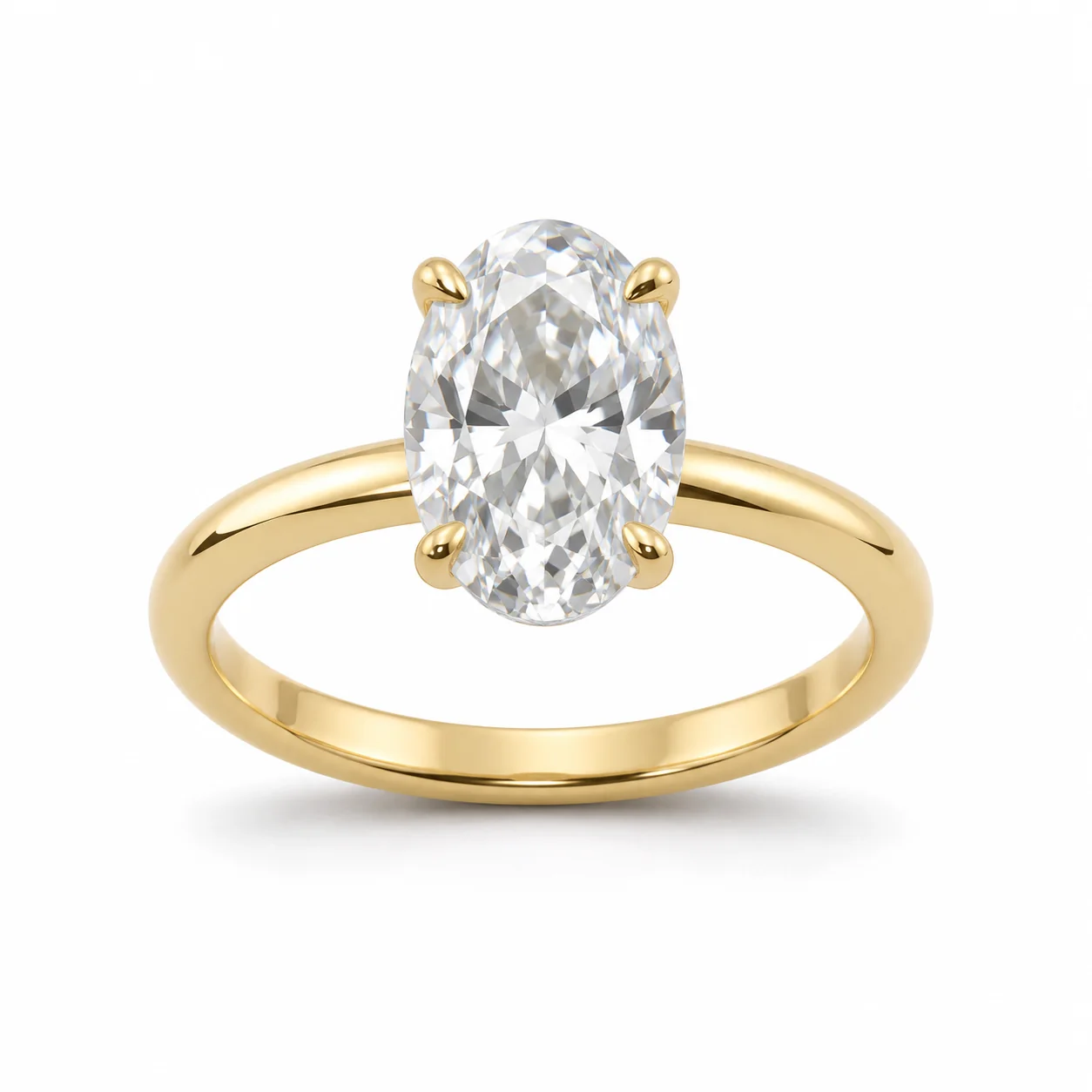 Before
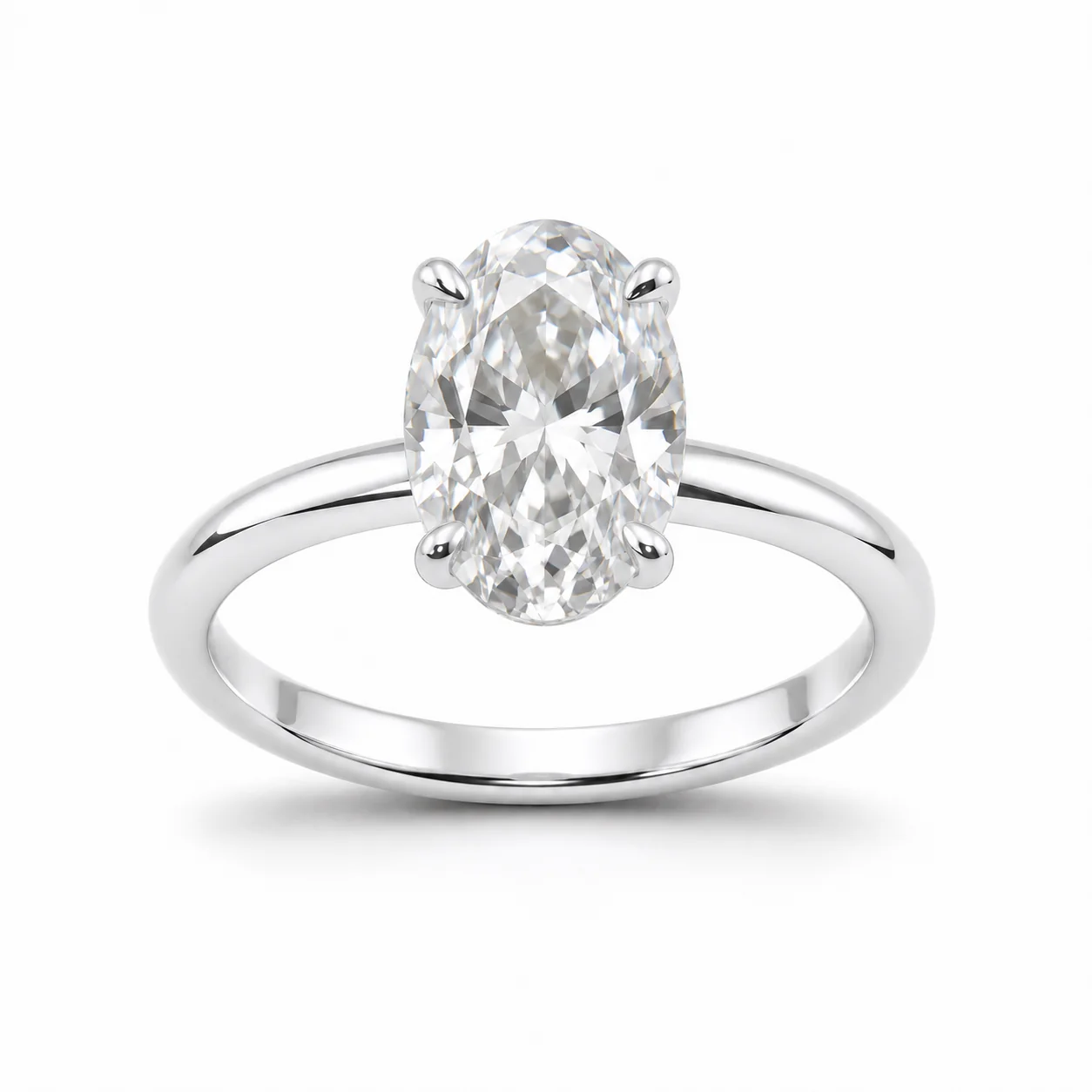 AfterBefore
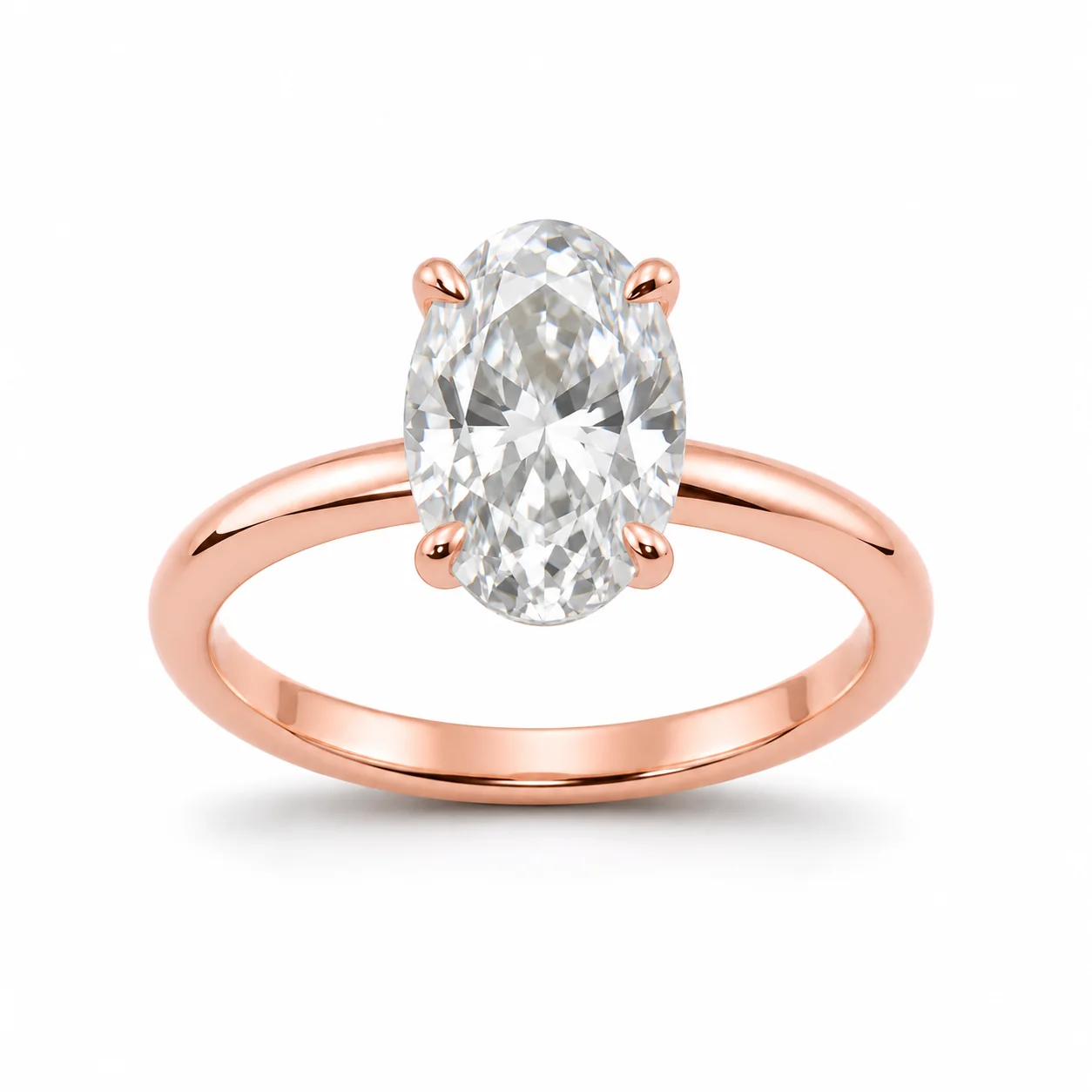 AfterBefore
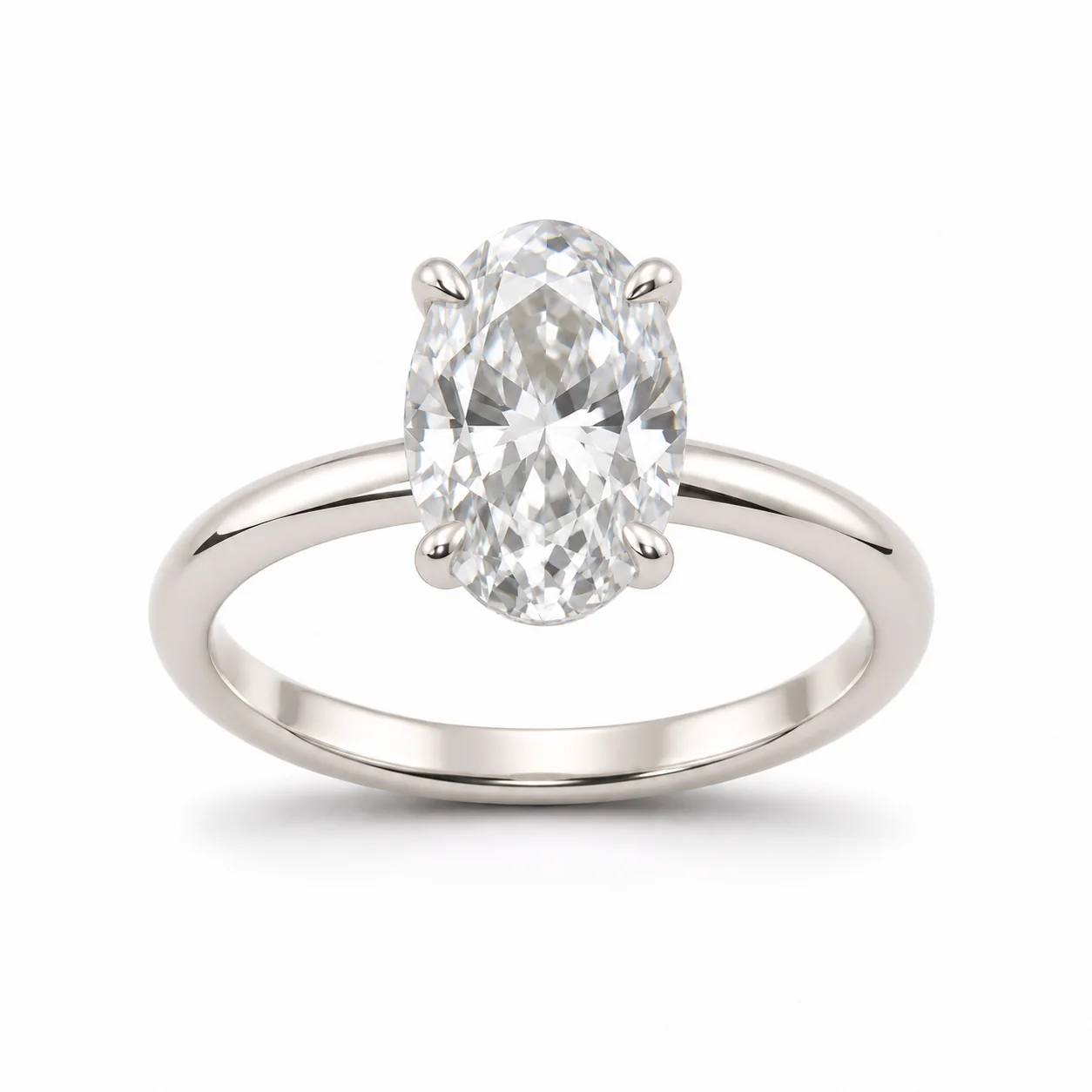 After
02
It changes one thing: the color and finish of the metal. You upload an image of a design and choose a metal. The model recolors the band, setting, chain or findings and is told to keep the design, every stone, the prongs, engraving, surface texture, background, framing and lighting exactly as they were.
Makers use it to decide which metal a new design should launch in, and sellers use it to show customers an option before they make it. A ring in yellow gold and the same ring in white gold can feel like two different pieces, and seeing both side by side settles the question faster than describing it.
The result is a concept preview. If you recolor a photo of a ring you sell in yellow gold, the white gold version is not a photo of a white gold ring you own. Label it as a preview, or make the piece and photograph it.
03
Use a concept render, a sketch render or a product photo where the metal is clearly visible and not hidden by strong reflections. Choose the jewelry type and upload one PNG, JPEG or WebP.
Pick Yellow gold, White gold, Rose gold or Sterling silver look, and a format. Add notes such as “keep the brushed texture on the band” if the finish matters.
Check that only the metal changed: stones, prongs, shape and background should match the original. Generate each metal you want to compare as a separate preview.
04
How each finish usually reads in a product image.
| Metal color | Looks | Pairs well with | Note |
|---|---|---|---|
| Yellow gold | Warm, rich, classic | Warm skin tones, pearls, colored stones | Color depth varies by alloy |
| White gold | Bright, cool white | Colorless stones, sapphires | Often finished with a bright plating |
| Rose gold | Soft pink-copper | Morganite, pink and peach stones | Tone varies widely between makers |
| Silver look | Softer, slightly warmer white | Everyday and minimalist designs | A look only; not a claim of sterling |
05
Finish matters as much as color.
Mirror-like and reflective. The default for every metal here; reflections change with the new color.
Fine directional lines and a soft sheen. If your design is brushed, add it to the notes so the texture is kept.
Faceted dents catch light in many directions. Check that the hammer marks stay the same size and spacing after the change.
The tool changes all visible metal by default. For a two-tone piece, name the part to keep in the notes, and check the result closely.
06
07
Only the metal should differ from your original.
| Check | Good result | Reject if |
|---|---|---|
| Stones | Same count, cut, color and placement | Stones changed color with the metal |
| Shape | Same outline and proportions | The band, setting or chain changed shape |
| Texture | Same finish, recolored | A brushed or hammered surface became polished |
| Color | A believable tone for the chosen metal | Orange, green or flat gray metal |
| Background | Unchanged | New background or lighting |
| Engraving | Same marks and letters | Engraving changed or vanished |
08
Compare a new design in three golds before you cast it.
Example: a solitaire concept in yellow, white and rose gold.
Show a customer the rose gold version of a ring you make in yellow gold.
Example: a band preview sent with a quote.
See whether a set reads better in one metal or mixed.
Example: earrings and pendant previewed in white gold.
Quick previews help a design discussion move faster.
Example: four metal options in one comparison grid.
09
A preview informs the decision; the real piece documents it.
Generate one preview per metal from the same design image so the comparison is fair.
Metal cost, weight and purity come from your supplier and your design, never from the image.
Once the piece exists, photograph it and use the product photography tools for listing images.
If a listing shows a preview of a made-to-order metal, say so in the caption or description.
10
Most failed results have a simple cause.
Strong warm light in the source image can push the new color too far. Use a neutral, evenly lit image and regenerate.
Very dark or flat source images give dull metal. Use a brighter image with soft highlights on the metal.
Colorless stones can reflect warm metal. Add “keep stones colorless and unchanged” to the notes.
Name the finish in the notes, such as “brushed band” or “hammered surface”, so it is kept.
Before you publish
The image shows what a design might look like in another metal color. It says nothing about karat, purity, plating or weight, and a silver look is not a claim of sterling silver. State real materials in your listing.
Recolored images are concepts. Do not present one as a photograph of a piece in stock unless you have made and photographed that piece.
Questions
Upload one design image and choose a metal. The model recolors the visible metal to that color and finish and keeps the stones, shape, engraving, texture and background unchanged. You get one concept preview to compare with the original.
Yes. Generate one preview per metal from the same design image, then compare them side by side. Using the same image keeps the comparison fair.
They should not; the tool is told to keep every stone. Colorless stones can pick up a tint from warm metal reflections, so check them and regenerate if they shift.
Yes, but the result is a concept preview of another metal, not a photo of a piece you own. Label it as a preview or as made to order.
No. The tool previews a color and finish. Materials and purity are facts you state from your supplier and hallmarks, never from an image.
Name the part to keep in the notes, for example “keep the white gold prongs”. Two-tone designs are harder, so check the result closely.
Each image costs 15 credits on the default Fast setting, including your reference photo. New accounts that use Google sign-in or a Gmail address get 20 free credits, enough for one image. Free-credit images carry a watermark and are for personal use; use paid credits for store and marketplace images.
Your upload is private and scheduled for deletion after one day. On a free account, generated images stay in My Creations for 14 days; paid plans and credit packs keep them longer.
Upload one design image, choose a metal, and compare the preview with your original.
Upload a design image