Round
The most familiar outline and the easiest for the model to place in an existing setting.
Jewelry Studio · Edit & variations
One setting can hold many stones. Upload a design image, choose a stone color and, if you like, a new cut, and see the design with only the center stone changed.
Updated · Image25 Jewelry Studio
15 credits · Fast · Medium · 1 image
Includes one reference photo. Every new generation costs 15 credits.
Email sign-in keeps your selection. Google sign-in leaves this page; reselect your photo and settings after returning.
Colorless · Keep current cut
Clear, diamond-like sparkle.
A gemstone swap preview changes the main stone of a design to a new color (colorless, blue, green, red, pink or black) and optionally a new cut (round, oval, emerald, pear or cushion). The metal, setting style, band and accent stones stay the same. One preview costs 15 credits and is a concept, not a gemstone identification.
01
One oval concept ring, three new center stones.
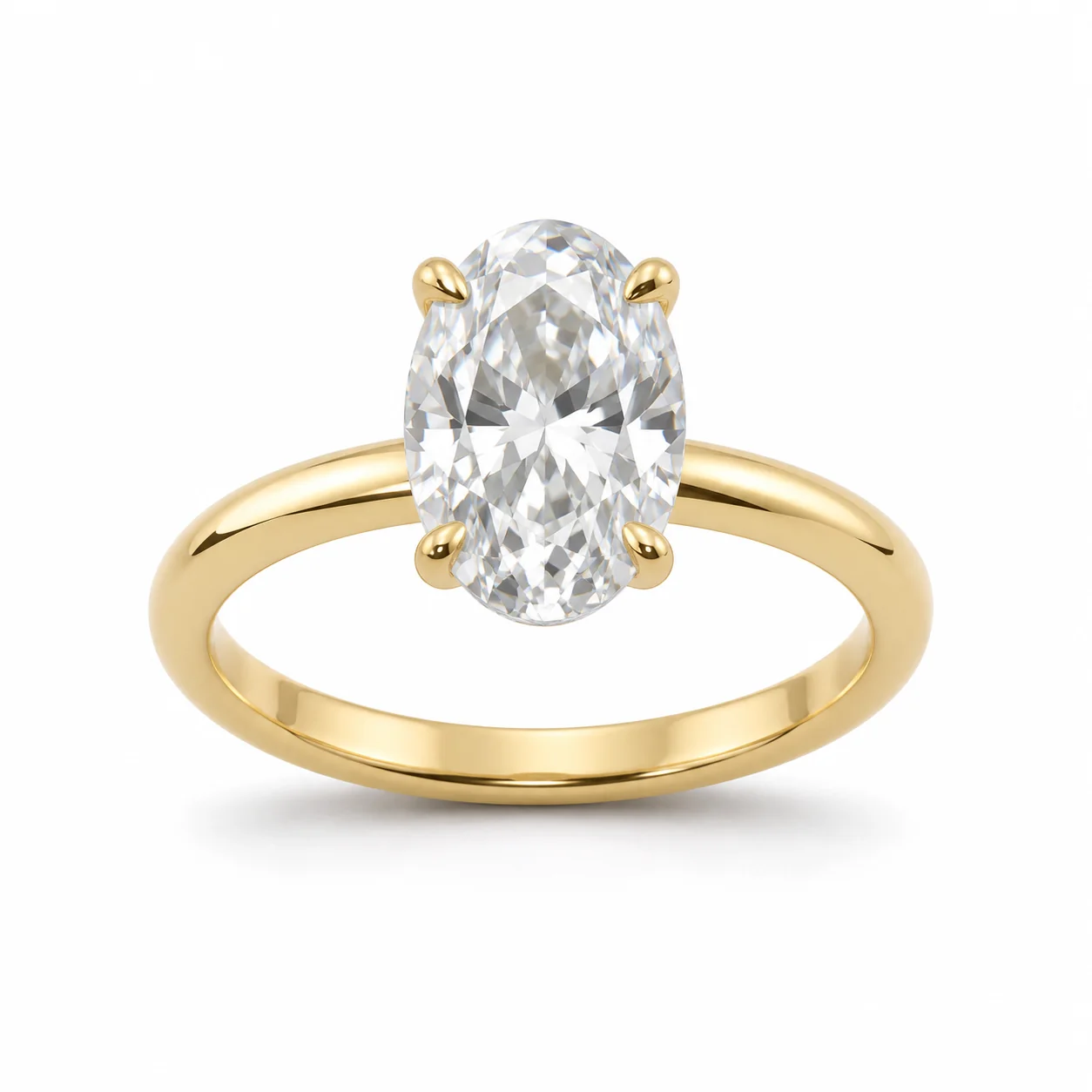 Before
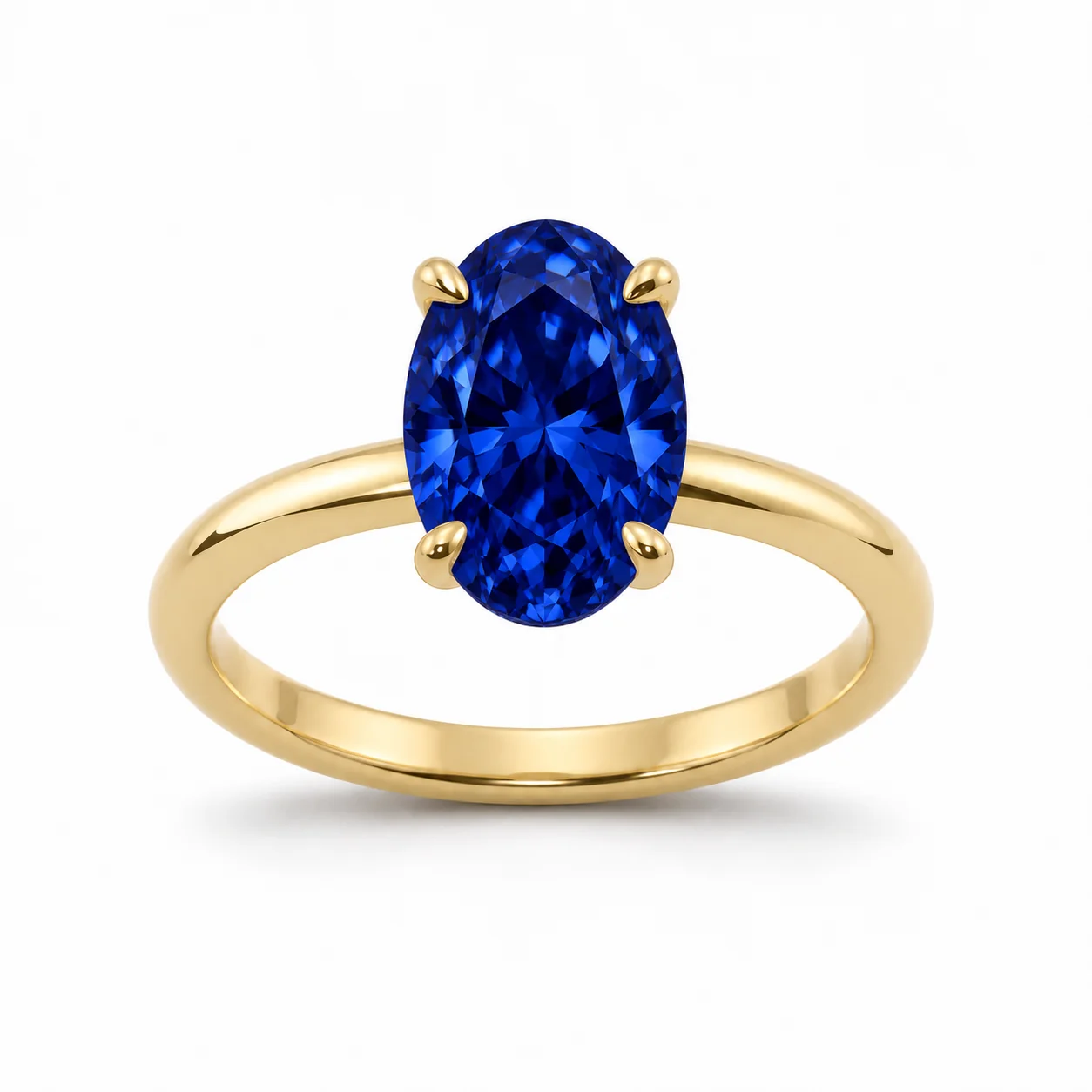 AfterBefore
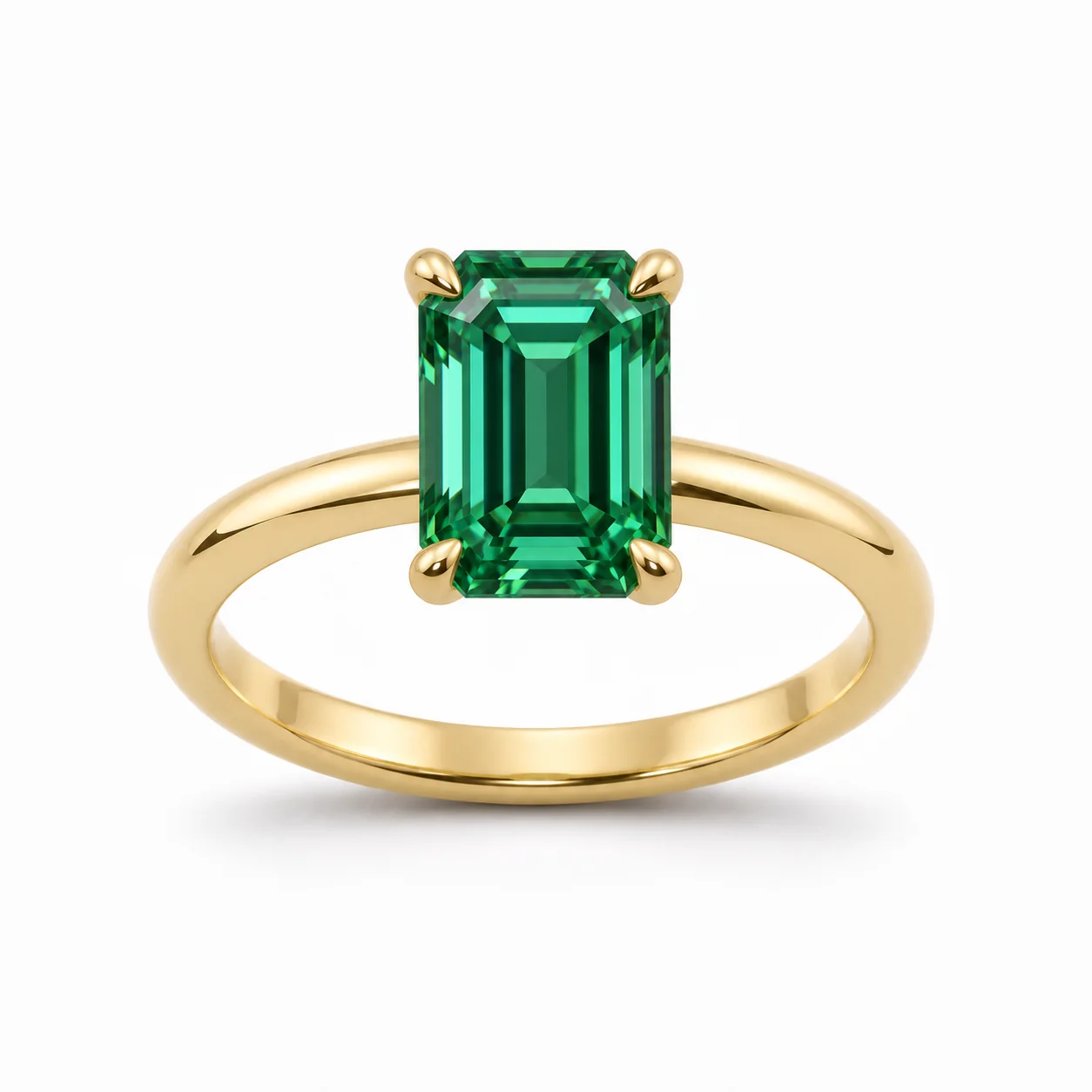 AfterBefore
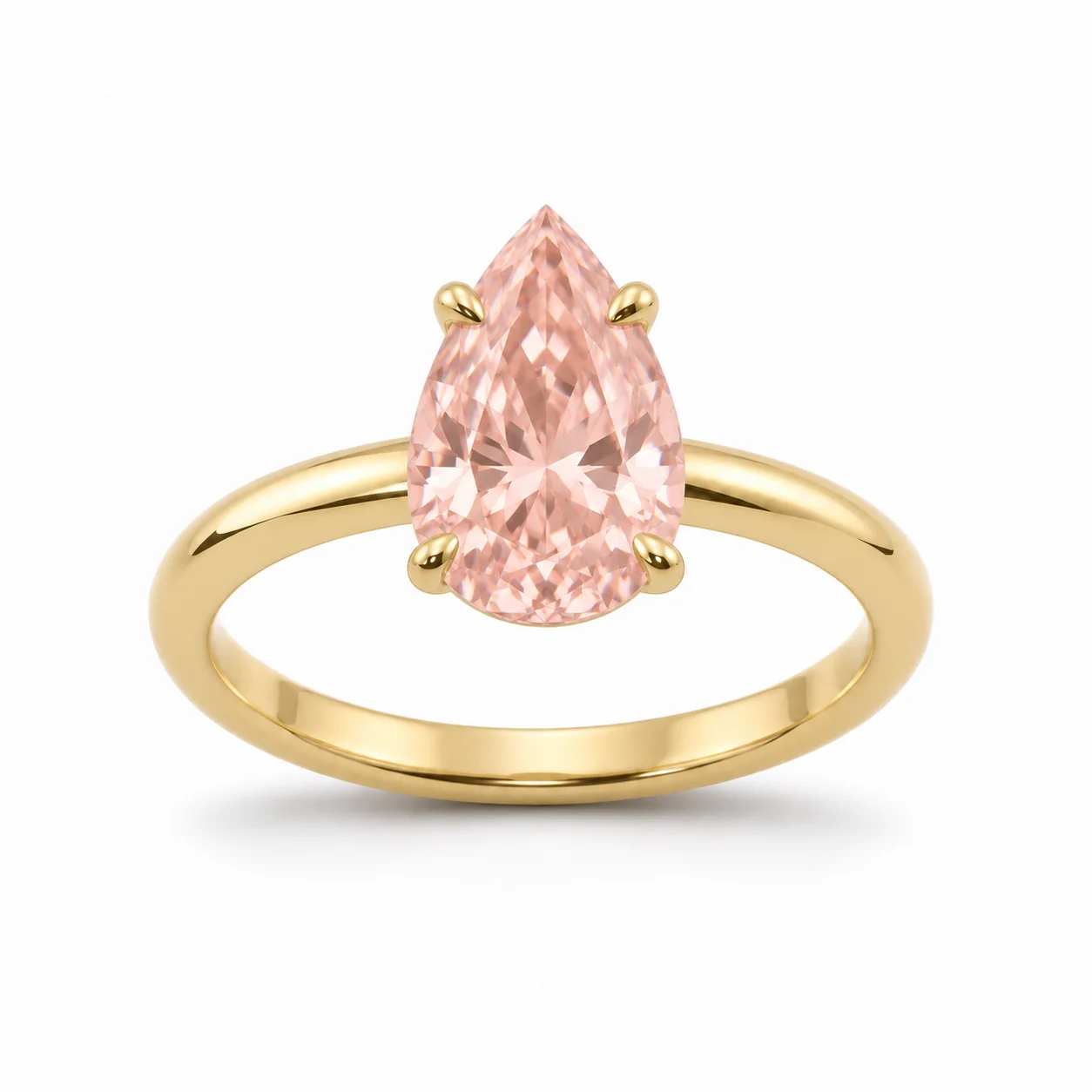 After
02
It is an edit of one part of a design: the main stone. The tool finds the center or largest stone in your image and changes its color, and its cut if you choose one. Everything else is told to stay as it was: the metal, the setting style, the band, the accent stones, the engraving, the background and the light.
Makers use it to explore a design before sourcing stones, and sellers use it to show a customer a birthstone or a different color before making a custom piece. A setting that looks quiet with a colorless stone can look bold with a deep blue one.
The colors are described by look, not by gem name. A deep blue preview is not a sapphire, and a colorless preview is not a diamond. The image cannot show a stone’s identity, grade or treatment, so those facts must come from the stone itself and its documentation.
03
Use a render or photo where the main stone is sharp and centered. Choose the jewelry type and upload one PNG, JPEG or WebP.
Pick a stone color, then Keep current cut or a new one. Add notes such as “keep the side stones colorless” if there are accents.
Compare the metal, setting, band and accents with your original. Only the main stone should differ. Generate each option you want to compare.
04
The look of each color, with stones commonly associated with it.
| Color option | Looks like | Often associated with | Pairs with |
|---|---|---|---|
| Colorless | Clear with bright sparkle | April | Any metal |
| Deep blue | Saturated blue | September | White gold, platinum look |
| Rich green | Slightly bluish green | May | Yellow gold |
| Ruby red | Deep, slightly purplish red | July | Yellow or rose gold |
| Soft pink | Peach-pink | October (pink tones) | Rose gold |
| Black | Glossy, deep black | Modern and unisex designs | White or yellow gold |
05
A new cut changes the outline, so the setting adapts slightly.
The most familiar outline and the easiest for the model to place in an existing setting.
Elongated outlines that make a finger look longer. Pear shapes need a prong at the point; check it is there.
A rectangular step cut with long, flat facets. It reads calmer and more architectural than brilliant cuts.
A square with rounded corners and a soft, vintage feel. It sits well in halo and four-prong settings.
06
07
Only the main stone should change.
| Check | Good result | Reject if |
|---|---|---|
| Main stone | The chosen color and cut | The wrong stone changed |
| Accent stones | Unchanged count and color | Accents took on the new color |
| Setting | Same style; prongs fit the new outline | Prongs missing or floating |
| Metal | Same color and finish | The metal changed tone |
| Size | Similar visual size | The stone grew or shrank a lot |
| Background | Unchanged | New background or lighting |
08
Show one design in every month’s color without making twelve samples.
Example: a pendant previewed in deep blue for September.
Compare a center stone shape before you commit to a setting.
Example: one setting with oval, pear and cushion cuts.
Send a customer a preview of their color choice with your quote.
Example: a ring with a soft pink stone in rose gold.
See which colors work together before buying stones.
Example: a stud design in four stone colors.
09
The preview starts a conversation; the stone settles it.
Generate two or three options from the same design image and compare them side by side.
Color varies widely within one gem type. Choose the actual stone in person or from documented photos.
A new cut may need a different setting or size. Confirm with your bench jeweler or CAD designer.
List the made piece with real photos, and keep previews labeled as concepts.
10
Most failed results have a simple cause.
The tool targets the center or largest stone. If two stones are the same size, name the one to change in the notes, for example “change only the center stone”.
Add “keep all side stones colorless and unchanged” to the notes and regenerate.
A big change of outline, such as round to emerald cut, can leave prongs floating. Choose Keep current cut, or a cut close to the original outline.
Very saturated colors can look artificial. Ask for a lighter or deeper tone in the notes, such as “medium blue” or “pale green”.
Add “same stone size as the original” to the notes. A new cut should keep a similar visual size.
Before you publish
The image shows a color and a cut, not a gem. It cannot show whether a stone is natural, lab-grown or simulated, its grade, treatment or origin. Those facts come from the stone and its documentation.
A swapped image is a concept. Do not present it as a photograph of a piece in stock or name a gemstone based on it.
Questions
Upload a design image, choose a stone color and a cut (or keep the current cut), and generate. The model changes only the main stone and keeps the metal, setting, band and accent stones. You compare the concept with the original.
Yes. Choose Keep current cut, and only the color of the main stone changes. This gives the most faithful preview.
Yes. Pick the color that matches the birthstone you plan to use, for example deep blue for September. The preview shows a color, not the gem itself, so source the real stone before you sell the piece.
They should not. The tool changes only the main stone. Add “keep the side stones colorless” to the notes for designs with many accents, and check the result.
No. Colors are described by look. The preview cannot identify, grade or certify a gemstone.
Designs with one clear main stone: solitaires, three-stone rings, single-stone pendants and studs. Designs where several stones are the same size are harder to target.
Each image costs 15 credits on the default Fast setting, including your reference photo. New accounts that use Google sign-in or a Gmail address get 20 free credits, enough for one image. Free-credit images carry a watermark and are for personal use; use paid credits for store and marketplace images.
Your upload is private and scheduled for deletion after one day. On a free account, generated images stay in My Creations for 14 days; paid plans and credit packs keep them longer.
Upload a design image, choose a stone color and cut, and compare the concept with your original.
Upload a design image