Tucked behind the ear
Long hair tucked back gives a soft, everyday look and clears the earlobe. It works for most styles and is the default for profile views.
Jewelry Studio · On-model
Earrings are bought for how they hang and move near the face. Upload one photo of the pair, choose a view and a hairstyle, and see them worn without a photo shoot.
Updated · Image25 Jewelry Studio
15 credits · Fast · Medium · 1 image
Includes one reference photo. Every new generation costs 15 credits.
Email sign-in keeps your selection. Google sign-in leaves this page; reselect your photo and settings after returning.
Side profile · Tucked behind ear
One ear and earring in clean profile.
Earrings on model photos use your product photo of the pair and generate an adult model wearing them, one earring per ear. Choose a side profile, three-quarter, front or ear close-up view and a hairstyle that keeps the ears clear. One image costs 15 credits; you check the pair and the scale before you use it.
01
One pair of pearl drops, worn in three views.
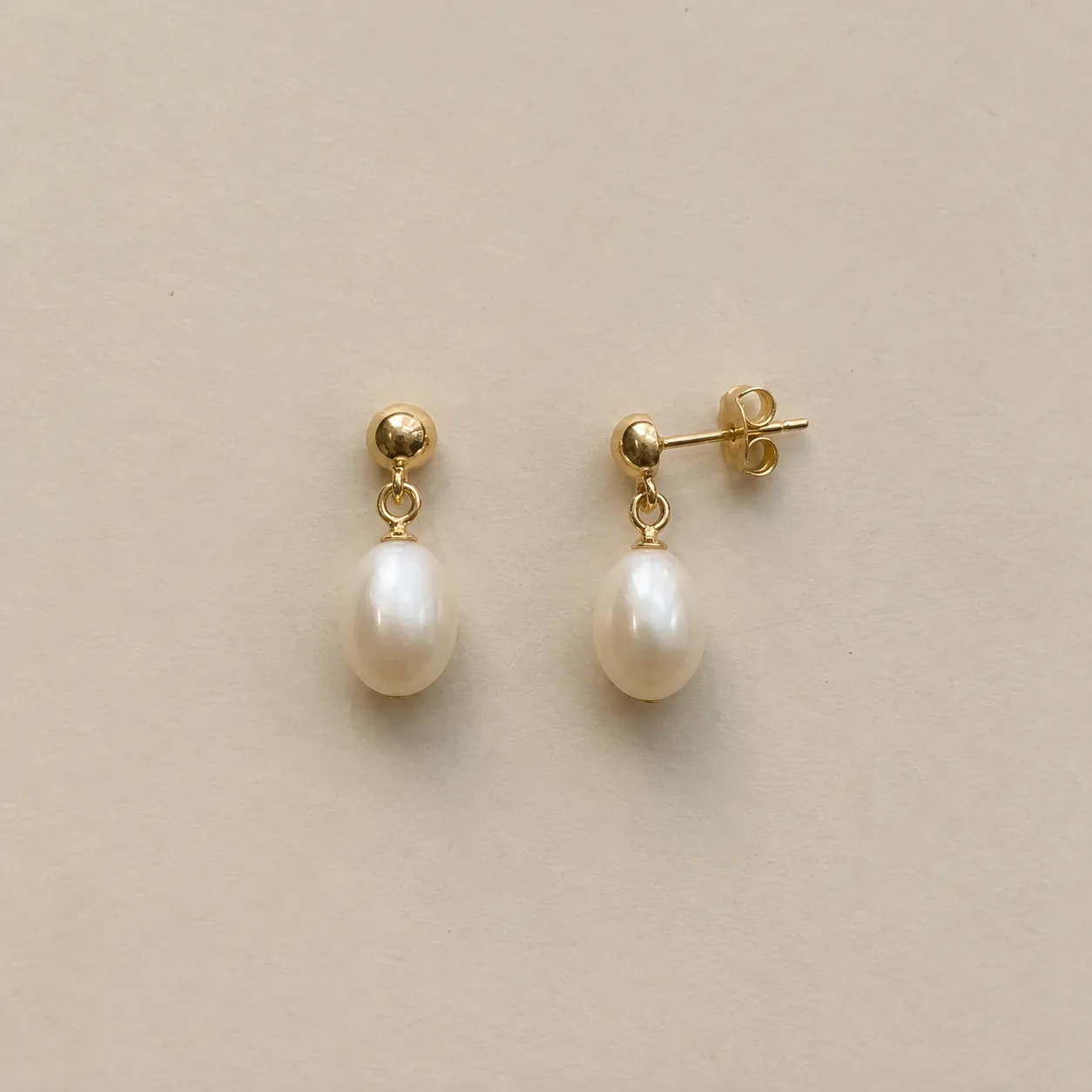 Before
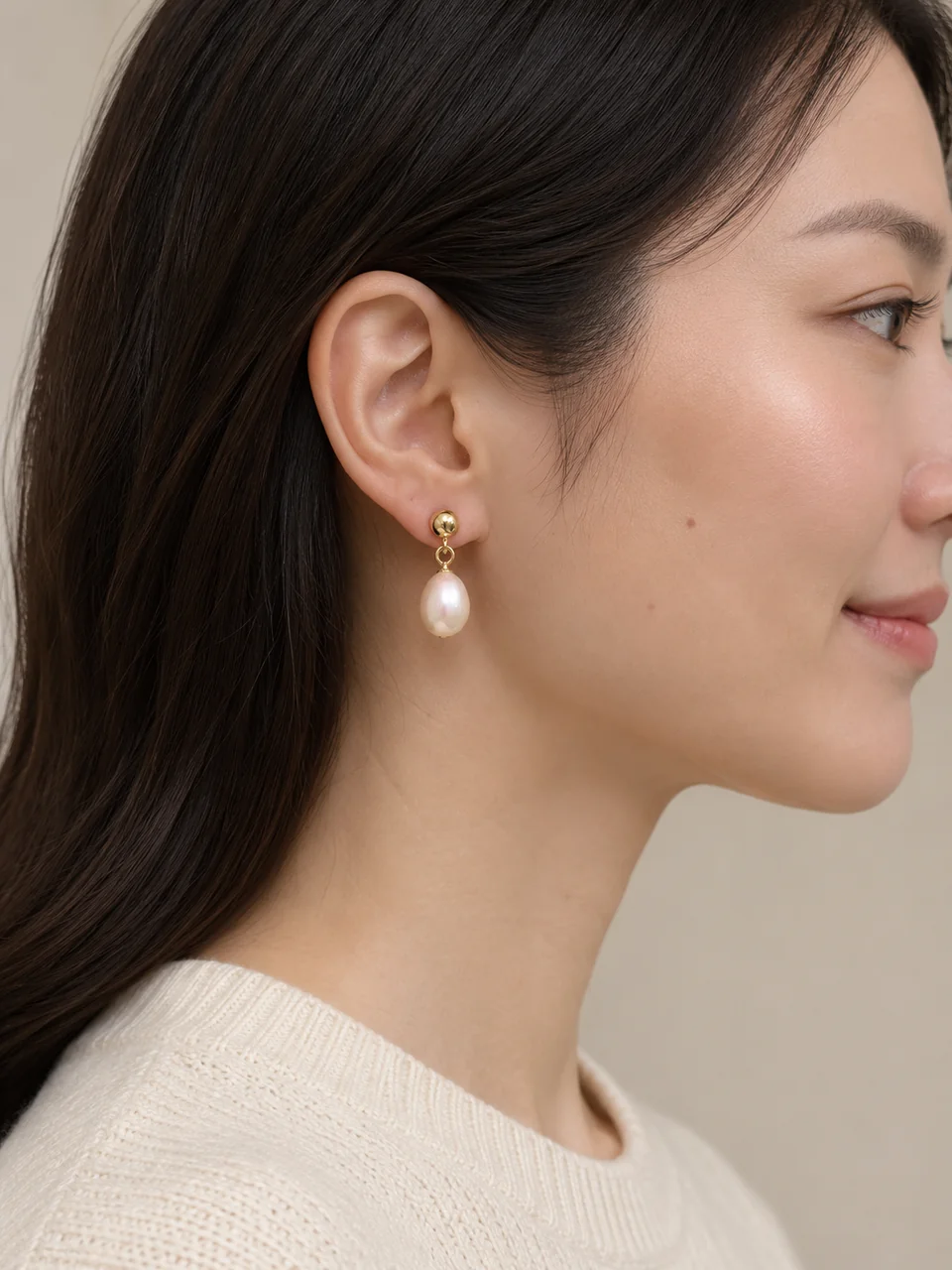 AfterBefore
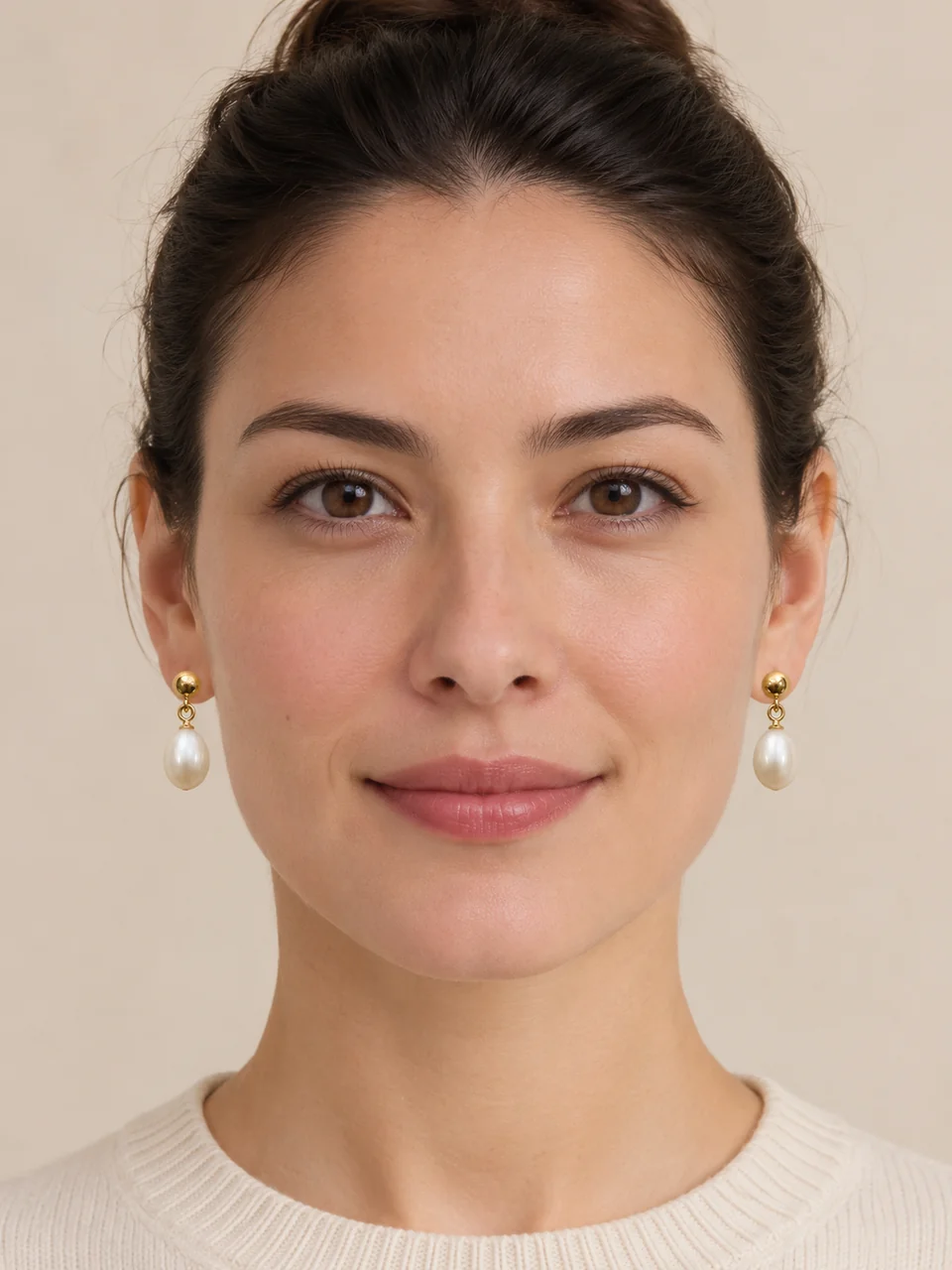 AfterBefore
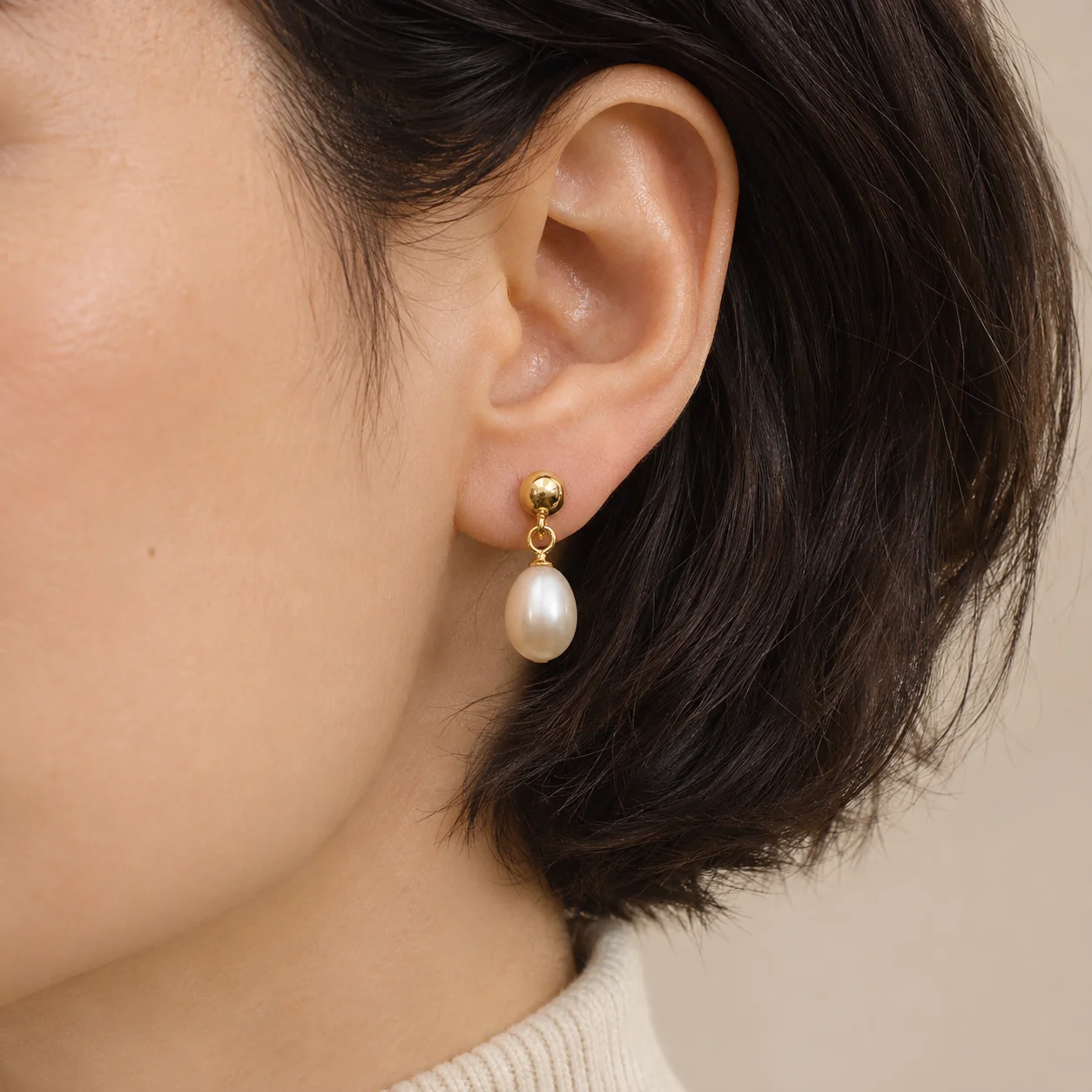 After
02
They are worn images built from a product photo. The tool reads your pair of earrings from the upload and generates an adult model wearing them, one on each ear. The face, hair, light and background are generated; the earrings are meant to stay exactly yours.
Earrings depend on context more than most jewelry. The same stud can look tiny or bold depending on the ear, and a drop earring only shows its length when it hangs. A worn image gives buyers that sense of size and movement that a flat lay cannot.
Because a person is generated, the image is a preview, not documentation. It does not measure the drop length or post size, and it is not a photo of a real customer. Use it to show style and proportion, and keep real measurements in your listing.
03
Lay the pair side by side or hang them from a card so both are visible with their posts, hooks or backs. Soft light keeps pearls and stones clean. Upload one PNG, JPEG or WebP up to 20 MB.
Pick Side profile, Three-quarter, Front or Ear close-up, then Tucked behind ear, Hair up or Short hair so nothing covers the earring. Choose 3:4 for most worn images; add notes for skin tone or clothing.
Compare the shape, stones and findings with your photo, make sure each ear has one earring and that the two match, and judge whether the size looks plausible. Download only accurate results.
04
Pick the view that shows what makes the pair special.
| View | Shows | Best format | Best for |
|---|---|---|---|
| Side profile | One ear, the full drop and how it hangs | 3:4 | Drops, threaders and long designs |
| Three-quarter | One earring in focus, face partly visible | 3:4 | A natural, editorial first worn image |
| Front, both ears | The pair together, matched | 3:4 | Studs and symmetrical pairs |
| Ear close-up | The earlobe and the setting | 1:1 | Small studs and detailed settings |
05
Hair decides whether the earring is visible at all.
Long hair tucked back gives a soft, everyday look and clears the earlobe. It works for most styles and is the default for profile views.
A bun or ponytail opens the neck and both ears, so it suits front views, long drops and statement pairs where the full length matters.
A short cut leaves the ears open without styling. It reads modern and works well for close-ups and minimalist studs.
Loose hair falling over the lobe hides the earring and confuses the model. If your notes ask for loose hair, check that the earring is still fully visible.
06
07
Compare these points with the real pair before you download.
| Check | Good result | Reject if |
|---|---|---|
| Design | Same shape, stones and metal as your photo | A stone, pearl or charm changed |
| Pair | One earring per ear, both identical | Two different earrings or extra earrings |
| Finding | Hangs from the lobe as the real finding would | A stud floats or a hook pierces the wrong place |
| Scale | Plausible size next to the ear | Far larger or smaller than the real pair |
| Visibility | Hair and collars keep clear | The earring is half hidden |
| Model | Natural features, adult, tasteful styling | Distorted ears or unnatural skin |
08
Length is the selling point, and only a worn view shows it.
Example: pearl drops, Side profile, hair tucked.
A close-up shows how small or bold a stud really looks on the lobe.
Example: a round stud, Ear close-up, short hair.
Buyers picture the full look with hair up.
Example: a crystal drop, Front view, hair up.
A three-quarter view feels editorial and leaves room for text.
Example: hoops, Three-quarter, 4:3.
09
Worn images add context; product shots carry the facts.
A clear product photo of both earrings, with the backs visible, should still lead the listing.
Choose the view that matches the design: profile for drops, front for studs, close-up for detailed settings.
State the drop length, the width and the post or hook type in the description, because a generated ear cannot prove them.
Reuse the same notes for skin tone, hair and clothing across a collection so the shop looks curated.
10
Most failed results have a simple cause.
Choose Hair up or Short hair, or add “hair fully away from the ear” to the notes. Loose hair is the most common reason an earring disappears in a worn image.
Check that both earrings are clearly visible and identical in your source photo. If the pair still drifts, use Side profile or Ear close-up so one earring carries the image.
Add the real size from your listing to the notes, such as “small 6 mm stud”, and regenerate. The size you state is a seller fact the model can use.
Make sure the hook or lever-back is visible in the source photo and name it in the notes, for example “French hook”.
Before you publish
The model guesses scale from your photo and an average ear. It cannot know the real drop length or stud size. Treat the result as a preview of the look and give real measurements in your listing.
Earrings can change in worn images: pearls can shift color, a hook can turn into a post, the two earrings can stop matching. Reject any result that shows something the buyer will not receive.
Questions
Upload one photo of the pair, choose a view (side profile, three-quarter, front or ear close-up) and a hairstyle, then generate. The model is generated; your earrings come from your photo. Compare the result with the real pair before using it.
No. An adult model is generated. To see earrings on your own photo instead, use the virtual try-on tool, which takes a portrait as a second upload.
Use Side profile for drops and threaders, Front for studs and symmetrical pairs, Ear close-up for small or detailed settings, and Three-quarter for an editorial first worn image.
The tool asks for one earring per ear and an identical pair. Models can still drift, so check that both earrings have the same shape, stones and finding, and regenerate if they differ.
Yes, through the notes: skin tone, hair color, clothing or background. The notes guide the model only; they never override the instruction to keep your earrings unchanged.
No. Scale is estimated from your photo and an average ear, so it may be off. State the real drop length and width in your listing.
Each image costs 15 credits on the default Fast setting, including your reference photo. New accounts that use Google sign-in or a Gmail address get 20 free credits, enough for one image. Free-credit images carry a watermark and are for personal use; use paid credits for store and marketplace images.
Your upload is private and scheduled for deletion after one day. On a free account, generated images stay in My Creations for 14 days; paid plans and credit packs keep them longer.
Upload a photo of both earrings, choose a view and a hairstyle, and check the pair before you publish.
Upload an earring photo