Close
Tight on where the piece is worn. Use it when detail matters: small studs, fine chains, gemstones. It is the most accurate option.
Jewelry Studio · On-model
Campaign and social images need a person, a setting and a mood. Upload one product photo, choose the scene and the framing, and get a styled model photo with your piece in it.
Updated · Image25 Jewelry Studio
15 credits · Fast · Medium · 1 image
Includes one reference photo. Every new generation costs 15 credits.
Email sign-in keeps your selection. Google sign-in leaves this page; reselect your photo and settings after returning.
Studio portrait · Close
Clean seamless backdrop, soft key light.
An AI jewelry model photo shows the ring, necklace, earrings or bracelet from your product photo worn by a generated adult model in a styled scene: studio portrait, editorial, golden hour or everyday. You choose how close the framing is. One image costs 15 credits, and you check the piece against your photo first.
01
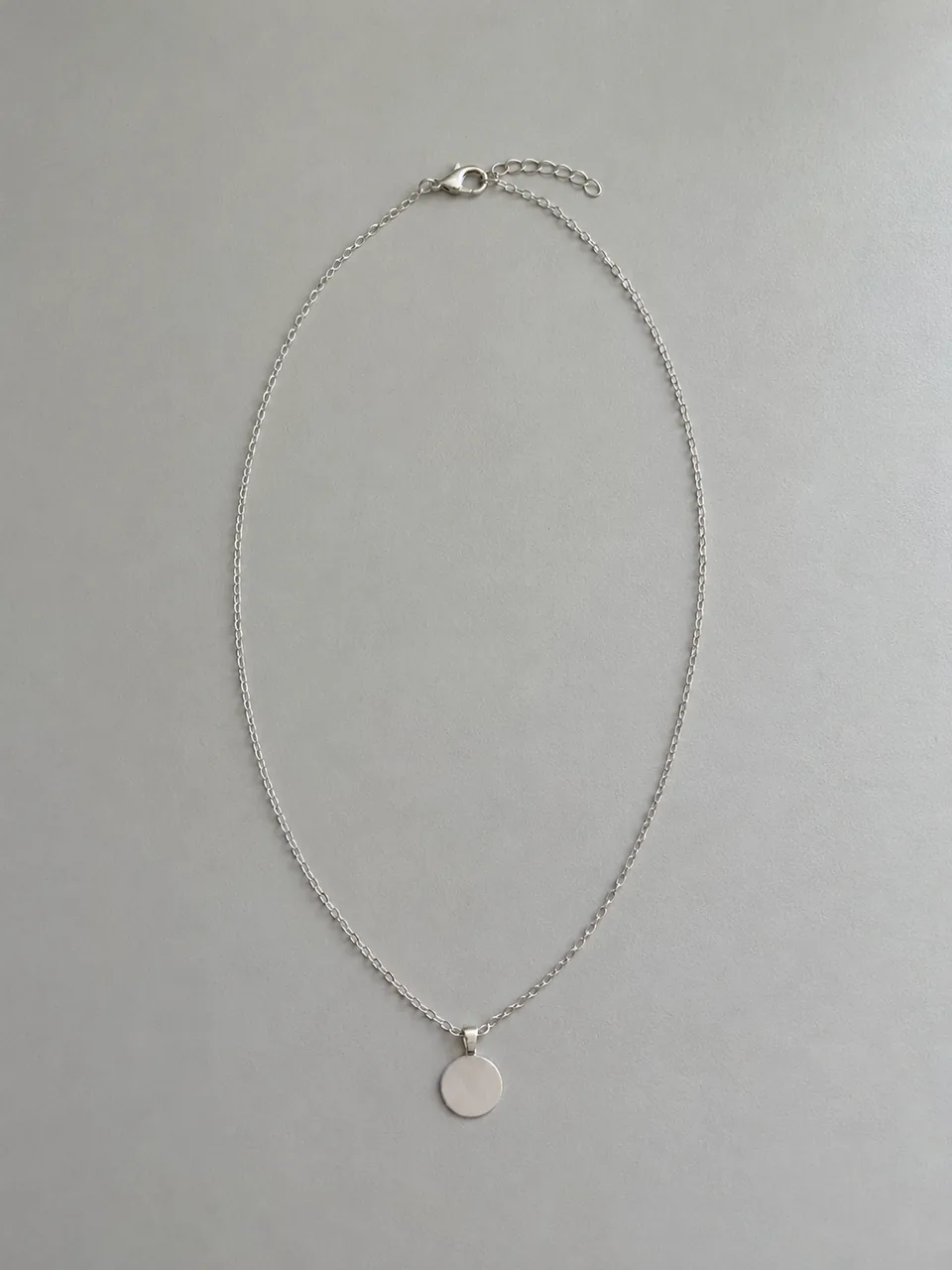
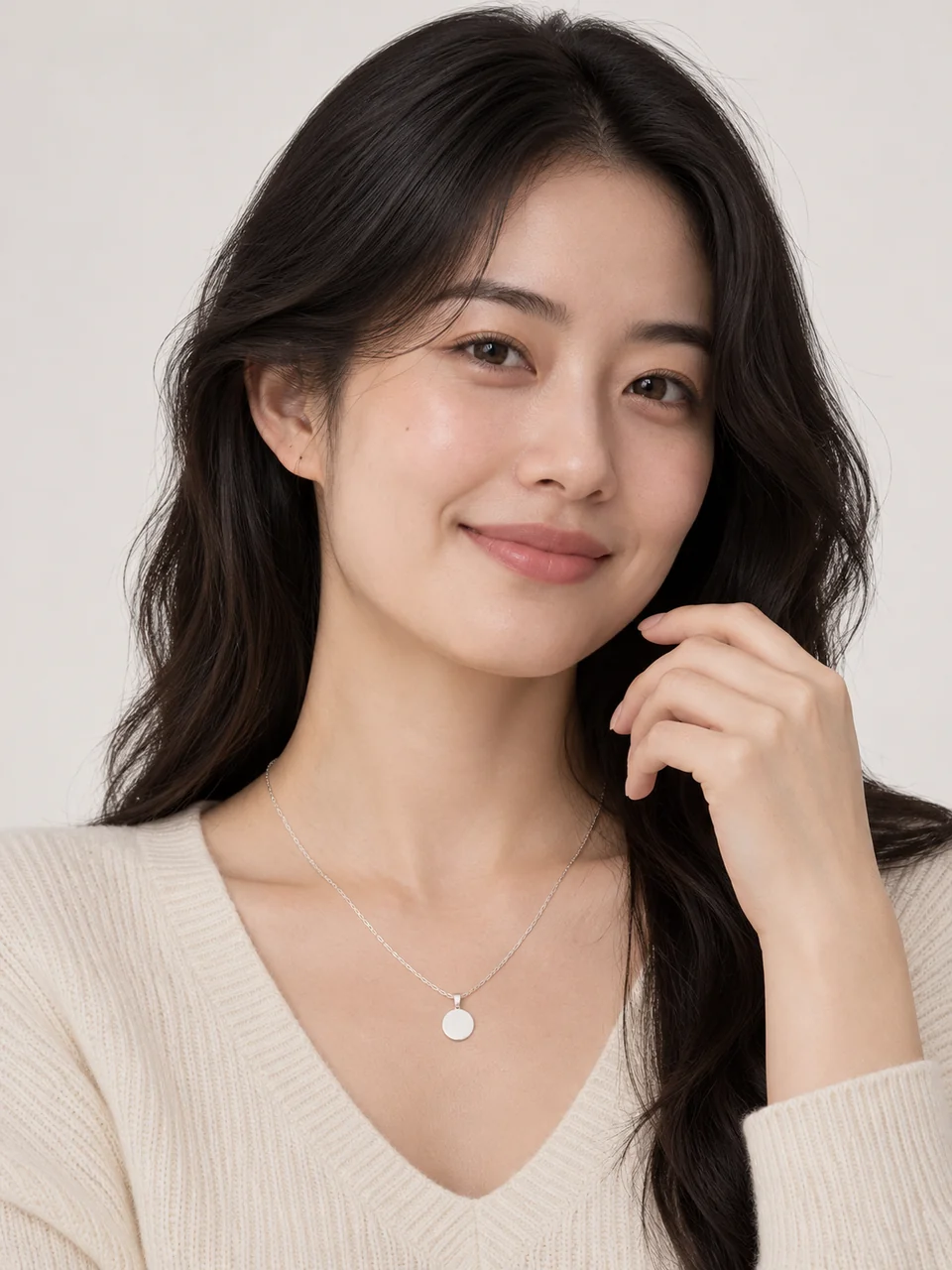
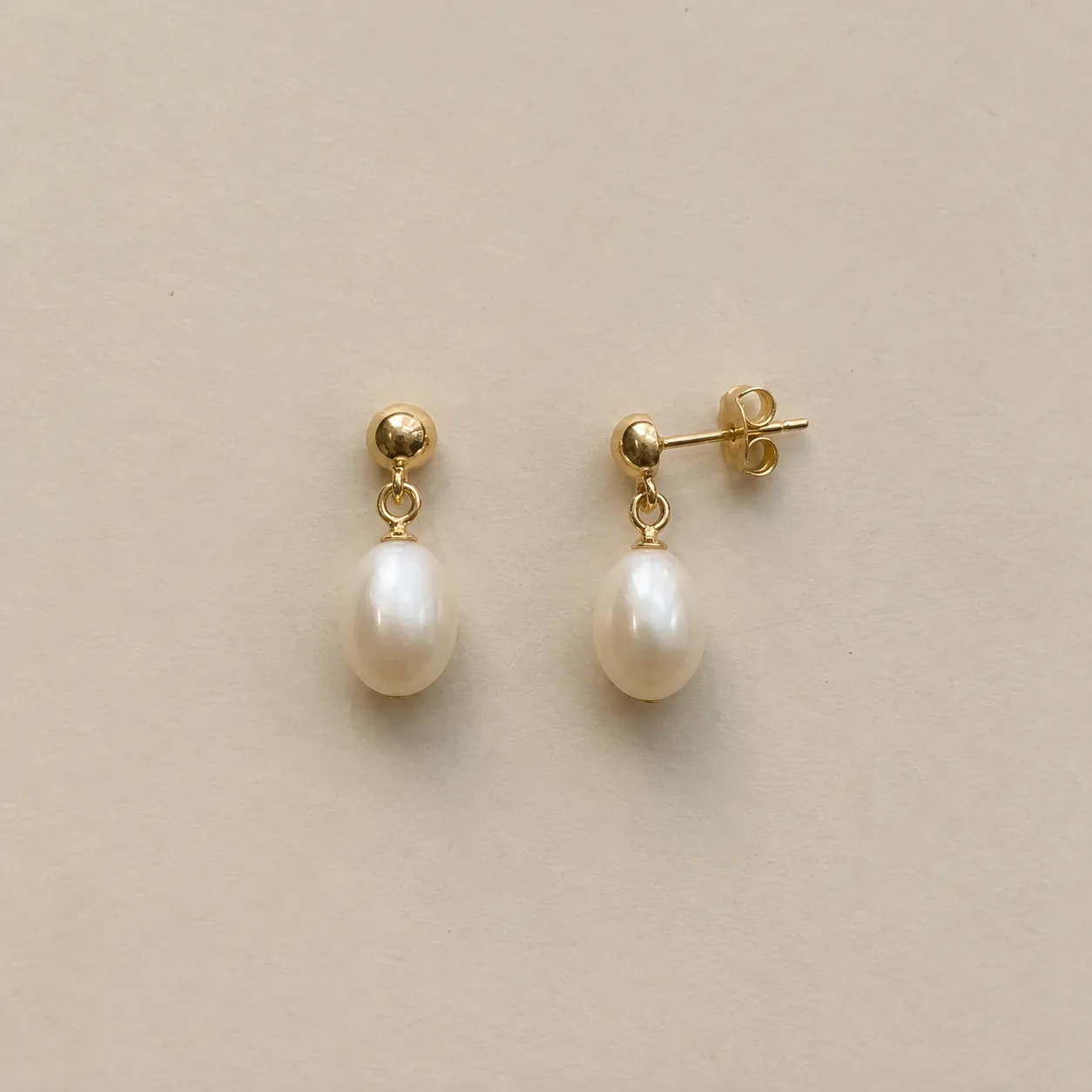
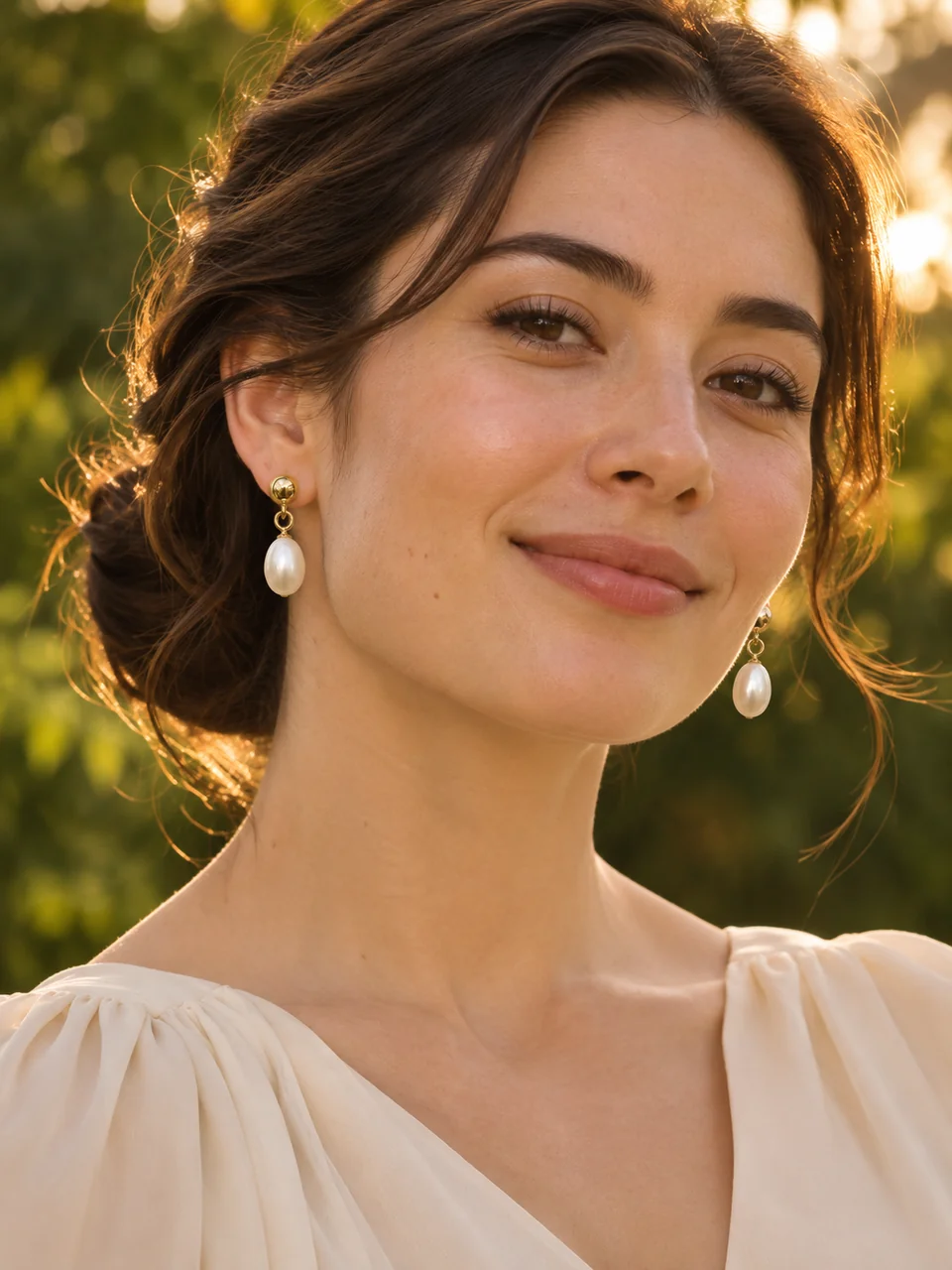
Three pieces, three scenes, each from one product photo.
 Before
 After
 Before
 After
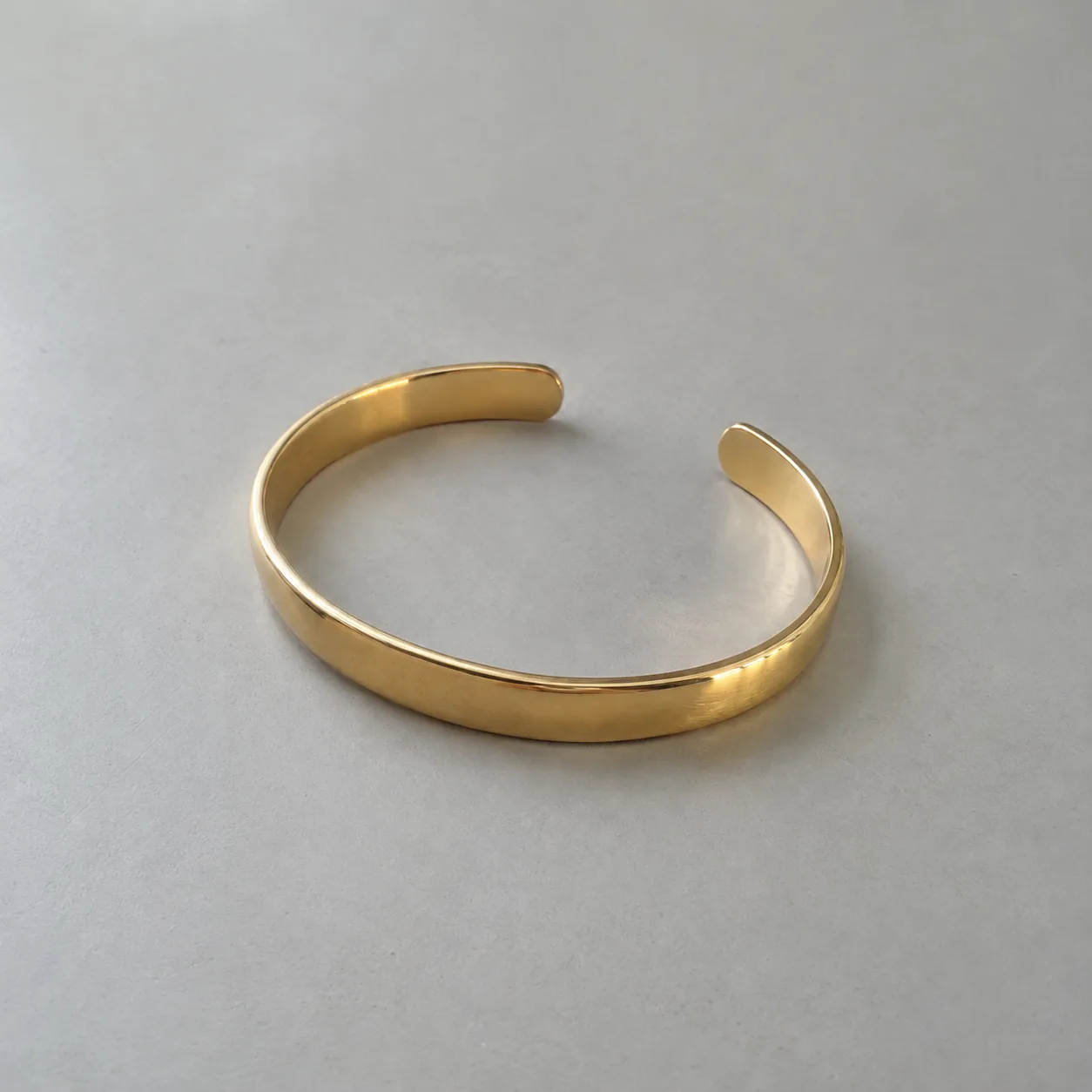 Before
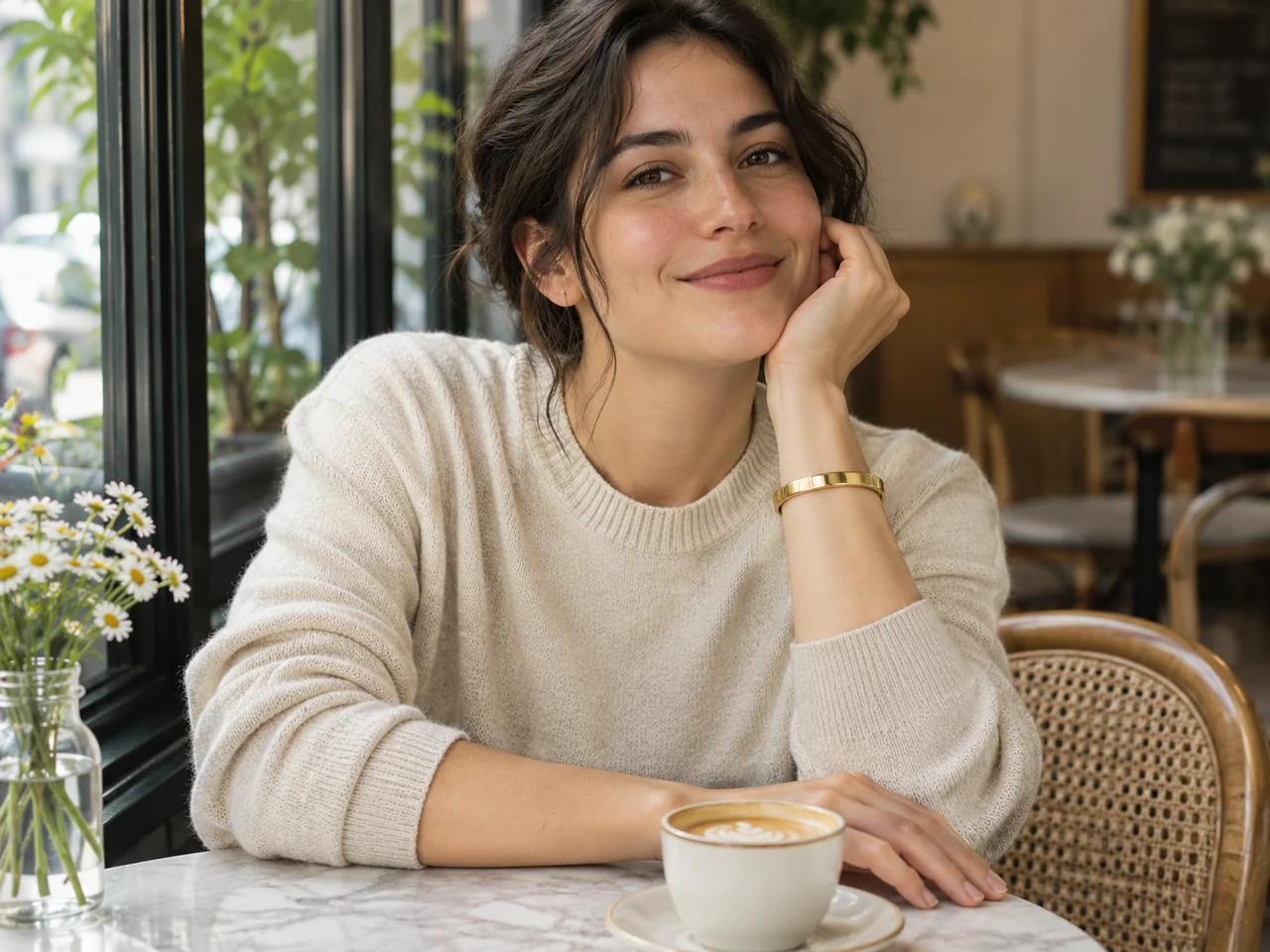 After
02
It is a styled photo of a generated adult model wearing your piece. You upload the jewelry on its own and choose a scene; the tool generates the model, outfit, light and setting, and places the piece where it is worn: a ring on a finger, a necklace around the neck, earrings on both ears, a bracelet on the wrist.
The category tools for rings, earrings, necklaces and bracelets focus on placement and scale, with tight framing and little else in the frame. This tool is for the wider picture: brand mood, campaign images, lookbook pages and social posts, where the person and the setting matter as much as the piece.
Because more of the image is generated, there is more room for the piece to change. Wider framing makes jewelry smaller in the frame, so pick Close when the detail matters, and always compare the result with your product photo.
03
Choose the jewelry type and upload one product photo with the whole piece visible in soft light. Use one PNG, JPEG or WebP up to 20 MB.
Choose Studio portrait, Editorial, Golden hour or Everyday, then Close, Head and shoulders or Waist up. Use the notes for the model’s look, outfit or color palette.
Zoom in on the jewelry and compare it with your photo: shape, stones, metal and findings. Reject results where the piece changed. Every new scene is a separate generation.
04
Pick the scene that matches where the image will be used.
| Scene | Look | Best format | Best for |
|---|---|---|---|
| Studio portrait | Seamless light backdrop, soft key light | 3:4 | Product pages and clean catalogs |
| Editorial | Fashion styling in calm neutral tones | 3:4 | Lookbooks and brand pages |
| Golden hour | Warm outdoor light, soft background | 4:3 | Ads, banners and seasonal posts |
| Everyday | Candid moment at home or in a café | 1:1 | Social posts and email |
05
The framing decides how large the piece is in the frame.
Tight on where the piece is worn. Use it when detail matters: small studs, fine chains, gemstones. It is the most accurate option.
The model and the piece together, with rings and bracelets raised near the face. It is the classic jewelry campaign frame.
More outfit and setting, smaller jewelry. Use it for mood and context, and pair it with a close image in the same listing.
The tool shows one adult model wearing one piece. It does not add other jewelry, so the piece you sell stays the focus.
06
07
Compare these points with your product before you download.
| Check | Good result | Reject if |
|---|---|---|
| Piece | Same shape, stones, metal and findings | Details changed or the piece was redesigned |
| Placement | Worn the right way for its type | An earring on the wrong spot, a ring floating |
| Visibility | Sharp and unobstructed | Hair, hands or clothing cover it |
| Extra jewelry | Only your piece is worn | Other rings, chains or earrings appear |
| Model | Adult, natural anatomy, tasteful styling | Distorted hands, face or proportions |
| Text and logos | None in the image | Signs, labels or brand marks |
08
One scene and one model look across every piece makes a collection feel planned.
Example: four pieces, Editorial, Head and shoulders.
Warm light and an outdoor setting suit spring and summer campaigns.
Example: drop earrings, Golden hour, 4:3.
Candid scenes feel native to social feeds and stories.
Example: a cuff, Everyday, Waist up.
A studio portrait with clean space works behind headline text.
Example: a pendant, Studio portrait, 4:3.
09
Consistency makes generated model photos feel like one shoot.
Decide the model’s look, the outfit color and the palette once, and paste the same note into every generation.
Mixing studio, outdoor and café scenes in one collection looks unplanned. Pick one per collection.
A waist-up mood image sells the story; a close image shows the piece. Use both.
Some marketplaces and ad platforms require labels for AI-generated people. Check the current rules.
10
Most failed results have a simple cause.
Wider framing shrinks the jewelry. Switch to Close or Head and shoulders, or generate a close image to pair with a wide one.
Add “no other jewelry” to the notes and regenerate. Busy editorial scenes are most likely to add accessories, so check every result.
Check that you selected the right jewelry type before uploading. A necklace photo marked as a bracelet will be placed on a wrist.
Choose Studio portrait, or describe a calmer setting in the notes, such as “plain wall, soft daylight, neutral clothing”.
Paste the same style note into every generation: skin tone, hair, outfit color and palette. Consistent notes give a consistent look.
Rings and bracelets need hands, and hands are hard. Use Close framing, regenerate when fingers look wrong, and never keep an image with distorted anatomy.
Before you publish
The model in the image is not a real person, and the scene was never photographed. The piece is meant to be yours, but more generated context means more room for small changes. Check every result against your product photo.
Do not use generated model photos to suggest size, fit, endorsement or real customer use. Keep real measurements and real reviews separate from AI images.
Questions
It is a generated adult model shown wearing the piece from your product photo in a styled scene. The model, outfit and setting are generated; the jewelry comes from your upload.
The category tools focus on placement and scale with tight framing. This tool creates styled scenes for campaigns and social posts, across every jewelry type, with a choice of scene and framing.
Yes, describe it in the notes: age range (adult), skin tone, hair, outfit or color palette. The notes guide the model and scene; they never override the instruction to keep your piece unchanged.
Close. The piece is largest in the frame, so details survive best. Head and shoulders is a good balance; Waist up is for mood and context.
Yes, when you generate with paid credits, own the product photo and the image represents the product accurately. Check the ad platform’s rules on AI-generated people and disclosure.
No. The tool asks for one person wearing only your piece, so the item you sell stays the focus. Reject results where extra jewelry appears.
Each image costs 15 credits on the default Fast setting, including your reference photo. New accounts that use Google sign-in or a Gmail address get 20 free credits, enough for one image. Free-credit images carry a watermark and are for personal use; use paid credits for store and marketplace images.
Your upload is private and scheduled for deletion after one day. On a free account, generated images stay in My Creations for 14 days; paid plans and credit packs keep them longer.
Upload a product photo, choose a scene and a framing, and check the piece before you publish.
Upload a jewelry photo