Your photo, or with permission
Upload a photo of yourself, or of an adult who agreed to it. Do not upload photos of children or of people who have not agreed.
Jewelry Studio · Try-on
Wondering how a piece would look on you, or on a customer who sent a photo? Upload a photo of the jewelry and a portrait, and get one preview with the piece added and the rest of the photo unchanged.
Updated · Image25 Jewelry Studio
20 credits · Fast · Medium · 1 image
Includes your jewelry photo and your portrait. Every new generation costs 20 credits.
Email sign-in keeps your selection. Google sign-in leaves this page; reselect your photo and settings after returning.
Keep my photo
Same framing as your portrait.
Virtual jewelry try-on adds the ring, necklace, earrings or bracelet from a product photo to a portrait you upload. The person’s face, hair, clothing and background stay as photographed; only the piece is added where it is worn. One preview costs 20 credits because it uses two photos. It is a still image, not live AR or a fit check.
01
One portrait, three pieces added. Only the jewelry changes.
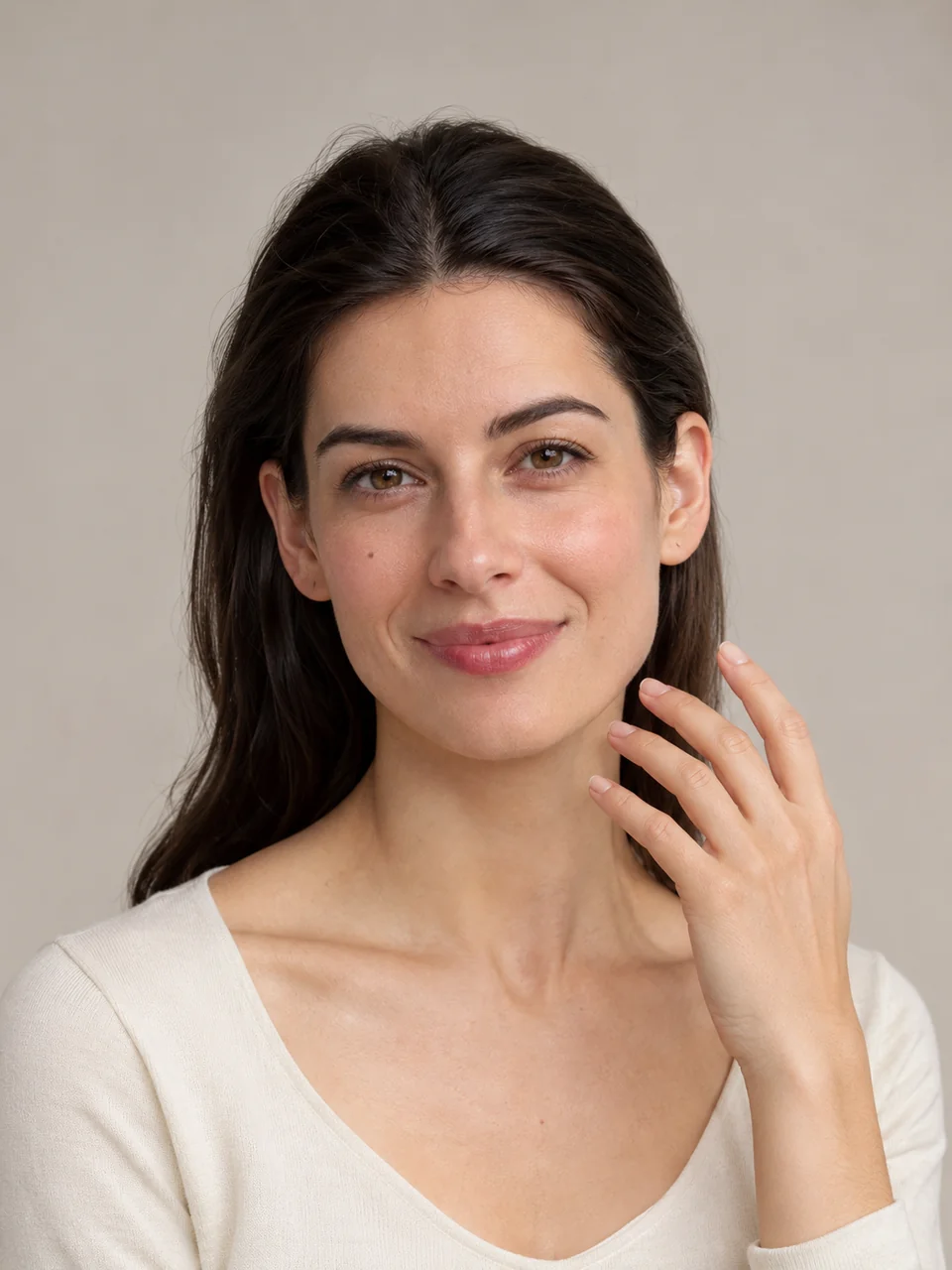 Before
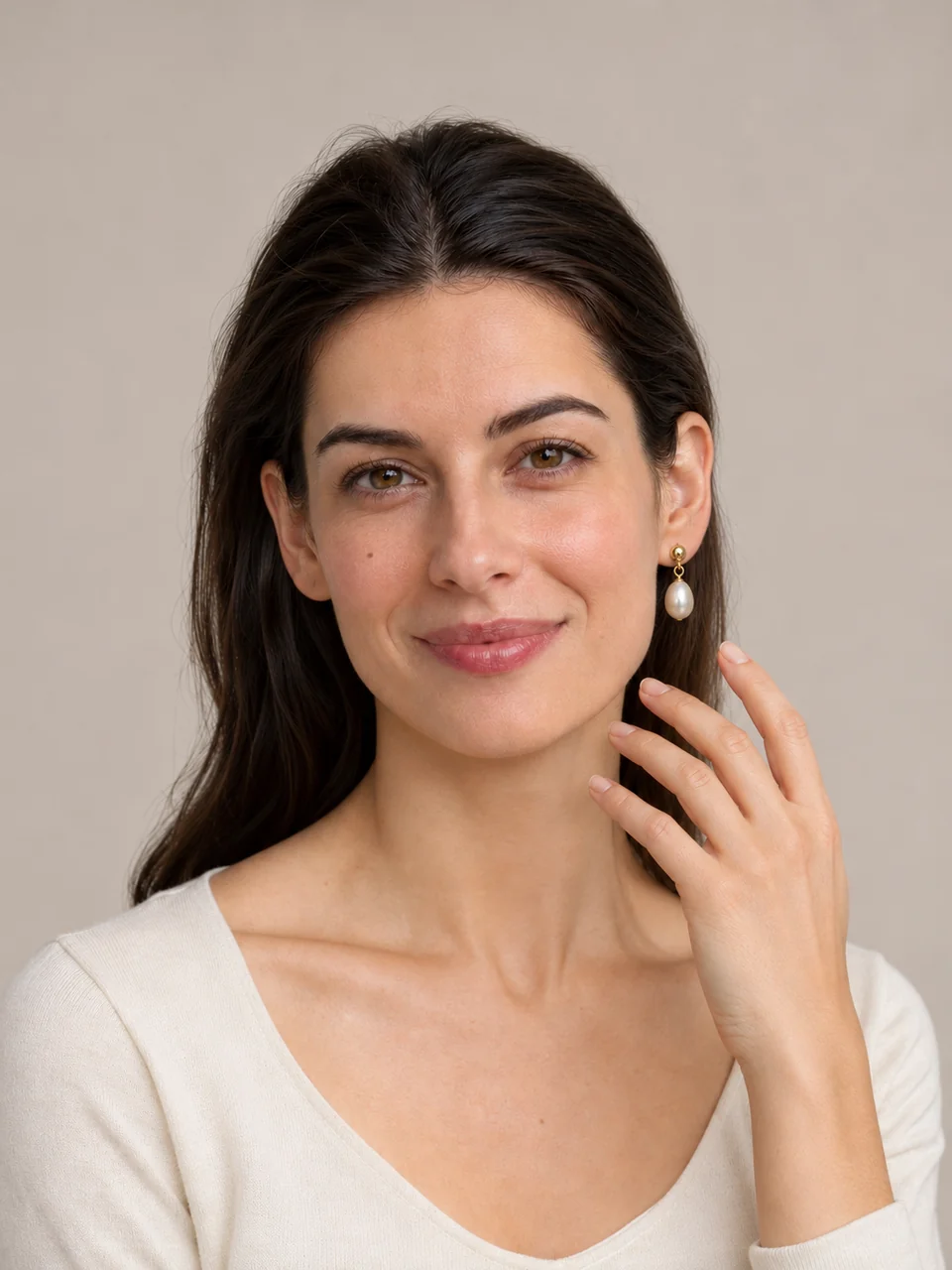 AfterBefore
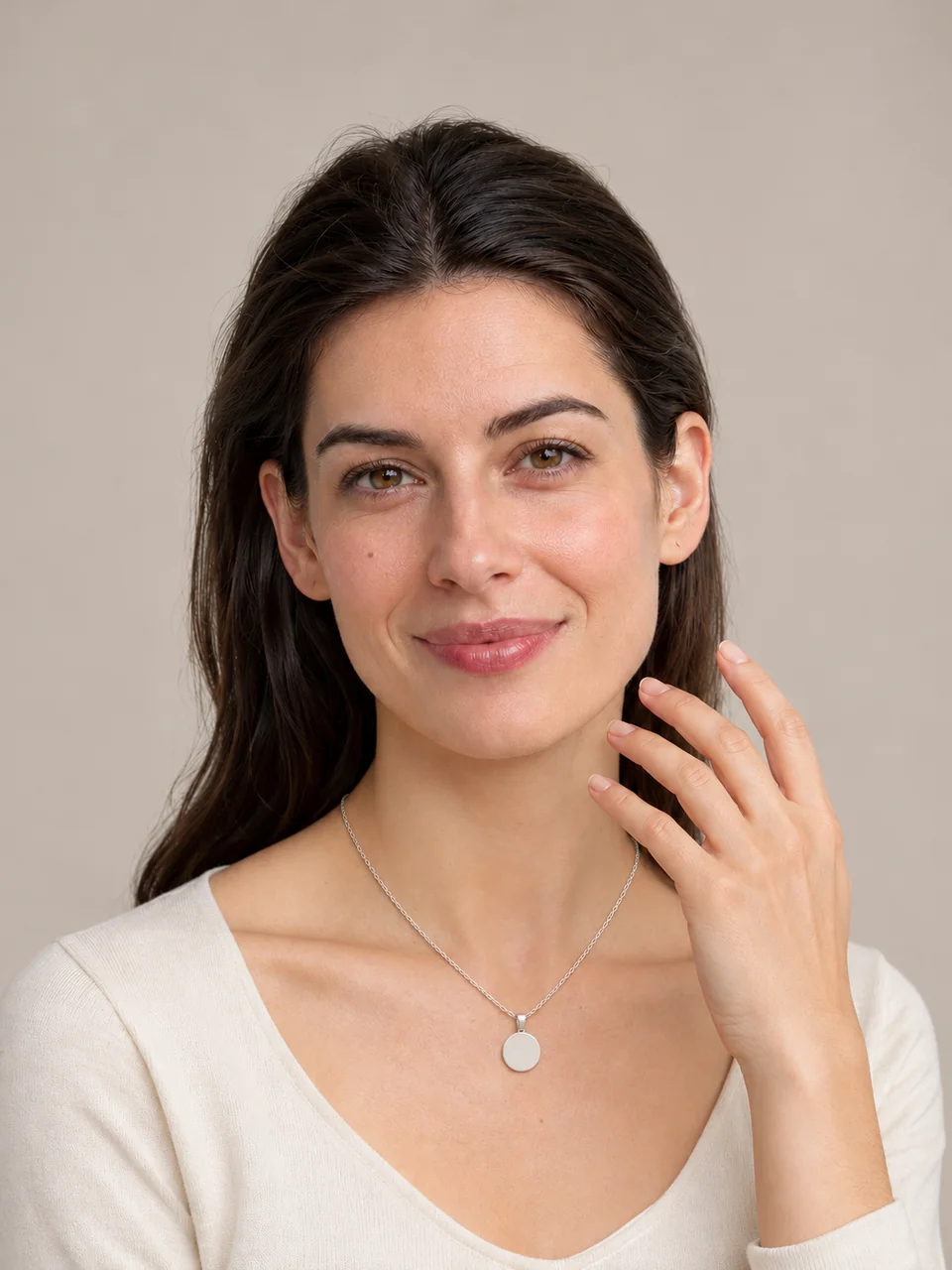 AfterBefore
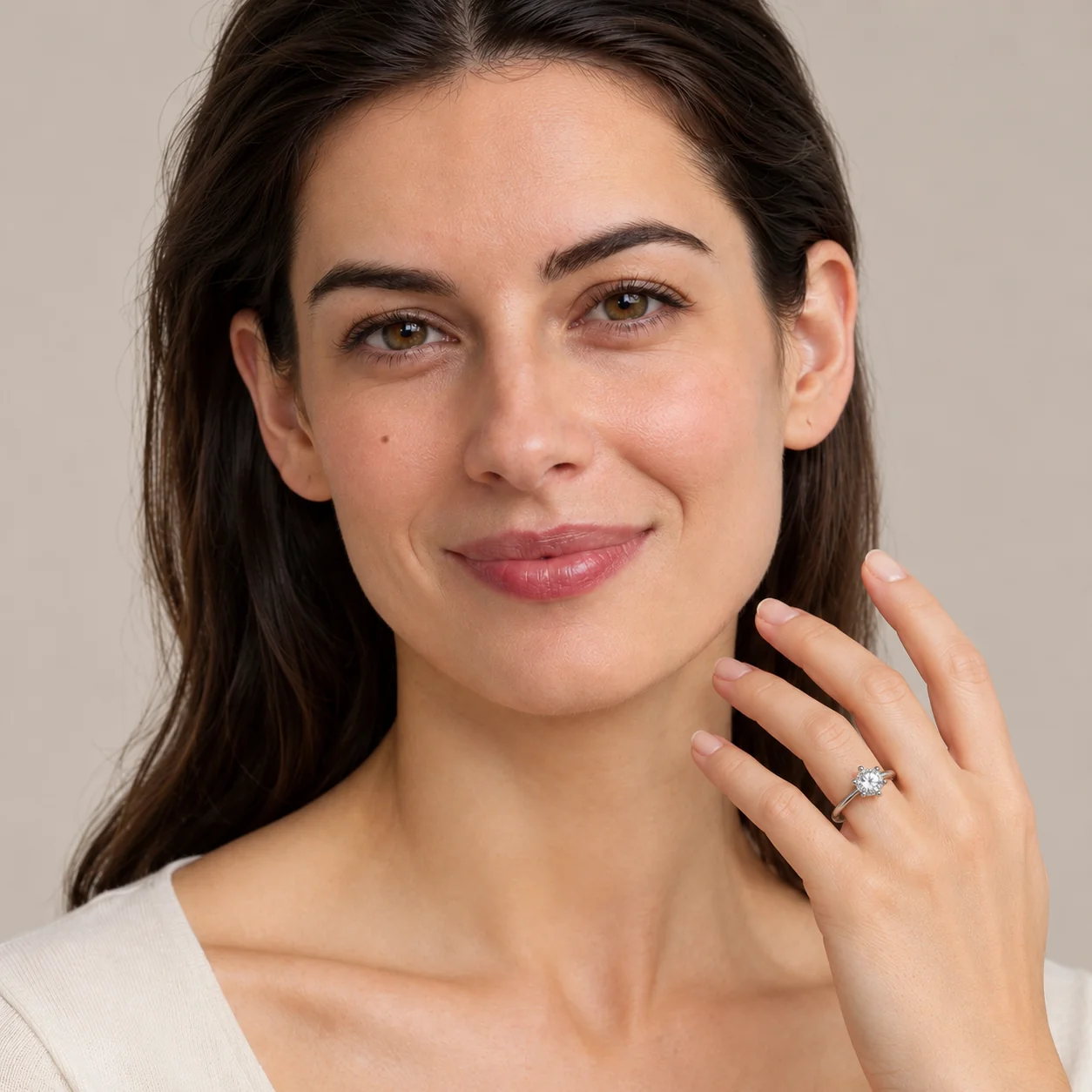 After
02
Here it means a still preview. You upload two photos: the jewelry on its own and a portrait of a person. The model adds the piece to the portrait where it is worn, and is instructed to keep the person’s face, identity, skin, hair, expression, clothing, pose and background exactly as photographed.
It differs from the other on-model tools in one way: the person is real and supplied by you. The ring on hand, earrings and necklace tools generate a model; this tool works on your portrait. That makes it useful for personal decisions and for customers who send a photo and ask how a piece would look.
It is not augmented reality. Nothing tracks your face live, and nothing measures your finger, ear or neck. The size of the piece is estimated, so treat the result as a look preview and rely on real measurements for fit.
03
Choose ring, necklace, earrings or bracelet, then upload a clear product photo of the piece on its own. Use PNG, JPEG or WebP up to 20 MB.
Add a photo of yourself, or of an adult who agreed, where the ear, neck, hand or wrist is visible. Tick the permission box, choose Keep my photo or Closer view, and add a note such as “ring on my left hand”.
Check that the piece matches the product photo and that the person looks unchanged. Download the preview if it helps; generate again for a different piece. Each preview is a separate generation.
04
The body part must be visible in the portrait for a natural result.
| Jewelry | Portrait should show | Best result | Avoid |
|---|---|---|---|
| Earrings | At least one ear, hair tucked or up | Keep my photo | Hair covering both ears |
| Necklace | Neck and collarbone, open neckline | Keep my photo | Scarves or high collars |
| Ring | A hand with fingers apart | Closer view | Hands in pockets or fists |
| Bracelet | A wrist without a sleeve over it | Closer view | Watches or long sleeves on that wrist |
05
A portrait is personal. These rules apply to every preview.
Upload a photo of yourself, or of an adult who agreed to it. Do not upload photos of children or of people who have not agreed.
The model is told to keep the person exactly as photographed. If the face, body or clothing changes, discard the result.
Both uploads are private to your account and scheduled for deletion after one day. Results stay in My Creations: 14 days on a free account, longer on paid plans.
Previews are for personal decisions and customer conversations. Do not use them to present a real person as wearing or endorsing a product they have not.
06
07
Two things must hold: the piece is right, and the person is unchanged.
| Check | Good result | Reject if |
|---|---|---|
| Piece | Matches the product photo | Stones, shape or metal changed |
| Person | Same face, hair, expression and skin | The face or body changed |
| Clothing and background | Exactly as in the portrait | New clothes, new background |
| Placement | Where that piece is worn | Floating or on the wrong spot |
| Scale | Plausible for the piece | Obviously too large or small |
| Extra jewelry | Only the added piece is new | Other jewelry appeared |
08
See a necklace or a pair of earrings on yourself before you buy.
Example: a pendant previewed on a selfie, Keep my photo.
A customer sends a portrait; you send back a preview of the commission.
Example: earrings on a client photo, with permission.
With permission, see whether a piece suits the person you are buying for.
Example: a bracelet on a partner’s wrist photo.
Compare two pieces on the same client portrait.
Example: two ring options, Closer view each.
09
Use it for look and style; use measurements for fit.
Color against skin and hair, proportion against the face, and how bold or delicate the piece reads.
Ring size, chain length on your body and bracelet fit come from measurements, not from a generated image.
A still photo cannot show movement or sparkle as you turn. A live, in-person try-on is still the best test.
The model can change the piece or the person. Discard any preview that does not match both photos.
10
Most failed results have a simple cause.
Use a sharp, front-facing portrait with even light and discard any result where the person looks different. The person must stay exactly as photographed.
Say where it goes in the notes, such as “ring on my left hand” or “earring on the visible ear”.
Choose a portrait that shows the ear, neck, hand or wrist. The tool will not reshape the person to make room.
Before you publish
Virtual try-on here is an AI-generated still image. It is not augmented reality, it is not a fitting and it does not measure anything. Sellers should not present a preview as a real photo of a customer wearing a product.
If the person’s face, body or clothing changes, or the piece differs from the product photo, discard the result and try a clearer portrait.
Questions
You upload a product photo of the piece and a portrait. The model adds the piece to the portrait where it is worn and keeps the person, clothing and background unchanged. You get one still preview to compare with both photos.
No. It is a still image generated from two photos. Nothing tracks your face live, and nothing is measured.
Yes, as long as the spot where the piece is worn is visible: an ear for earrings, the neck for a necklace, a hand for a ring, a wrist for a bracelet. Clear, well-lit selfies work best.
Only an adult who agreed to it. You confirm this before generating. Do not upload photos of children or of people who did not agree.
No. Ring size, chain length and bracelet fit need real measurements. The preview shows how the piece looks, not how it fits.
It sends two photos to the model, the jewelry and the portrait, and each reference photo adds credits. One preview costs 20 credits on the default Fast setting.
Each image costs 20 credits on the default Fast setting, including your jewelry photo and your portrait. New accounts that use Google sign-in or a Gmail address get 20 free credits, enough for one image. Free-credit images carry a watermark and are for personal use; use paid credits for store and marketplace images.
Your uploads are private and scheduled for deletion after one day. The preview stays in My Creations for 14 days on a free account and longer on paid plans; you can delete it sooner.
Upload a photo of the piece and a portrait, confirm permission, and compare the preview with both photos.
Upload your photos