Ring finger
The default for engagement rings, wedding bands and most solitaires. Buyers read it as the natural place for the piece, so it is the safest first worn image.
Jewelry Studio · On-model
Buyers want to see how a ring looks when it is worn. Upload one clear photo of the ring, pick a hand pose and a finger, and get one worn photo without booking a hand model.
Updated · Image25 Jewelry Studio
15 credits · Fast · Medium · 1 image
Includes one reference photo. Every new generation costs 15 credits.
Email sign-in keeps your selection. Google sign-in leaves this page; reselect your photo and settings after returning.
Hand resting · Ring finger
Relaxed hand on a surface, ring toward the camera.
AI ring on hand photos take your ring from a product photo and show it worn on a generated adult hand. You choose one of four poses and which finger wears it; the stone, prongs and band come from your photo. One image costs 15 credits, and you check the size against the real ring before you use it.
01
One solitaire product photo, worn three ways.
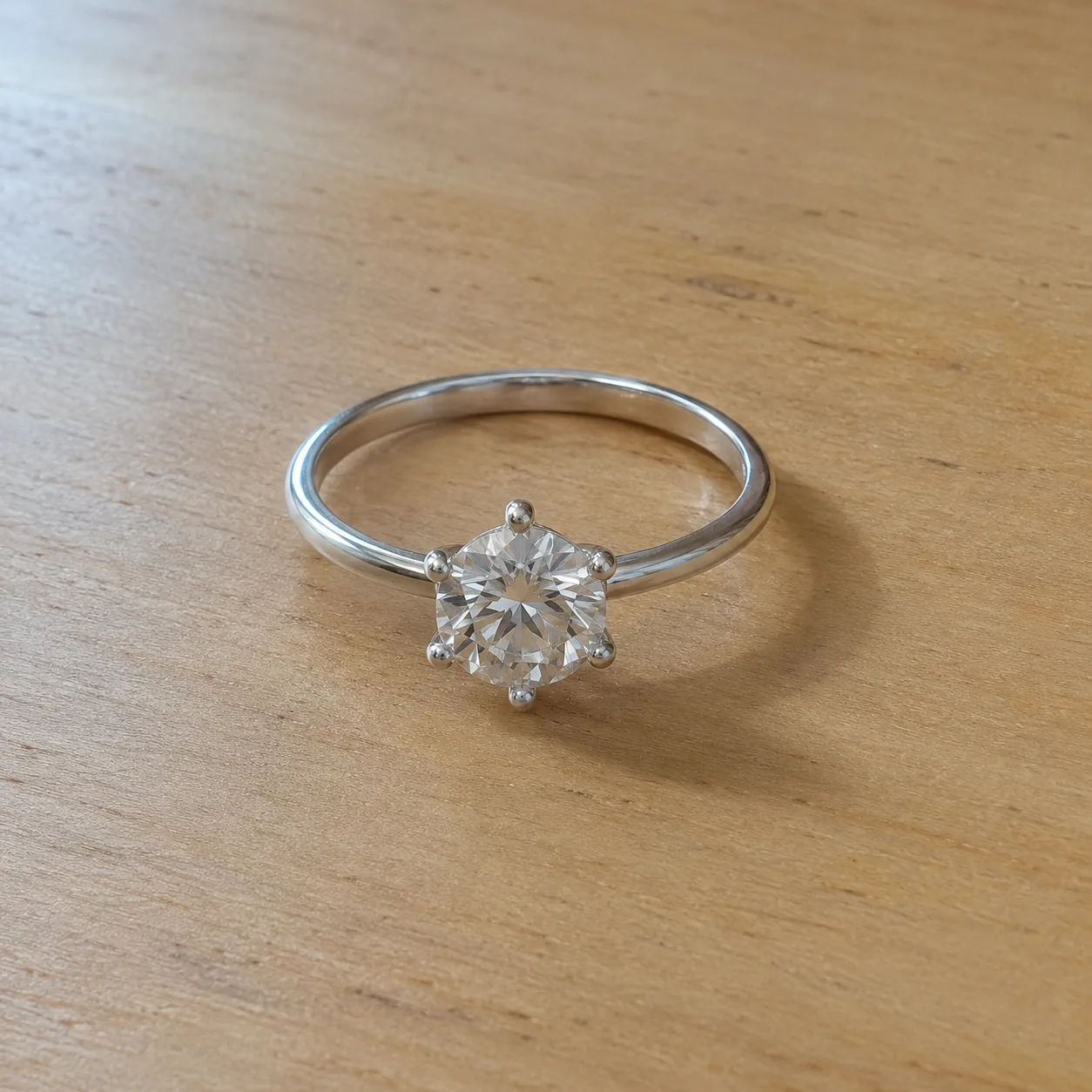 Before
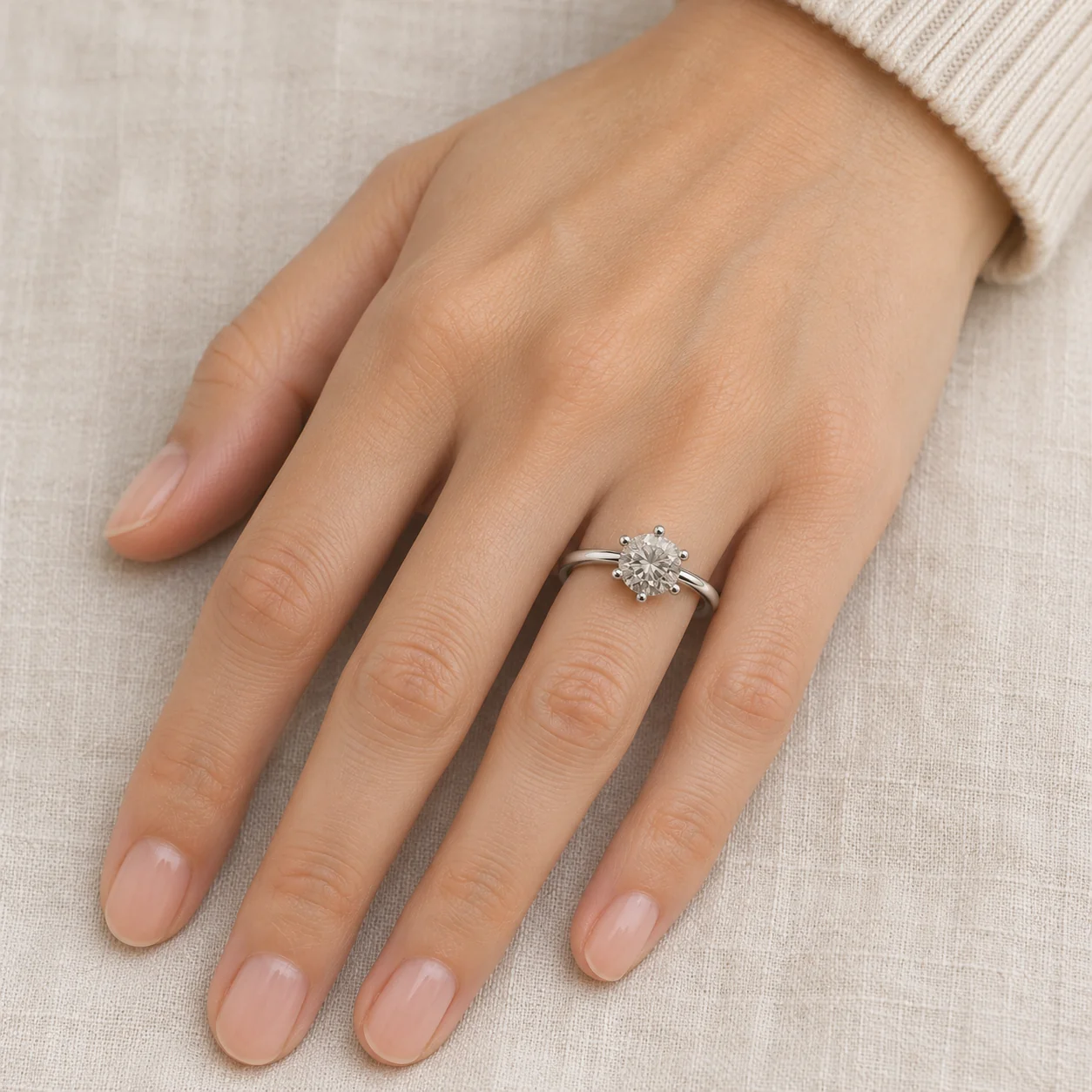 AfterBefore
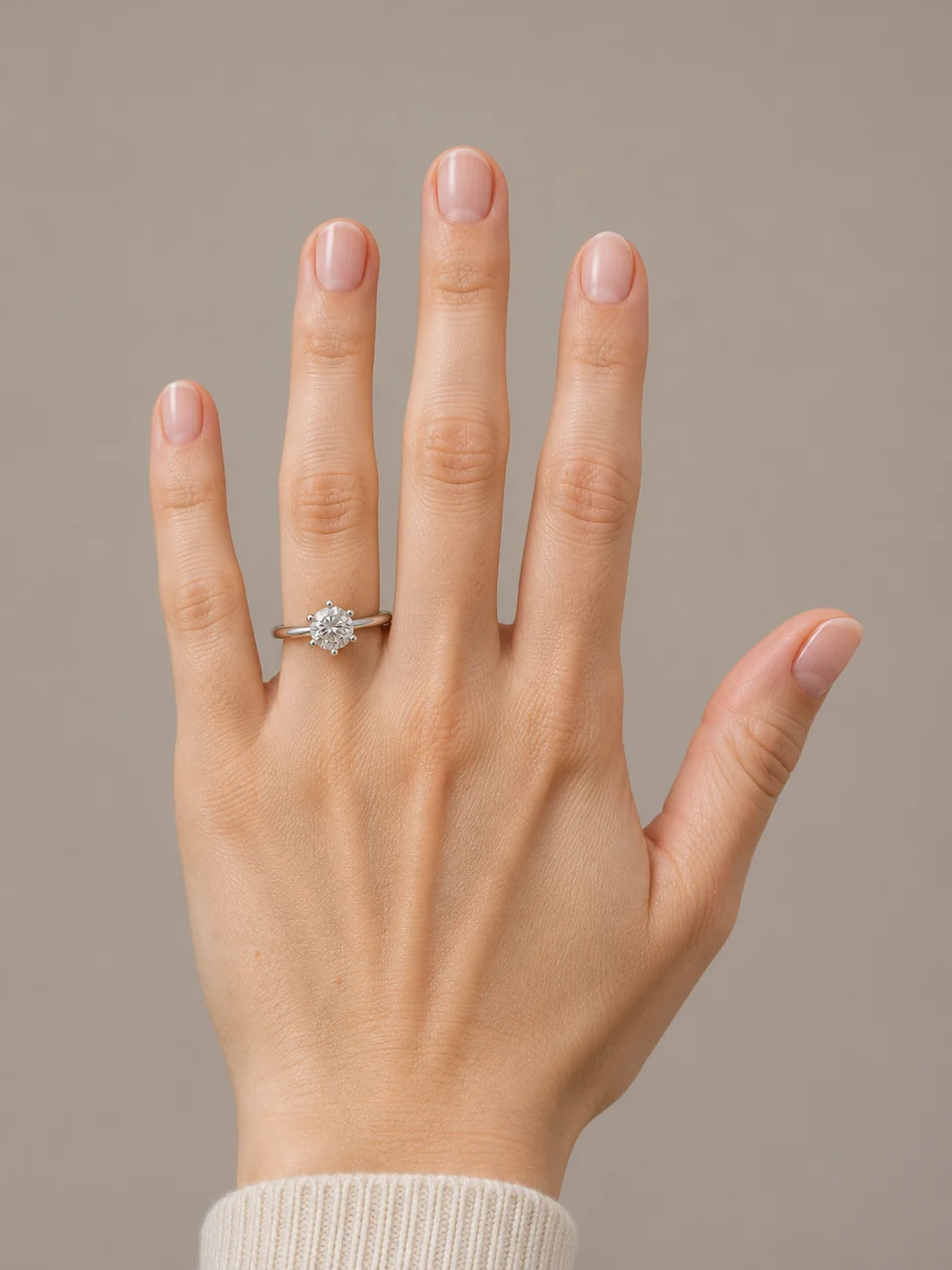 AfterBefore
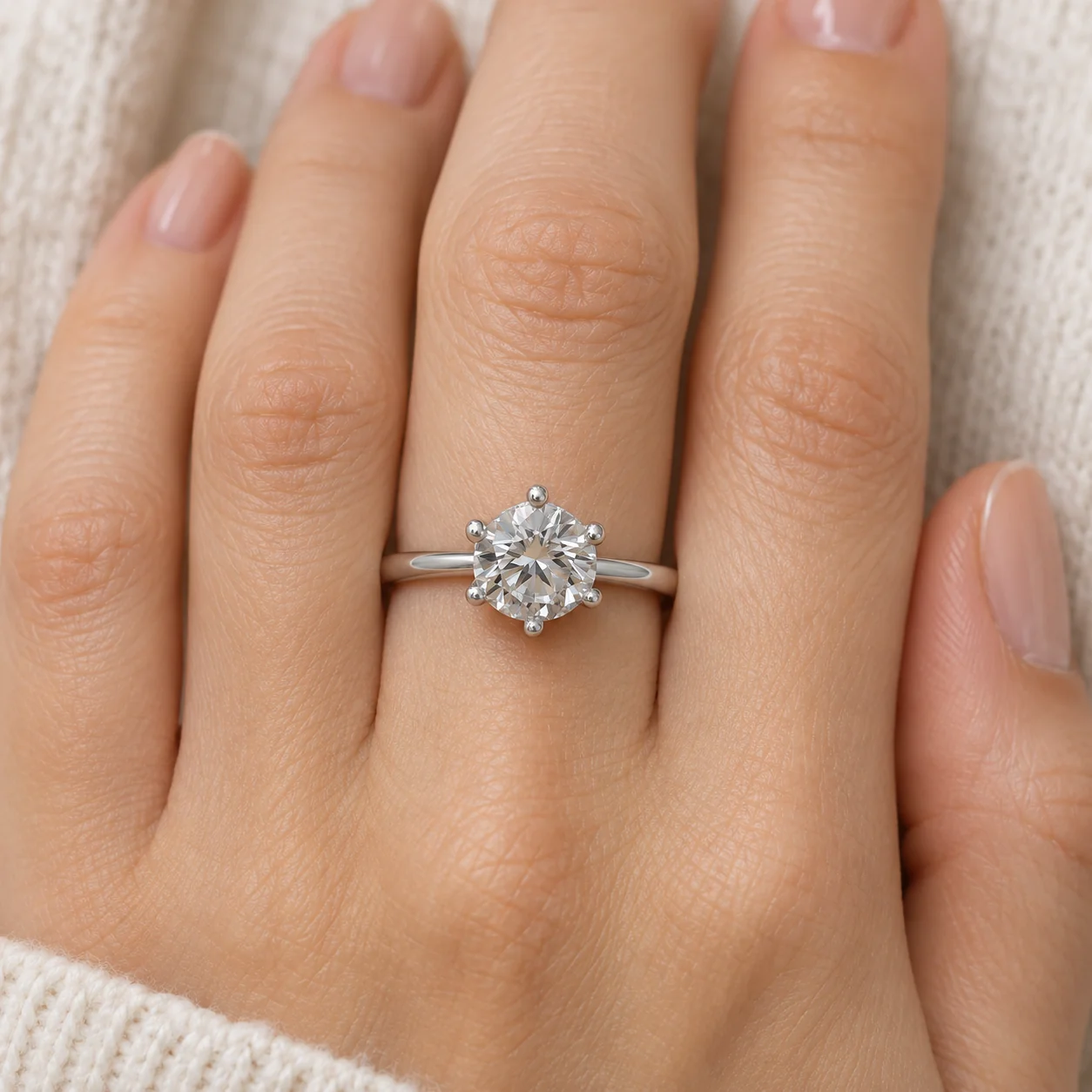 After
02
It is an on-model image made from a product photo. You upload a photo of the ring on its own, the tool reads the ring from it, and the model generates an adult hand wearing that ring. The hand is new; the ring is meant to be yours.
A worn photo answers a question a flat product shot cannot: how the ring looks on a finger. It shows the width of the band against the knuckles, how far the setting rises above the finger and whether the stone reads as delicate or bold. Many buyers want that view before they commit.
A real hand model gives you the most trustworthy version, and you should keep using one when you can. This tool is for the many listings where a shoot is not practical: a new piece, a small batch or a ring photographed long ago. It does not measure the ring, so it cannot promise a true-to-life size.
03
Stand the ring upright or show it at a three-quarter angle so the stone, prongs and band are all visible. Soft light keeps the facets readable. Use one PNG, JPEG or WebP up to 20 MB.
Pick Hand resting, Hand raised, Finger close-up or Holding a cup, then the finger that suits the ring. Choose a square, landscape or portrait frame and add a note for skin tone or nails if you like.
Compare the stone shape, prong count and band width with your photo, and judge whether the ring looks the right size on the finger. Download only results that match. Every new pose is a separate generation.
04
Each pose answers a different buyer question.
| Pose | Shows | Best format | Best for |
|---|---|---|---|
| Hand resting | Ring and hand on a surface, back of the hand up | 1:1 | A calm second image after the product shot |
| Hand raised | Ring toward the lens, fingers curved | 3:4 | Engagement and statement rings |
| Finger close-up | The setting on the finger, large in frame | 1:1 | Prongs, stone height and band width |
| Holding a cup | The ring in an everyday moment | 4:3 | Daily-wear bands and stacking rings |
05
The finger changes how the ring reads, not only where it sits.
The default for engagement rings, wedding bands and most solitaires. Buyers read it as the natural place for the piece, so it is the safest first worn image.
The longest finger gives cocktail rings and wide statement bands the most space. A large setting looks balanced here instead of crowded.
Signets, bold bands and modern single-stone designs often look intentional on the index finger. It also suits rings sold as unisex.
Pinky rings and thin midi-style bands are made for it. Use it when that is how the ring is meant to be worn, so the photo sets the right expectation.
06
07
Compare these points with your ring before you download.
| Check | Good result | Reject if |
|---|---|---|
| Stone | Same shape, color and count as your photo | The stone changed shape or color |
| Prongs or bezel | Same number and style | Prongs merged, vanished or doubled |
| Band | Wraps around the finger at the same width | The band floats, splits or changes width |
| Scale | Looks plausible beside the knuckles | The ring looks far larger or smaller than the real piece |
| Hand | Five natural fingers, relaxed pose | Extra or fused fingers, odd joints |
| Finger | The finger you selected | The ring moved to another finger |
08
Buyers imagine the ring on their own hand. A raised hand on the ring finger helps them picture it.
Example: a solitaire, Hand raised, ring finger, 3:4.
Thin bands look different worn than lying flat. A close-up shows how slim they really are.
Example: a thin band, Finger close-up, index finger.
A large setting needs a finger that carries it. Use the middle finger to keep it balanced.
Example: a cocktail ring, Hand resting, middle finger.
An everyday pose feels less like a catalog and more like a moment.
Example: a daily band, Holding a cup, 4:3.
09
A worn photo works best next to real product photos, not instead of them.
Keep a clear product photo first so buyers see the real stone and setting before anything is generated.
A raised hand and a close-up cover most questions about how the ring sits. More poses rarely add new information.
Give the ring size, band width and stone size in the description. A generated hand cannot prove any of them.
Some marketplaces require you to disclose AI-assisted images. Check the current rules before you upload.
Before you publish
The model guesses the size of the ring from your photo and the size of an average hand. It cannot know the real ring size, the stone’s millimeter size or the buyer’s finger. Treat the result as a preview of the look, and give real measurements in your listing.
Small details can change in a worn image: a prong can merge, a band can thin, accent stones can multiply. Compare every result with the ring, and reject any image that shows something the buyer will not receive.
Questions
You upload a photo of the ring alone and choose a pose and a finger. The model generates an adult hand and places your ring on the chosen finger, using your photo for the stone, prongs and band. You review the result next to your photo before downloading.
No. The hand is generated. You only need a clear product photo of the ring. If you want the ring on your own hand, use the virtual try-on tool, which takes your photo as a second upload.
Use the ring finger for engagement rings, wedding bands and most solitaires, the middle finger for cocktail and statement rings, the index finger for signets and bold bands, and the little finger for pinky and midi rings.
It should look plausible, but it is not measured. The model has no information about the real ring size or stone size. Always state real measurements in your listing and reject results that look clearly too large or small.
Yes. Add it in the notes, for example “deep skin tone, short natural nails”. The notes guide the hand only; they never override the instruction to keep your ring unchanged.
Not reliably yet. The tool is built for one ring per image. For a stack, photograph the stack as one piece and expect to check every band carefully; or use a real photo for stacks.
Each image costs 15 credits on the default Fast setting, including your reference photo. New accounts that use Google sign-in or a Gmail address get 20 free credits, enough for one image. Free-credit images carry a watermark and are for personal use; use paid credits for store and marketplace images.
Your upload is private and scheduled for deletion after one day. On a free account, generated images stay in My Creations for 14 days; paid plans and credit packs keep them longer.
Upload a clear photo of the ring, choose a pose and a finger, and check the stone and scale before you list it.
Upload a ring photo