Jewelry Studio · White background

Jewelry White Background Photos From One Upload

Catalog grids, marketplaces and comparison pages all favor a clean white backdrop. Upload a product photo, choose the shadow style, and keep the piece exactly as you shot it.

Updated · Image25 Jewelry Studio

Photo settings

i. Your jewelry photo

Only upload photos you own or may edit. Photos are resized to 1536 px before upload, so very fine details may soften.

ii. Jewelry type
iii. Shadow
iv. Format
v. Output

15 credits · Fast · Medium · 1 image

Includes one reference photo. Every new generation costs 15 credits.

Email sign-in keeps your selection. Google sign-in leaves this page; reselect your photo and settings after returning.

Choose a jewelry photo to begin.

Soft contact shadow

Pure white with a gentle shadow where the piece rests.

Soft contact shadow · Ring
Your current settings. Upload a photo to see your jewelry side by side with the generated image.
  1. 1Upload a photo of your piece
  2. 2Generate one Soft contact shadow image
  3. 3Compare side by side, then download

In short

The jewelry white background tool replaces the backdrop of your product photo with seamless pure white. Choose a soft contact shadow, a subtle reflection or no shadow, or request a transparent PNG (beta). Each image costs 15 credits.

Backgrounds
Pure white or transparent (beta)
Shadows
Contact shadow, reflection or none
Upload
PNG, JPEG or WebP · up to 20 MB
Formats
1:1, 4:3 or 3:4
Price
15 credits per image

01

White and Transparent Backgrounds

Explore lighting, framing and presentation ideas for your jewelry photos.

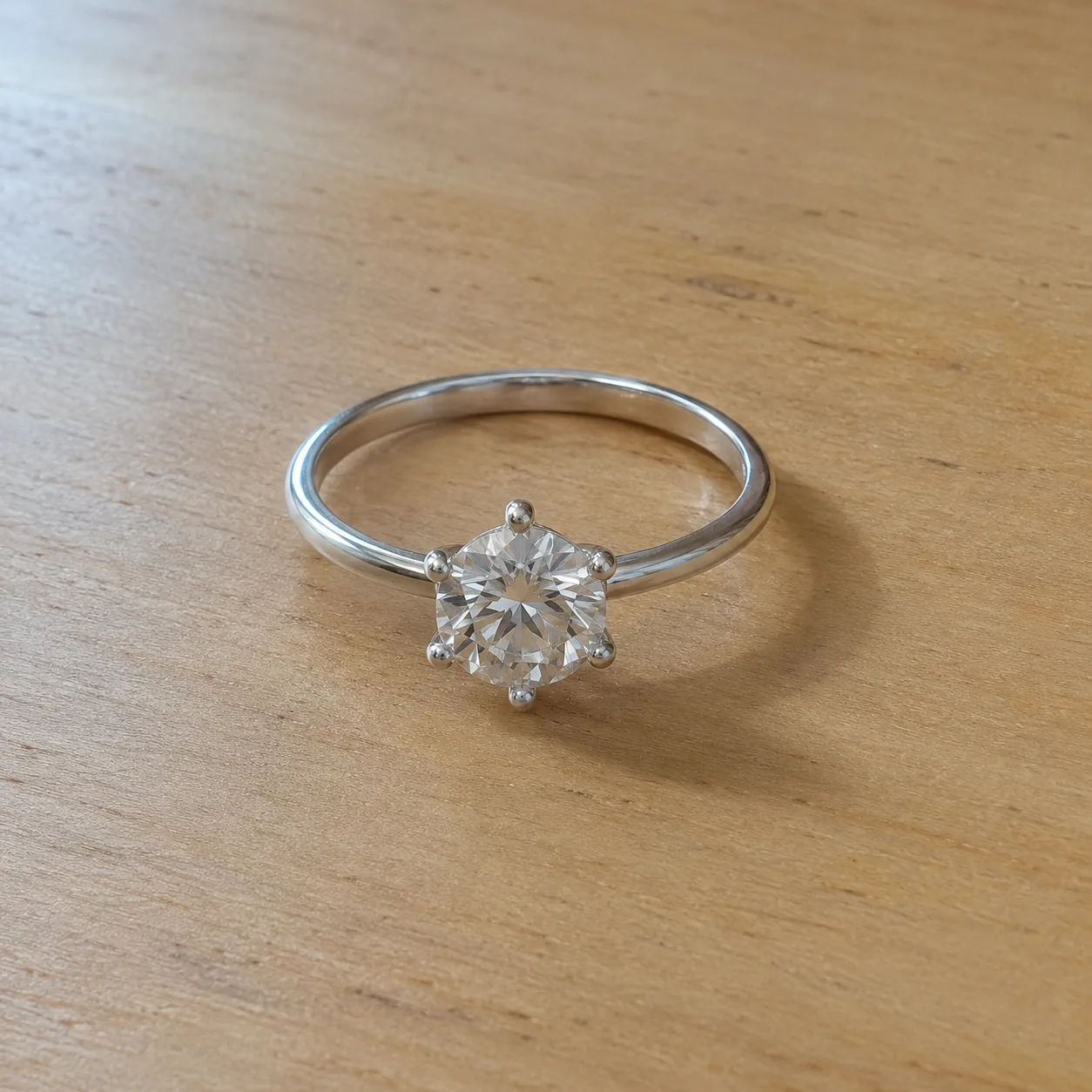
  • A silver six-prong solitaire ring on a pale wooden deskBefore
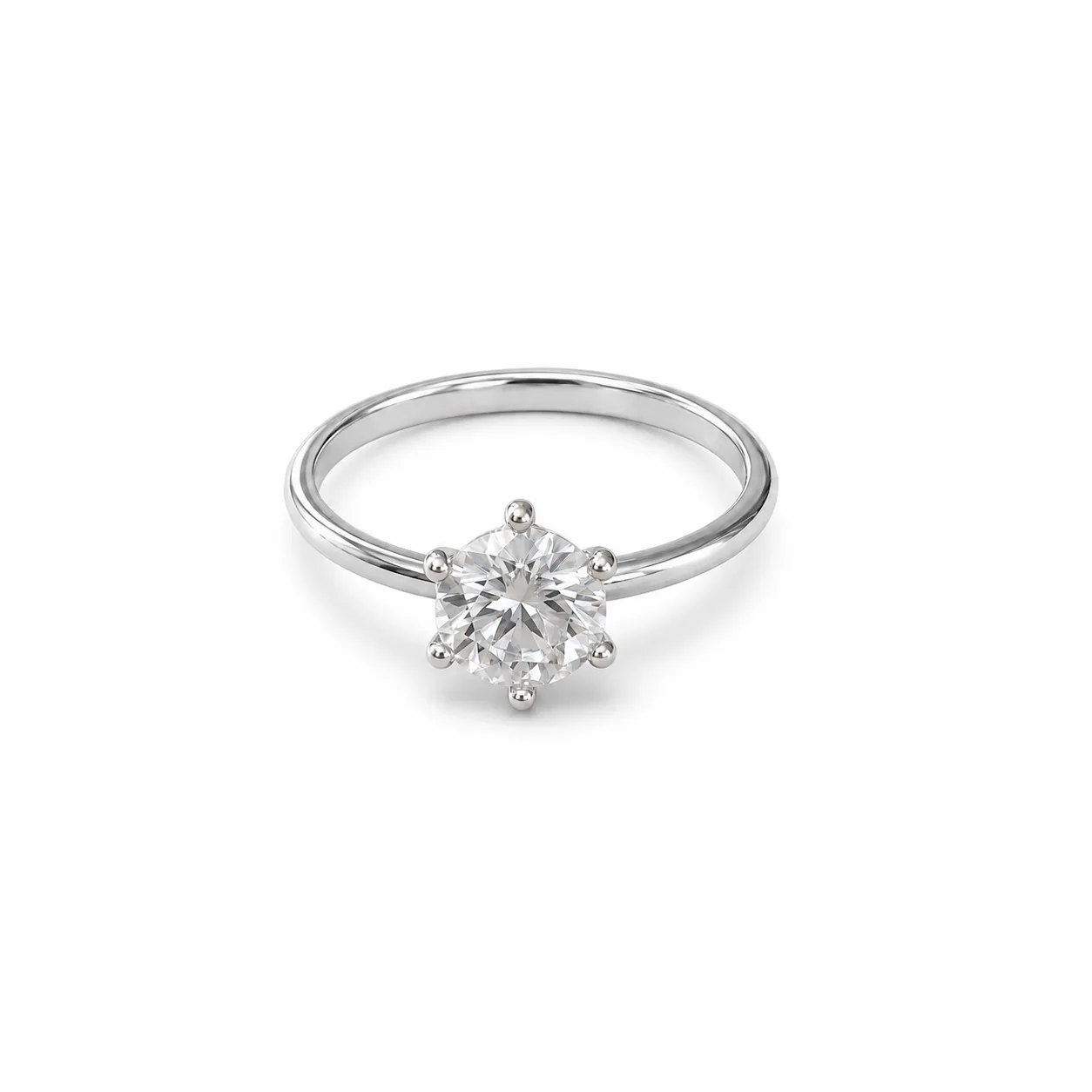
    Silver six-prong solitaire on white with a soft contact shadow directly beneath the band and stoneAfter
    Soft contact shadow · RingRing with a soft contact shadow
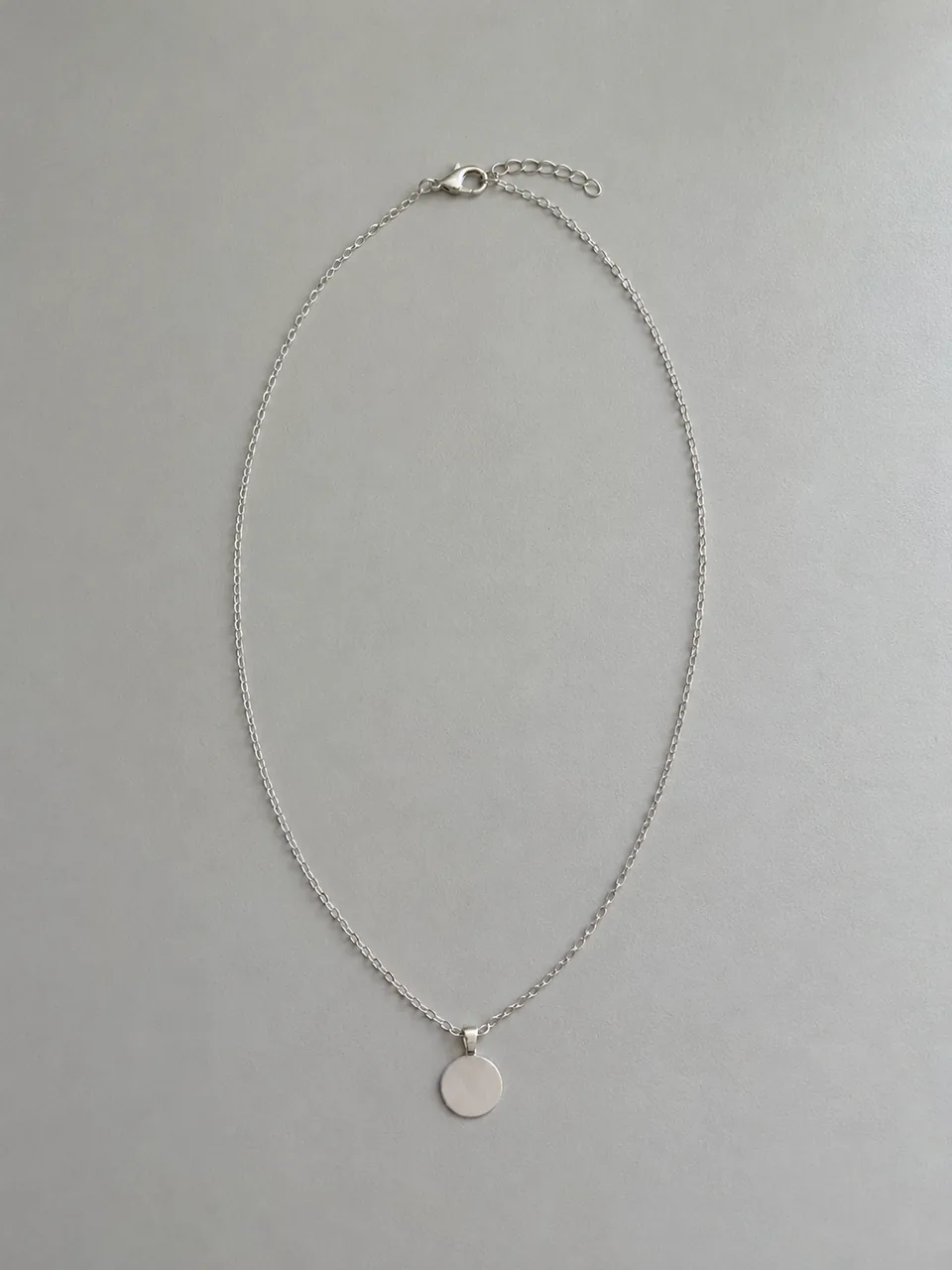
  • A silver disc pendant necklace with its full chain and clasp visibleBefore
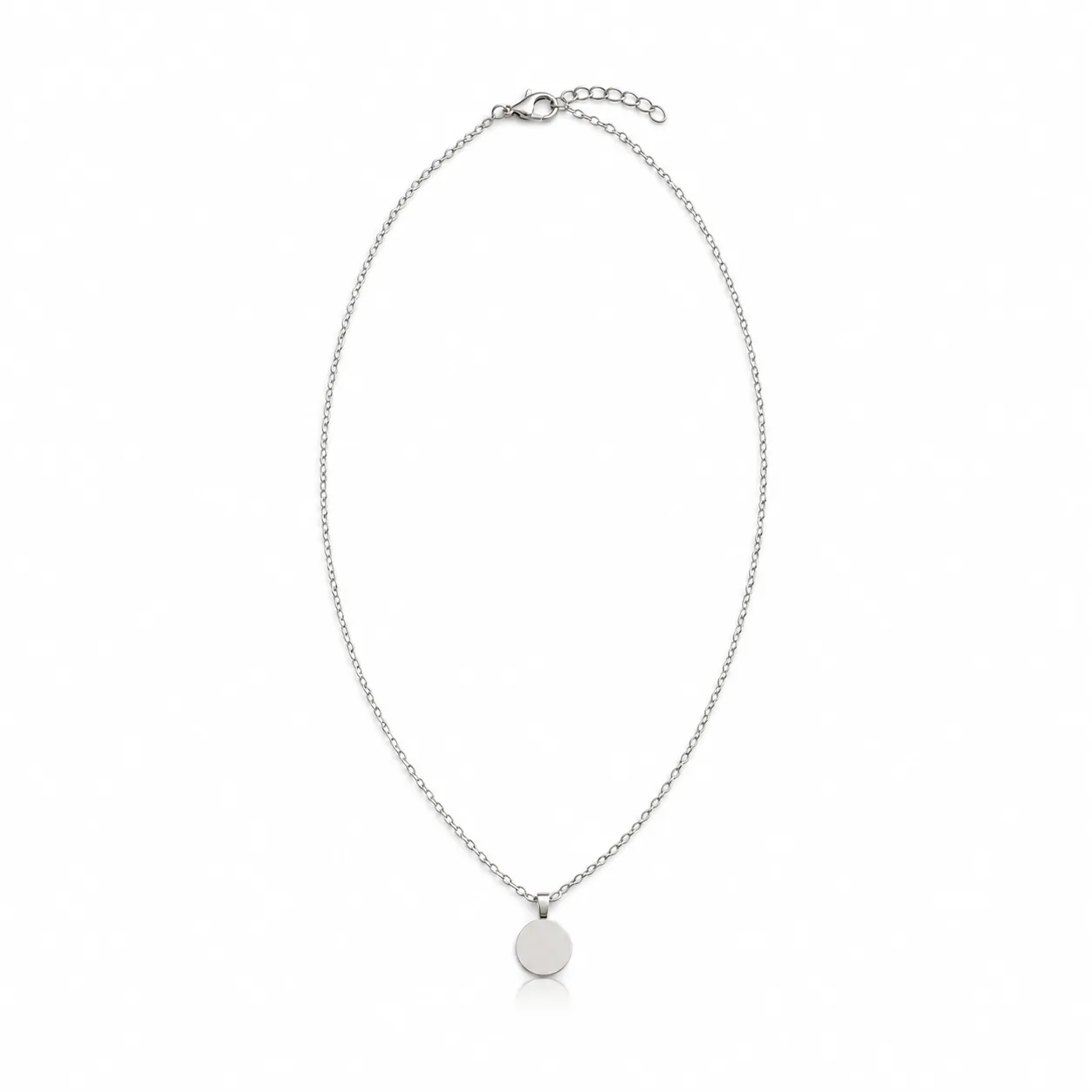
    Full silver disc necklace on white with a faint reflection immediately below the pendantAfter
    Subtle reflection · NecklaceNecklace with a subtle reflection
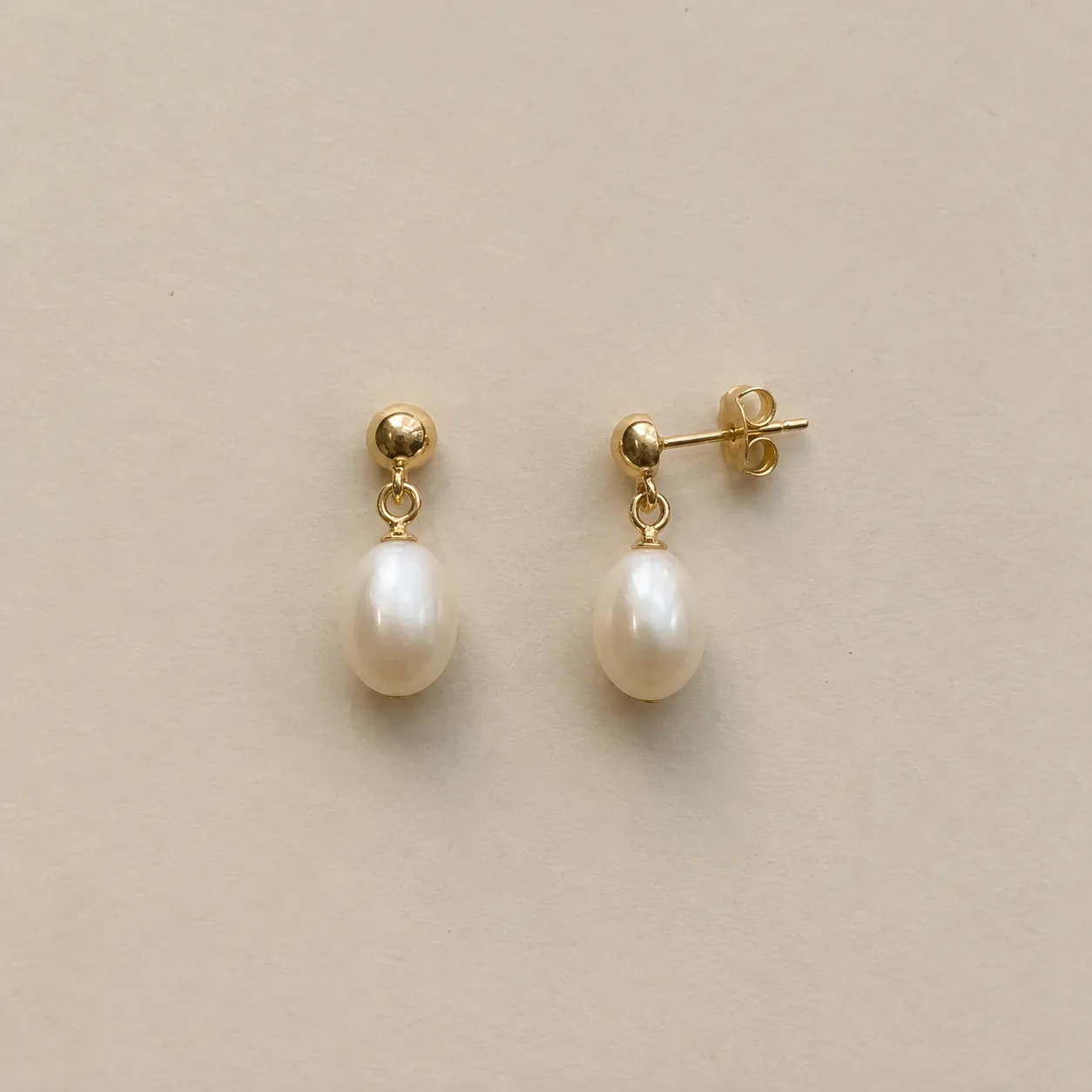
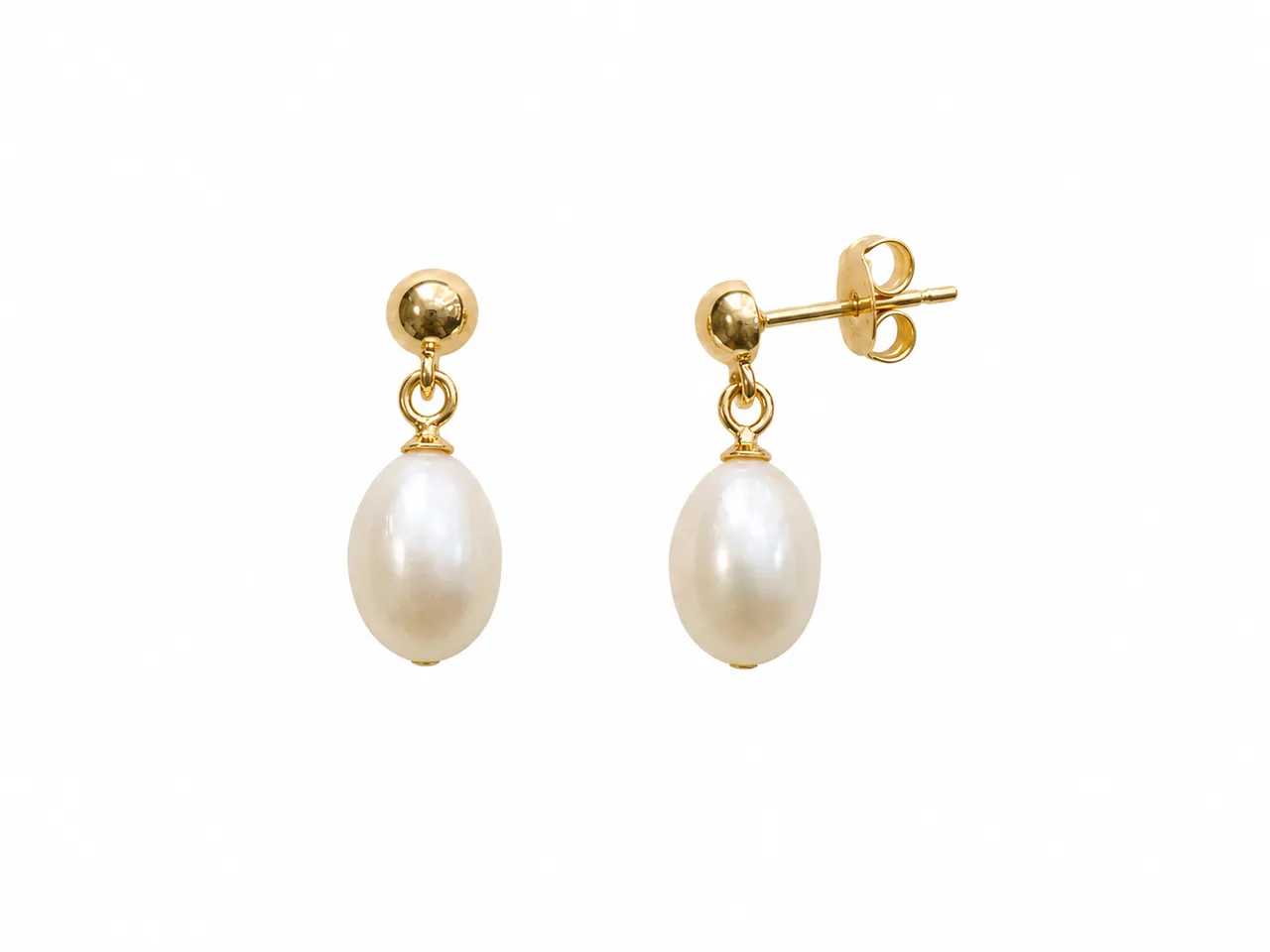
  • Two matching gold pearl drop earrings with visible posts on a deskBefore
    Gold studs with ivory pearl drops isolated on white without a visible cast shadowAfter
    No shadow · EarringsShadowless earrings
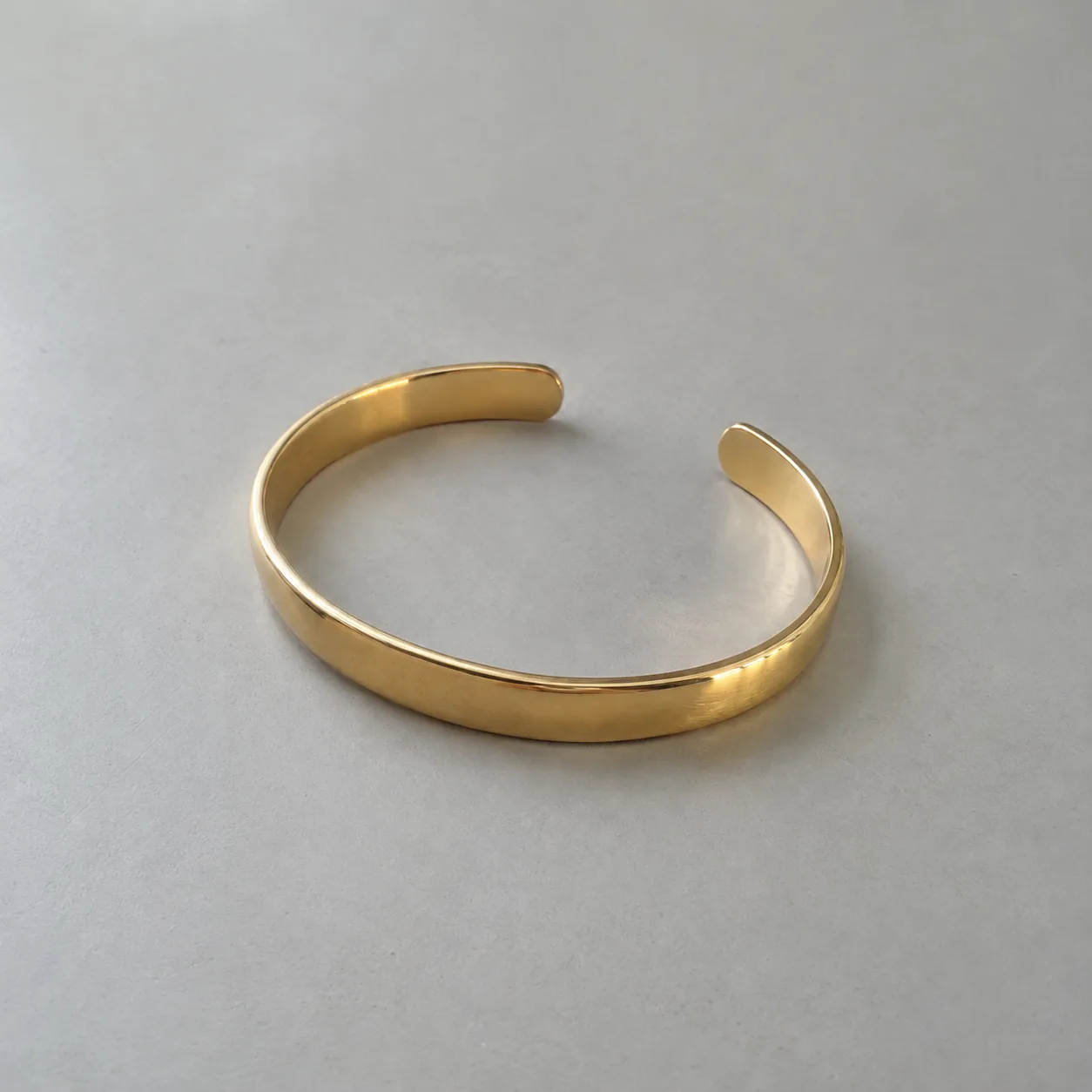
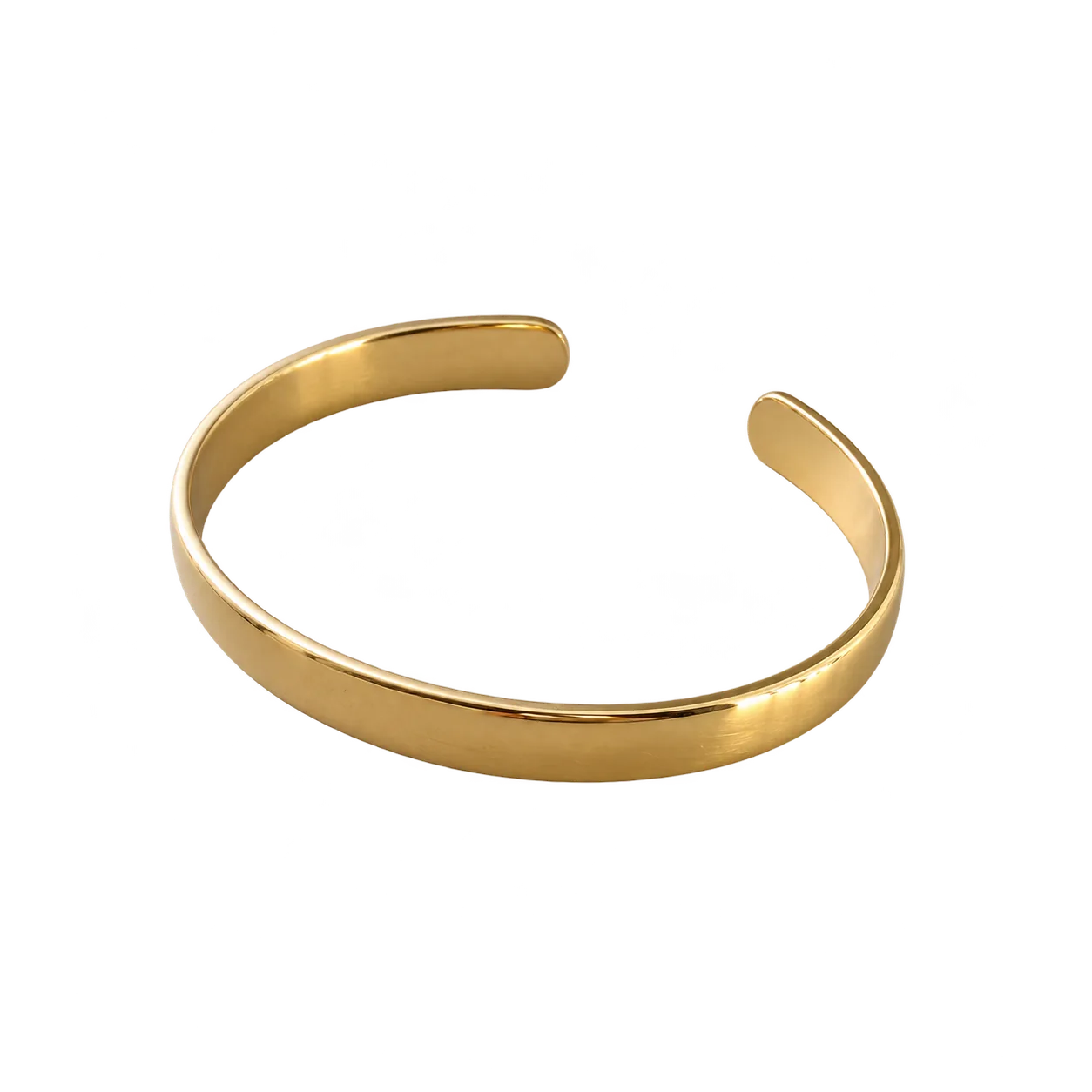
  • A plain gold open cuff bracelet on a light gray tabletopBefore
    Gold open cuff with rounded ends isolated on a transparent background, including the space inside the cuffAfter
    No shadow · BraceletBracelet on a transparent background

02

What Is a Jewelry White Background Photo?

It is a product photo where the piece sits on a seamless, evenly lit white field with no visible floor line, props or color cast. Shoppers can compare items side by side, and many store themes and marketplace grids are designed around it.

This tool keeps the piece, its pose and its angle from your photo, and only replaces what is behind it. The three shadow styles decide how the piece is grounded: a soft contact shadow makes it feel placed on a surface, a faint reflection suggests a glossy display, and no shadow gives the flattest catalog look.

An opaque white image and a transparent cutout are different deliverables. White works almost everywhere straight away. A transparent PNG is for designers who want to place the piece on their own backgrounds, banners or layouts, which is why it is offered here as a separate output option.

Keeps
The piece, its pose, angle and proportions
Replaces
Everything behind the piece
White output
Opaque image, ready for listings
Transparent output
PNG with alpha, beta
Review
Original and result shown side by side

03

How to Make White Background Jewelry Photos

One photo in, one white or transparent product image out.

  1. 1

    Upload a sharp product photo

    Use one PNG, JPEG or WebP up to 20 MB with the whole piece in frame and clear edges. Any background works, but a plain one with contrast against the metal gives cleaner edges.

  2. 2

    Pick a shadow and an output

    Choose Soft contact shadow, Subtle reflection or No shadow, plus a 1:1, 4:3 or 3:4 frame. For a transparent PNG, switch the output to Transparent (beta); this uses the no-shadow style automatically.

  3. 3

    Check edges, then download

    Compare the result with your original. Look closely at chain gaps, ring openings and the outline of prongs. For transparent files, view the download on a dark background before you place it in a design.

04

Which White Background Style Should You Use?

The shadow decides how the piece feels on the page.

Shadow and output options compared
OptionLooks likeBest forWatch for
Soft contact shadowThe piece resting on a white surfaceProduct pages, catalog grids, most listingsShadow direction should match the light on the piece
Subtle reflectionA glossy white display surfaceRings and pendants with a premium feelReflections can look busy on chains; keep them short
No shadowFlat white with the piece floatingMarketplace main images, comparison chartsVery bright white metal can lose its edge
Transparent PNG (beta)The piece with no background at allBanners, lookbooks, your own layoutsCheck gaps inside chains and rings on a dark background

05

Transparent Jewelry PNG and the Background Remover Option

A transparent export needs more care than white, so treat it as a beta.

How the transparent option works

The tool asks the model for an isolated product on a fully transparent background, with clean edges and open gaps inside rings and chain links. It is generated, not traced pixel by pixel, so edge quality varies with the source photo.

Hard cases for any jewelry background remover

Thin chains, open filigree, clear stones and reflective surfaces carry the background inside them. Expect to check these areas closely and keep a white version as a fallback.

  • Fine chains can lose links or fill in the gaps.
  • Clear stones may keep a tint from the old background.
  • Mirror finishes reflect their surroundings; that is real, not an error.

When white is the better choice

If the image goes straight into a listing or a store grid, opaque white is simpler and more forgiving. Choose transparent only when you will place the piece onto another design yourself.

06

Source Photo Checklist for Clean White Backgrounds

Edges are everything on white. Give the model a clean outline to work from.

Do

  • Shoot on a plain background that contrasts with the metal
  • Keep the full piece in frame with space around it
  • Use soft, even light so edges are not lost in glare
  • Lay chains so links do not overlap
  • Photograph earrings as a matched pair

Avoid

  • White metal shot on a white sheet; edges disappear
  • Busy patterned backdrops behind fine chains
  • Hands or fingers touching the piece
  • Strong colored light that tints the stones
  • Cropping off a clasp or the end of a chain

07

Where White Background Jewelry Photos Work Best

Marketplace and store grids

White images line up cleanly in search results and category pages, so the pieces themselves do the comparing.

Example: a necklace collection on No shadow, 1:1.

Product detail pages

A soft contact shadow keeps a clean look while showing the piece rests on a surface.

Example: a ring on Soft contact shadow as the second product image.

Wholesale line sheets

Buyers scanning a line sheet need consistent, uncluttered images at small sizes.

Example: twenty earrings on white, 4:3, for a PDF line sheet.

Banners and lookbooks

A transparent PNG lets a designer place the piece over a brand color or a photo.

Example: a pendant cutout placed on a seasonal banner.

08

What to Check in a White Background Result

White shows every edge. Zoom in before you download.

White background quality checks
CheckGood resultReject if
OutlineClean edges that follow the real pieceHalos, jagged edges or clipped parts
Gaps and openingsRing openings and chain gaps show white or transparencyGaps filled with gray or old background
White levelAn even, neutral whiteA gray or colored cast on the background
ShadowDirection matches the light on the pieceA shadow that floats or points the wrong way
StonesOriginal color with no tint from the old backgroundClear stones picked up a color
Metal edgesWhite metal still separates from the backgroundSilver edges dissolve into the white

Before you publish

A White Background Is Not a Different Product

AI may change tiny stones, prongs, engraving, chain links or metal tone while it rebuilds the edges. Compare the result with your original at full size and reject anything that differs from the real piece.

Marketplaces set their own rules for main images, and some require at least one unedited photo of the item. Check the current policy of each platform before you upload.

Questions

Jewelry White Background FAQ

How do I make a jewelry white background photo?

Upload a sharp photo of the piece, choose Soft contact shadow, Subtle reflection or No shadow, pick a format and generate. You get one white background image for 15 credits, shown next to your original so you can check the edges and details.

Is this a jewelry background remover?

Yes, with two outputs. The default replaces the background with opaque pure white. The Transparent PNG (beta) output removes the background entirely for use in your own designs. Transparency is generated rather than traced, so check chain gaps and ring openings before you use the file.

Can I get a transparent jewelry PNG?

Yes. Switch the output to Transparent PNG (beta). It uses the no-shadow style, because a shadow on a transparent background rarely fits a new design. View the download on a dark background to check the edges.

Which shadow looks best for white background jewelry photos?

Soft contact shadow is the safest default for product pages because it grounds the piece. Use No shadow for marketplace main images and comparison charts, and Subtle reflection for rings and pendants where a glossy display suits the brand.

Does Etsy or Amazon require a white background?

Rules differ by marketplace and change over time. Amazon is known for requiring pure white main images in many categories, while Etsy does not require white but does require images to represent the item accurately and, for most listings, at least one unedited photo. Check each platform’s current policy before listing.

How much does a white background image cost?

Each image costs 15 credits on the default Fast setting, including your reference photo. New accounts that use Google sign-in or a Gmail address get 20 free credits, enough for one image. Free-credit images carry a watermark and are for personal use.

How long are my images kept?

Your upload is private and scheduled for deletion after one day. On a free account, generated images stay in My Creations for 14 days; paid plans and credit packs keep them longer.

Will a white background change the size of my jewelry in the photo?

It should not. The tool keeps the pose, angle and proportions from your photo and centers the piece with even margins. Compare the result with your original; if the piece looks larger or smaller relative to its details, reject it and generate again.

Create a Jewelry White Background Image

Upload one product photo, choose a shadow style or transparent output, and check the edges before you publish.

Upload a jewelry photo