Amazon AI Listing Studio

Create feature graphics, product scenes, in-use images, and A+ assets from your product photos.

Start with your own product photo. Review product details before publishing.

Unbranded white wireless earbuds beside their open charging case on a plain light backgroundBefore
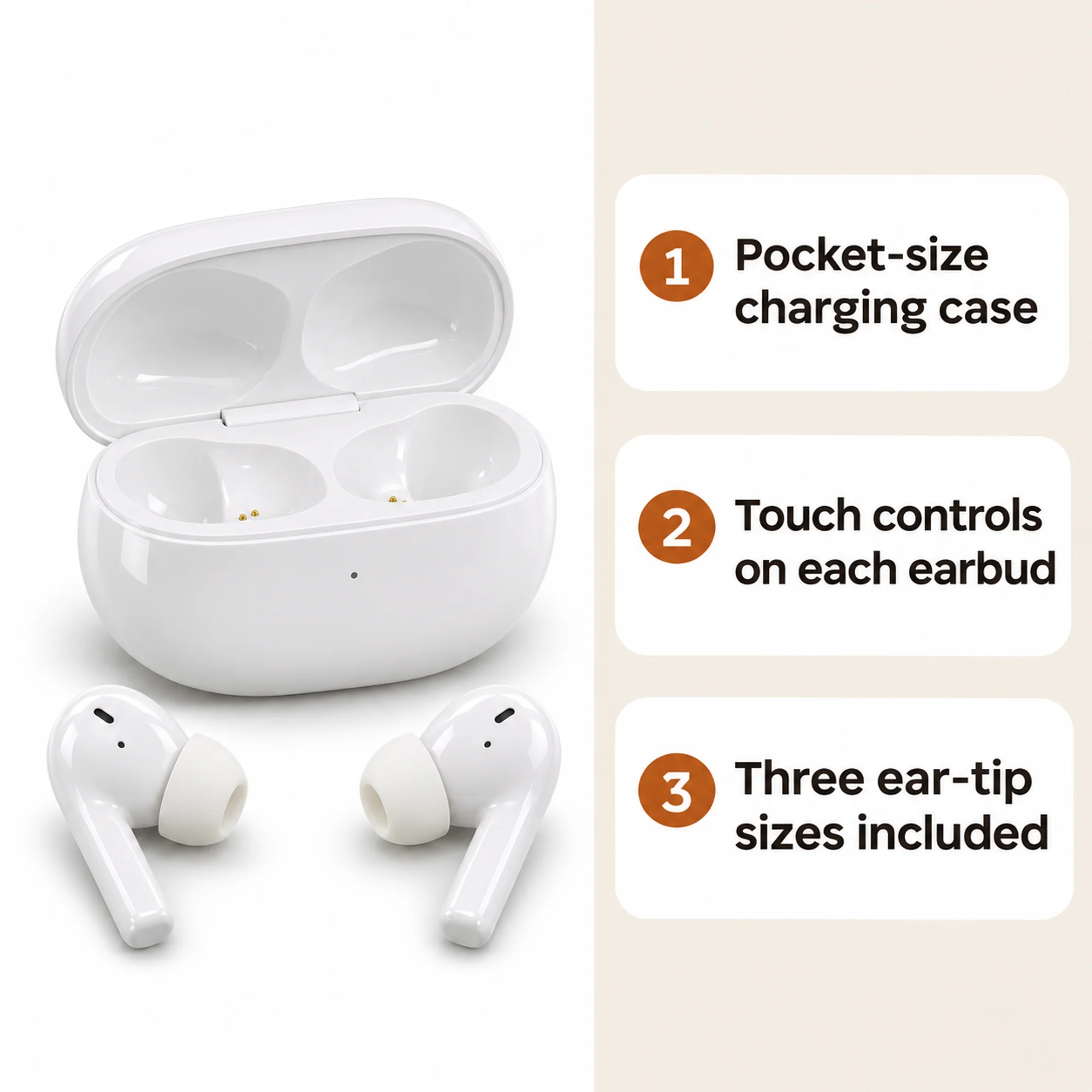
Earbuds and charging case on white with three numbered feature cards beside themGPT Image
Side view of an adult wearing the white wireless earbud in soft daylightGPT Image
One product photo, different listing images

Browse templates by task

Templates are named after what the image does for a buyer. Opening one only preselects the tool; nothing is generated until you upload a photo and press Generate.

  • Earbuds and charging case on white with three numbered feature cards beside them

    Feature callouts

    Clean hero shot with 1–4 of your confirmed features beside it.

    Any product

    Use template
  • Detail highlight

    A close view of one visible detail you name.

    Any product

    Use template
  • Side-profile structure

    A low side angle that shows the profile and typing angle.

    Keyboards

    Use template
  • Vibration visual

    Soft ripple lines that suggest a confirmed vibration feature.

    Game controllers

    Use template
  • Turning capability

    A child riding through a gentle turn on a safe path.

    Kids bikes

    Use template
  • Easy to lift

    An adult lifts the bike with one hand to show light handling.

    Kids bikes

    Use template
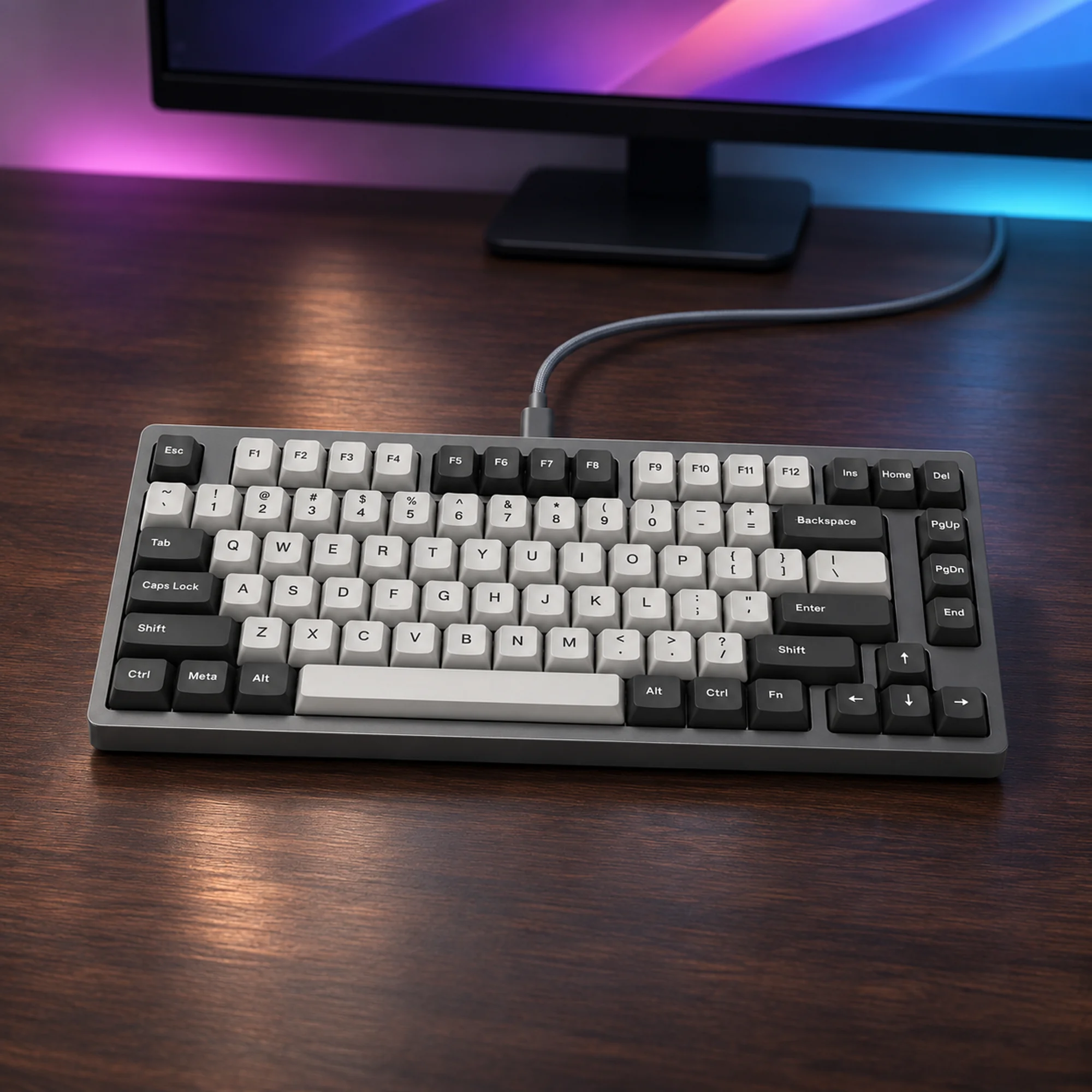
  • The compact mechanical keyboard on a dark wooden gaming desk with a soft monitor glow behind

    Gaming desk

    Your product on a tidy desk with soft RGB ambience.

    KeyboardsPC accessories

    Use template
  • Living room display

    A calm living-room still life on a coffee table.

    Game controllersHome electronics

    Use template

From product photo to listing image in three steps

  1. Step 1

    Pick a task

    Choose a tool or a template that matches what the image should explain: a feature, a setting, an action or an A+ layout.

  2. Step 2

    Add your photo and facts

    Upload a clear product photo and type only the facts you have confirmed. Examples never fill your fields with their claims.

  3. Step 3

    Generate one image and review

    Each request makes one image at the credit cost shown. Check the product details, edit the copy if needed and download.

How the studio keeps listing images honest

01

One image per request, with the price on the button

The studio never preselects a bundle of paid jobs. Every Generate button names the exact credit cost for the selected model and reference images, and one request creates one image. Browsing examples, switching templates, changing ratios or editing copy is free. If generation fails, the existing refund policy for failed jobs applies, and a double click cannot create a second paid job because each request carries its own identifier.

02

Text is set by code, not by the image model

Image models are good at light, scenes and people, and unreliable with exact words. So the model creates the picture, and Image25 prints your heading and feature lines with fixed margins, wrapping and minimum font sizes at the exact export size. You can fix a typo or change the accent color after generating, and the preview you approve is the file you download.

03

Your facts stay your facts

The studio does not add specifications, certifications, battery life, materials or warranty terms based on a product category. Template names such as lightweight or ergonomic describe a creative direction, not a verified property of your product. Your values, units, brand names and punctuation are printed exactly as you typed them, in the language you typed them.

04

Callouts never point at parts they cannot find

Precise arrows to a lid, a button or a port require reliable localization of each component, which a prompt alone cannot guarantee. Feature callouts therefore use numbered cards beside or around the whole product. It is less flashy than a web of arrows, and it never labels the wrong part.

05

Generated images still need your review

Generative models can change small details such as button shapes, printed labels, proportions or the number of items. Compare every result with your product before publishing, and check the current image rules of the marketplace and category where you sell. The studio exports files only; it does not connect to seller accounts or promise approval.

06

Private by default

Your uploads and results stay in your account and are never added to a public gallery. Analytics record which tool, template and ratio were used, never your product descriptions or images. Template links in articles only preselect options; they never carry private image addresses or start a paid job.

07

Examples are real, or they are not shown

Every example in the studio pairs the product photo that went in with a GPT Image or Nano Banana result, along with the template and the confirmed facts that were used. Example cards only change which type or template is selected; they never copy the example product's brand, claims or copy into your fields. Where a verified example does not exist yet, the studio shows a labeled layout preview instead of a borrowed image.

08

Simple forms instead of a design workspace

There are no layers, masks, freeform canvases or project folders to learn. Each tool asks for a product photo, a type or template, a few confirmed facts and a ratio, with less common options folded under Advanced. If you need precise manual design, export the image and continue in your usual editor.

Amazon AI Listing Studio FAQ

Which tool should I start with?

Start with Feature Images if you want to explain what the product does. Use Lifestyle Images to show where it belongs, Product in Use to show handling or wearing, and the A+ Image Maker for wide banners and collages.

Can it create a whole listing set at once?

No. Each request creates one image so you always know what you are paying for and can review each result. You can make as many images as you need, one at a time.

Do I need prompts or design software?

No. You upload a photo, choose a type or template and enter a few confirmed facts. The studio builds the generation instructions and lays out the text for you.

Can I use the images on Amazon?

You can download them for your listings, subject to Image25’s terms and the marketplace’s rules. Review every image for accuracy before publishing; the studio does not guarantee approval or sales results.

Is it free?

Generating an image uses credits, and the exact cost appears on the button before you confirm. Composing A+ collages from your existing images is done in your browser and does not use credits.

Which languages can the text on images use?

Text is printed exactly as you type it. English, Japanese and Chinese have been tested. If a character has no font on your device, the tool warns you before you download instead of printing empty boxes.

Can I move images between tools?

Download an image from one tool and upload it in another. For example, lifestyle and in-use results can become cells in an A+ collage. The studio does not create projects or move files between tools automatically.

Are the templates finished?

Templates marked Draft are still being tested with different real products. They work, but review their results with extra care. Draft templates are not listed publicly once the studio is published.

What happens when I open a template link from an article?

The link opens the right tool with the type and template already selected. It never uploads anything, generates an image or spends credits. If the template belongs to a different tool, the page tells you and links to that tool instead of running the wrong workflow. You still upload your own product photo and enter your own facts before generating.

Make your first feature image

Upload a product photo, enter the facts you have confirmed and generate one image. Edit the copy for free, review the product details and download the exact file you previewed.

Create a feature image