Amazon Product Infographic Generator

Turn your product photo and confirmed features into clear callouts, close-ups, or benefit-focused scenes.

1.Image type

Product hero with 1–4 short feature cards.

2.Product image

Use a clear, well-lit photo that shows the whole product. Sign in before choosing a file: uploads cannot carry across sign-in, but your text and choices do.

3.Template

Clean hero shot with 1–4 of your confirmed features beside it. Any product

4.Features & benefits
5.Aspect ratio
Advanced
Layout
Accent color

Changes the background panels, never the product color.

Visual style
Another angle of the same product (optional)
Style reference (optional)

Affects composition and look only. Its product, brand and claims are never applied to yours.

Model

15 credits · Fast · Medium

Sign in to generate.

Choose GPT Image, Nano Banana or Seedream. Free signup credits support GPT Image Fast at eligible quality levels; other models require a paid plan or credit pack. View plans

GPT ImageFeature callouts
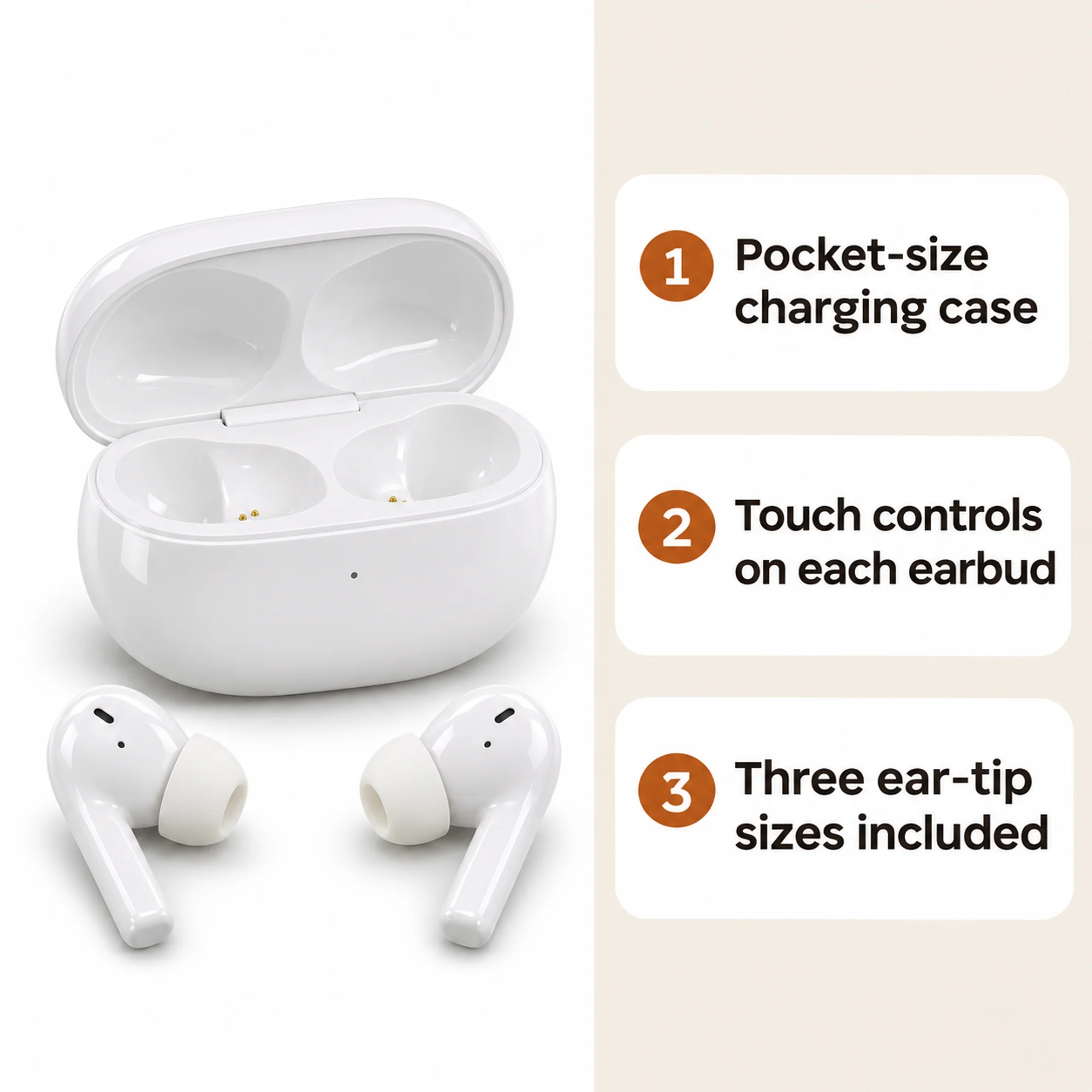
Earbuds and charging case on white with three numbered feature cards beside them
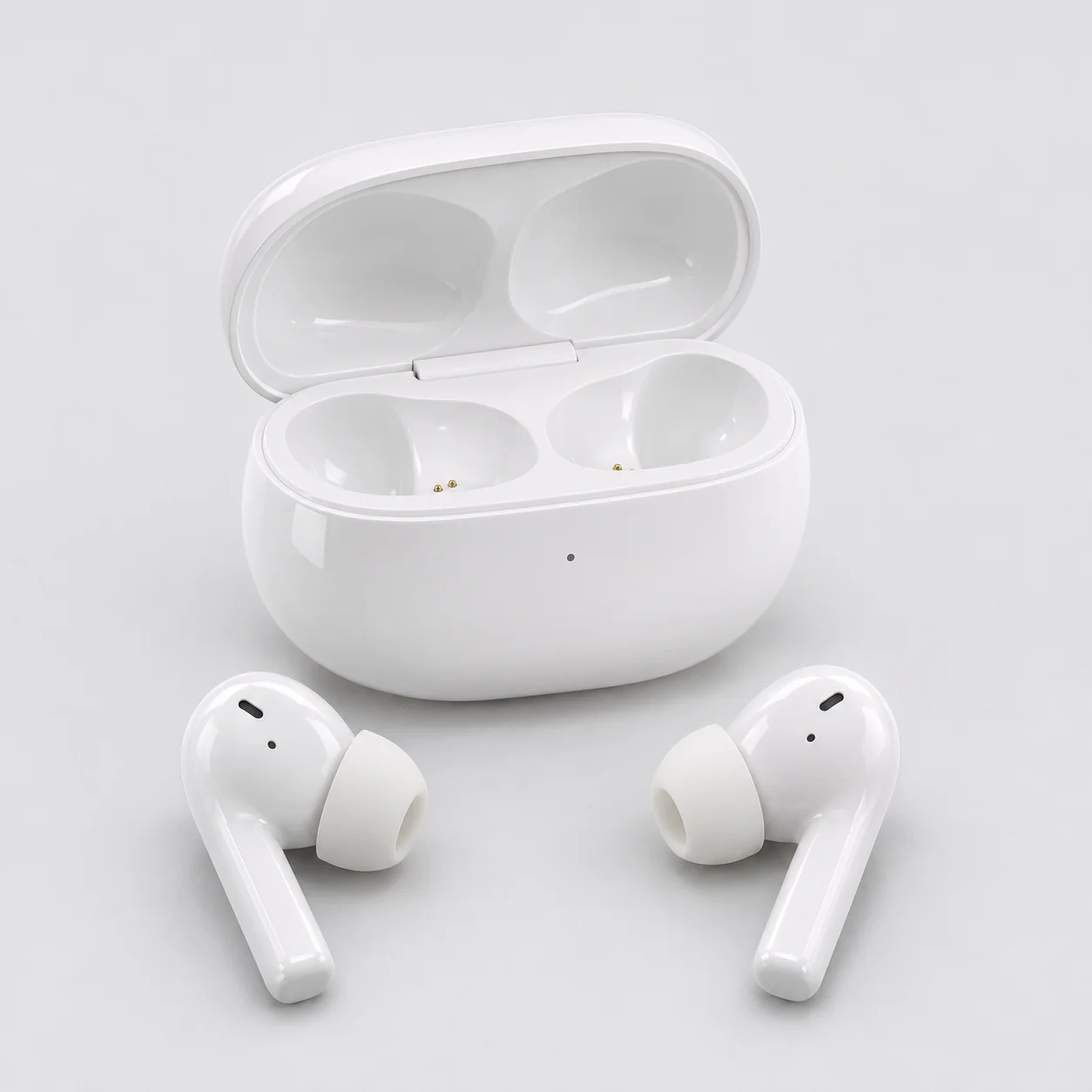
Unbranded white wireless earbuds beside their open charging case on a plain light background
Before

Compare the original photo with the model result. Review product details before use.

Amazon AI Listing Studio

Feature images that only say what is true

Upload one product photo, choose what the image should explain and type the facts you have confirmed. The image model creates the picture; Image25 sets every printed word with code, at the exact export size. You can edit the copy, the heading and the accent color after generating without paying for another image. The same page covers four jobs: multiple feature callouts, an in-use benefit, a close-up of one visible detail and a restrained illustration of one function.

Create a feature image

Examples from real inputs

Each example shows the product photo that went in and the image that came out, with the template and the confirmed facts that were used.

Earbuds and charging case on white with three numbered feature cards beside them
Unbranded white wireless earbuds beside their open charging case on a plain light backgroundFeature callouts · GPT ImageBefore · Feature callouts

How to make an Amazon feature image

  1. Step 1

    Choose what to explain

    Pick Feature callouts to list up to four facts, or a single-benefit type to show one benefit through an action, a close-up or an illustration.

  2. Step 2

    Add your photo and facts

    Upload a clear product photo. Type one confirmed feature per line, or the one benefit this image should show. Choose a ratio such as 1:1 or 4:5.

  3. Step 3

    Generate, review and download

    Generate one image at the credit cost shown on the button. Check the product details, adjust the copy if needed and download the PNG.

Guidelines for feature images that help buyers

01

Start from facts you can prove

Write only features you could show a buyer evidence for: a measurement you have taken, a material your supplier has documented or a function you have tested. The tool never adds specifications, certifications, battery life or warranty terms for you, and template names such as lightweight or ergonomic are creative directions rather than claims about your product. If you are unsure whether a feature is accurate, leave it out of the image and confirm it first.

02

Keep each callout short

Feature callouts work best with two to four lines of a few words each. Each line can hold up to 80 characters, but shorter lines stay readable when the image is shown as a small thumbnail on a phone. If a line does not fit the layout at a readable size, the tool asks you to shorten it instead of cutting it off or shrinking it until it disappears. Put the most important benefit first, because it appears at the top.

03

Use one benefit per demonstration

In-use benefits, detail close-ups and function visuals each center on one idea. If you switch from callouts to one of these types, your lines are kept and you choose which one the image should show. A pocket-sized charging case, the curve of a keyboard or a vibration feature each make a clear picture. Four unrelated claims crowded into one action scene usually make none of them clear.

04

Give the model a photo that shows the detail

The image model can only preserve what it can see. Use a sharp, evenly lit photo with the whole product in frame. For a close-up, upload a photo where that detail is clearly visible; the model cannot know hidden structures, internal parts or the underside of a product it has never seen. If the selected model accepts more than one reference, you can add another angle under Advanced.

05

Labels do not point at parts they cannot locate

Callout layouts place numbered feature cards beside or around the product rather than drawing arrows to specific parts. Precise pointers require reliable localization of each component, which a prompt alone cannot guarantee, so the tool does not pretend to have it. A card that reads Leak-resistant lid next to the whole bottle is honest; an arrow that lands on the base is not.

06

Review before you publish

Generated images can change small details such as button shapes, printed labels or proportions. Compare the result with your product, check the text in the preview at phone size and confirm that the image follows the current requirements of the marketplace where you sell. The preview is the downloaded file, so what you approve is exactly what you export.

07

Pick the ratio for where the image appears

Square 1:1 images suit the main image gallery on most marketplaces, while 4:5 and 9:16 fill more of a phone screen and 16:9 suits wide placements. Each ratio has its own fixed layout, designed so text keeps its margins and minimum size instead of being stretched from a square. Choose the ratio before you generate, because it decides the shape of the picture the model creates; switching afterwards marks the result as made with previous settings.

Amazon Product Infographic Generator FAQ

What is an Amazon product infographic?

It is a listing image that explains a product with short text and a clear picture: a list of features beside the product, a close-up of a detail, or a scene that shows a benefit in use. This tool creates one such image per request from your photo and your confirmed facts.

Is the text part of the AI image?

No. The model generates the picture only. Your headline and feature lines are rendered by code on top, with fixed margins, wrapping and font sizes. That is why you can correct a typo or change the accent color without generating again.

How many credits does one image cost?

The button shows the exact cost for the selected model and reference images before you generate. One request makes one image. Changing copy, accent color, examples or templates does not charge credits.

Which aspect ratios can I export?

Square 1:1 (2000 × 2000 px), 4:5, 9:16 and 16:9 are available where the layout has been designed for them. Center callouts are offered in 1:1 and 16:9 only, because the side columns need horizontal room.

Can it write my features for me?

No. You enter the features you have confirmed. The tool does not invent specifications or performance claims, and it does not turn a word like durable into a stronger promise.

Which languages can the text use?

Text is printed exactly as you type it. English, Japanese and Chinese have been tested with the fonts available on common devices. If a character has no font on your device, the tool warns you before you download.

Will the product look exactly like my photo?

The prompt asks the model to keep shape, color, labels and proportions, but generative images can still change small details. Review every result against your product before publishing. Nothing on this page guarantees marketplace approval.

What happens if I change a setting after generating?

Copy, heading, subtitle and accent color update the existing image immediately at no charge. Settings that change the picture itself, such as the type, template, ratio, layout or product photo, mark the current result as Generated with previous settings until you generate again.

Can I download the image without text?

Yes. After a callout image, or a demonstration with text turned on, use Download without text to get the generated picture on its own. Existing download permissions, including watermarks on free accounts, apply to both files.

Explain your product in one clear image

Upload a product photo, enter the facts you have confirmed and generate one feature image.

Create a feature image