Amazon Lifestyle Image Generator

Show your product in a setting that fits its use: choose a scene, upload a photo and generate one image.

1.Product image

Use a clear, well-lit photo that shows the whole product. Sign in before choosing a file: uploads cannot carry across sign-in, but your text and choices do.

2.Scene

Your product on a tidy desk with soft RGB ambience. Keyboards · PC accessories

3.Aspect ratio
Advanced
Open space for text
Visual style
Another angle of the same product (optional)
Style reference (optional)

Affects composition and look only. Its product, brand and claims are never applied to yours.

Model

15 credits · Fast · Medium

Sign in to generate.

Choose GPT Image, Nano Banana or Seedream. Free signup credits support GPT Image Fast at eligible quality levels; other models require a paid plan or credit pack. View plans

GPT ImageGaming desk
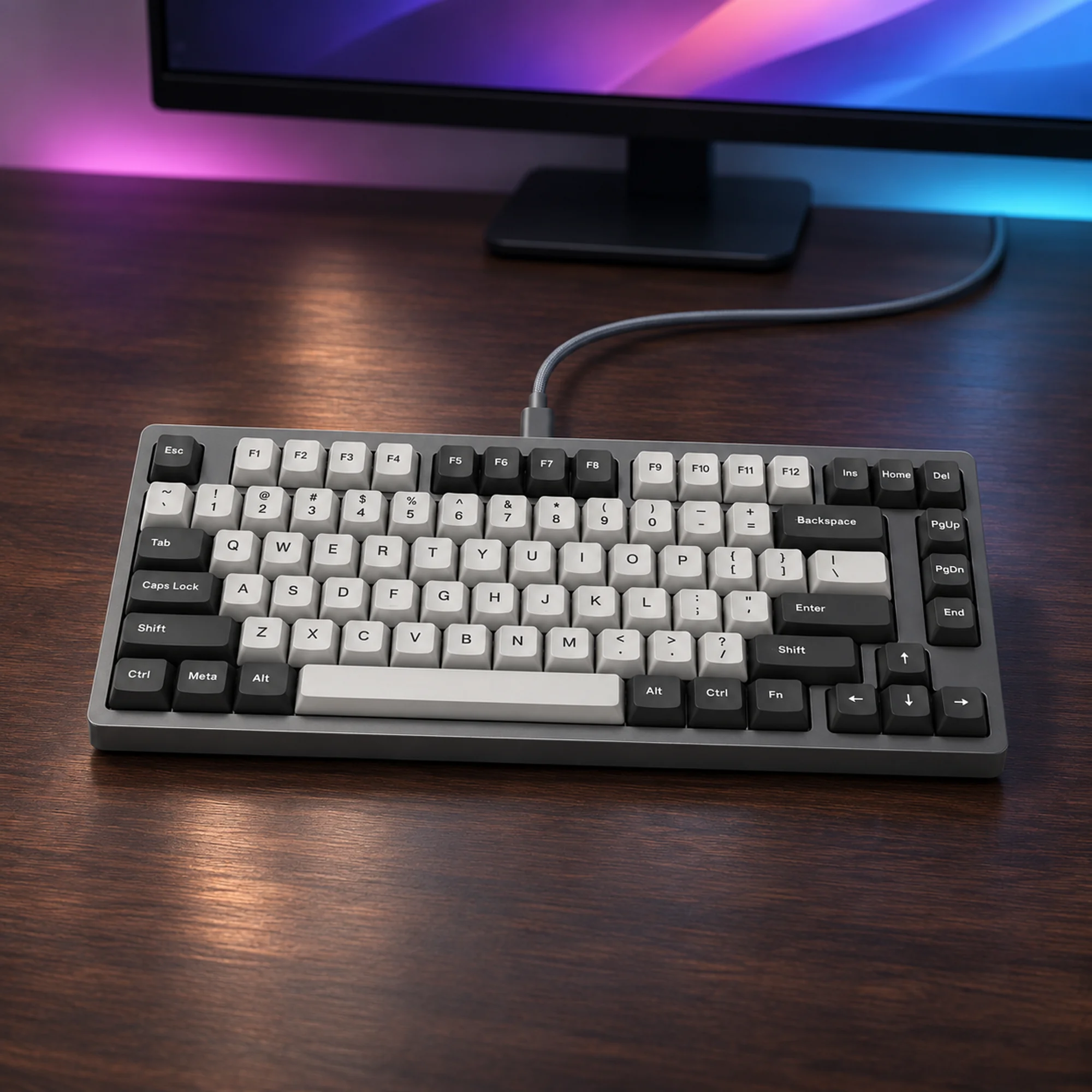
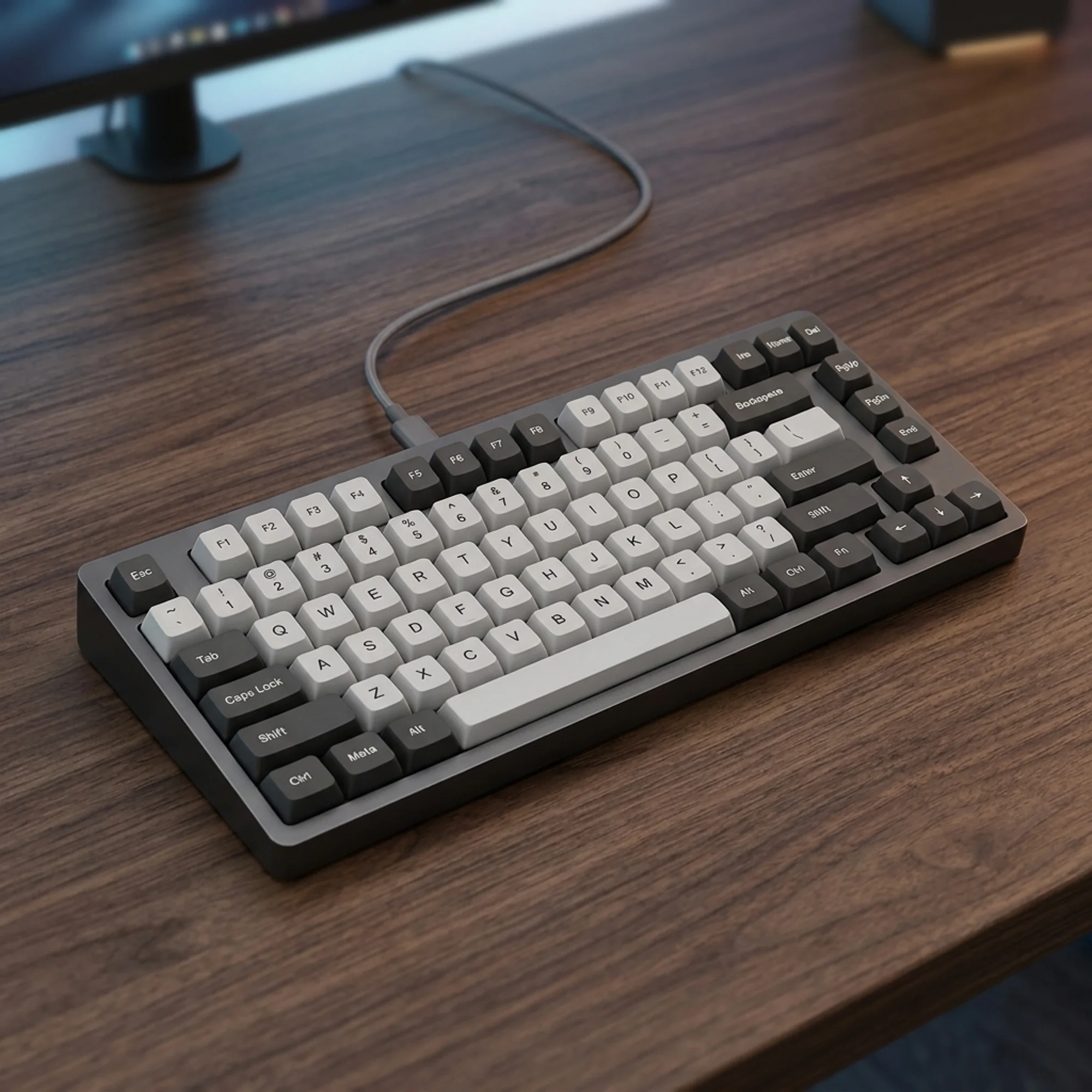
The compact mechanical keyboard on a dark wooden gaming desk with a soft monitor glow behind
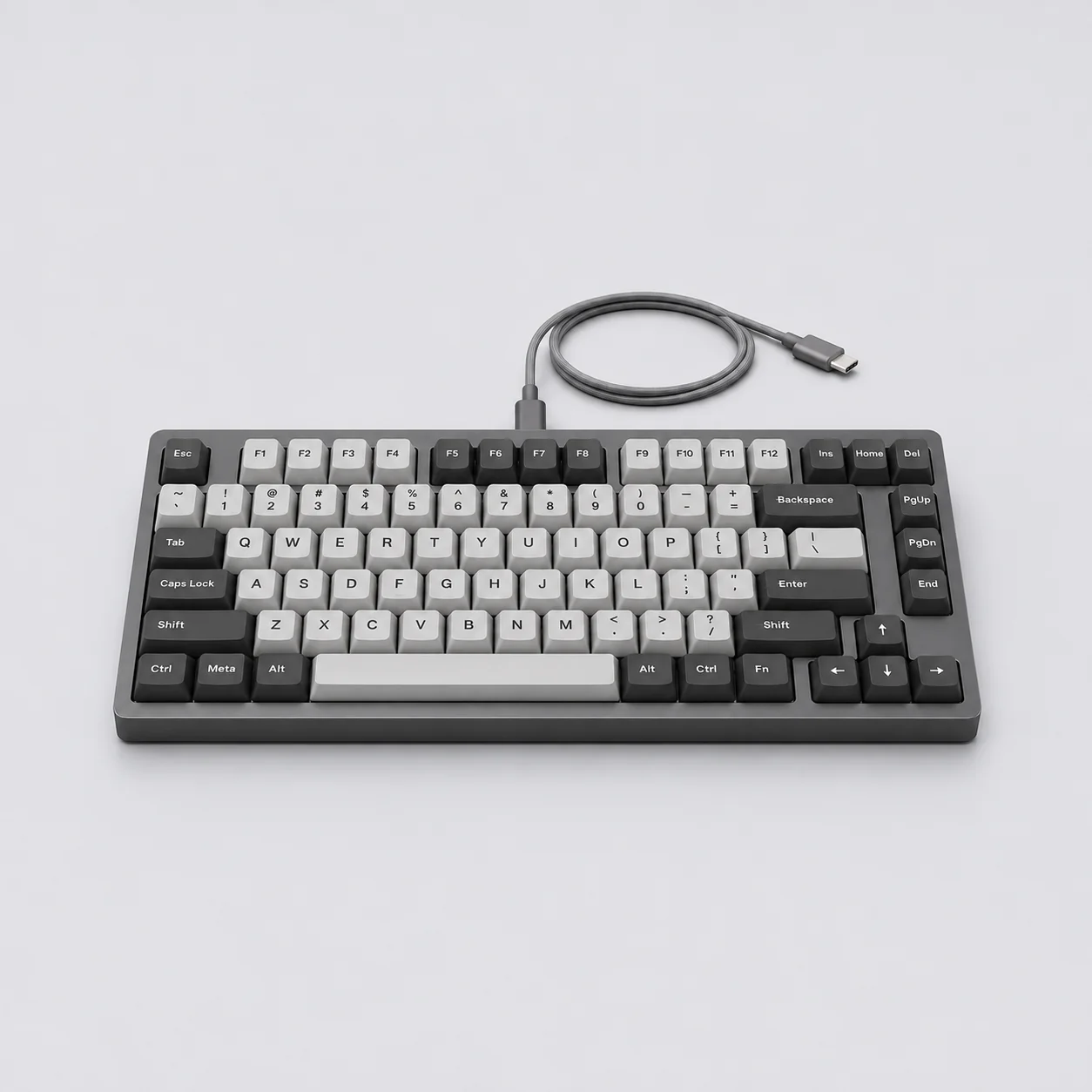
Unbranded compact mechanical keyboard with gray keycaps photographed from above on a white background
Before

Compare the original photo with the model result. Review product details before use.

Amazon AI Listing Studio

A believable setting for the product you sell

A lifestyle image answers one question for a buyer: where does this product belong? Upload a clear product photo and choose a scene such as a gaming desk, a living room or an outdoor table. The model places the product into the environment and keeps it as the focal point, using your photo as the appearance reference. Lifestyle images here are still lifes; when you need a person holding or wearing the product, use the Product in Use tool instead.

Create a product scene

Scene examples from real inputs

Each example shows the product photo that went in and the scene Image25 produced from it with the named template.

The compact mechanical keyboard on a dark wooden gaming desk with a soft monitor glow behind
Unbranded compact mechanical keyboard with gray keycaps photographed from above on a white backgroundGaming desk · GPT ImageBefore · Gaming desk
The compact mechanical keyboard on a dark wooden gaming desk with a soft monitor glow behind
Unbranded compact mechanical keyboard with gray keycaps photographed from above on a white backgroundGaming desk · Nano BananaBefore · Gaming desk

How to make an Amazon lifestyle image

  1. Step 1

    Upload a clear product photo

    Use a sharp photo with the whole product visible and even light. A plain background works best, because it shows the shape without distractions.

  2. Step 2

    Choose a scene and ratio

    Pick the scene that matches how buyers use the product. Choose 1:1 for the main gallery, 4:5 or 9:16 for mobile placements, or 16:9 for wide layouts.

  3. Step 3

    Generate and review

    Generate one image at the credit cost on the button. Compare the product with your photo, then download the PNG at its exact export size.

Tips for lifestyle images that keep the product in focus

01

Match the scene to real use

Choose a setting where a buyer would actually use or keep the product. A keyboard belongs on a desk, a handheld fan suits a sunny terrace and a game controller fits a living room. A scene that does not match the product confuses buyers and can make the listing look less credible. If no current scene fits, describe your setting in the notes field under Advanced and keep it simple.

02

Let the product stay the hero

Every scene asks the model to keep the background softer and less detailed than the product. Busy props, strong colors or many objects compete for attention, especially in a small thumbnail. If a result feels crowded, regenerate or choose a calmer scene. The visual style options change the lighting and mood, never the real color of your product.

03

Use your best reference

The model copies what it can see in your photo: shape, color, materials, buttons, cables and printed labels. A blurred or dark photo gives it less to work with. If the selected model accepts more than one reference, you can add another angle of the same product under Advanced. A style reference only influences composition and atmosphere; its products and brand are never applied to yours.

04

Plan space for later text

Lifestyle images do not include marketing text by default. If you plan to add copy in another tool, open Advanced and choose which side of the frame should stay calm. This is a request to the model, not a guarantee, so check the result. When you need text on the image itself, the Feature Images tool sets it with code at exact positions.

05

Check scale, quantity and contact

Look closely at the size of the product relative to the furniture, the number of units in the frame and the shadow where the product meets the surface. These are the details generative scenes most often get wrong. Regenerating creates a new candidate from your original photo, so a second try often fixes a scale or placement problem.

06

Pick the ratio for its placement

Choose 1:1 for listing galleries that display square images, 4:5 or 9:16 when the image will mostly be seen on phones, and 16:9 for wide banners or storefront sections. The ratio decides the shape of the picture the model creates, so pick it before you generate. Changing it later marks the current image as made with previous settings, and the next generation creates a new scene at the new shape rather than stretching or cropping the old one.

07

Build a consistent set one image at a time

Listings often look more trustworthy when secondary images share a mood. Generate each scene separately with the same visual style and similar light, then review them side by side before you publish. Because every request makes exactly one image, you decide which scenes are worth the credits instead of paying for a bundle you may not use.

08

Keep a record of what you published

Download the images you approve and keep your source photo with them. If a buyer question or a marketplace review comes up later, you can show which product photo the scene was made from. Your results also stay in your Image25 history, where they are private to your account and never added to a public gallery.

Amazon Lifestyle Image Generator FAQ

What is a lifestyle image on Amazon?

It is a secondary listing image that shows the product in a real-world setting rather than on a plain background. It helps buyers imagine where the product fits. Marketplaces have their own rules for main images, so check them before using a scene as your first image.

Will a person appear in the scene?

No. Lifestyle scenes here are still lifes without people. If you want someone holding, wearing or operating the product, use the Product in Use tool.

How much does one scene cost?

The Generate button shows the exact credit cost for the selected model and references. Each request makes one image. Switching scenes, ratios or examples does not charge credits.

Can I add my brand text?

Lifestyle images are exported without text. To add a heading or feature lines that you can edit later, use the Feature Images tool or the A+ Image Maker banner mode.

Does the visual style change my product color?

No. Styles adjust lighting and atmosphere. The prompt instructs the model to keep the real product color, but you should still compare every result with your product before publishing.

What size is the downloaded image?

The file matches the selected ratio exactly: 2000 × 2000 px for 1:1, 1600 × 2000 px for 4:5, 1125 × 2000 px for 9:16 and 2000 × 1125 px for 16:9. A larger export does not add real photographic detail.

Can I use my own scene idea?

Yes, within limits. Choose the closest scene and describe changes in the notes field under Advanced, such as a different table material or time of day. Notes guide the setting but never override the rules that keep your product unchanged.

Is my product photo kept private?

Yes. Uploads and results stay in your account. They are not shown in public galleries, and analytics record only the tool, template and ratio you used, never your images or descriptions.

Can I use a lifestyle image as my main image?

Many marketplaces require a plain background for the first image in a listing. Use lifestyle scenes as secondary images unless the rules for your category say otherwise, and check those rules before publishing.

Show buyers where your product belongs

Choose a scene, upload your product photo and generate one lifestyle image.

Create a product scene