Amazon A+ Image Maker

Make one wide banner from your product photo, or arrange existing images into a clean three- or four-cell collage.

Mode
1.Product image

Use a clear, well-lit photo that shows the whole product. Sign in before choosing a file: uploads cannot carry across sign-in, but your text and choices do.

2.Template
3.Canvas

Presets are examples, not a size every A+ module requires. Check your module’s current specification.

Advanced
Visual style
Another angle of the same product (optional)
Style reference (optional)

Affects composition and look only. Its product, brand and claims are never applied to yours.

Model

15 credits · Fast · Medium

Sign in to generate.

Choose GPT Image, Nano Banana or Seedream. Free signup credits support GPT Image Fast at eligible quality levels; other models require a paid plan or credit pack. View plans

GPT ImageSingle banner
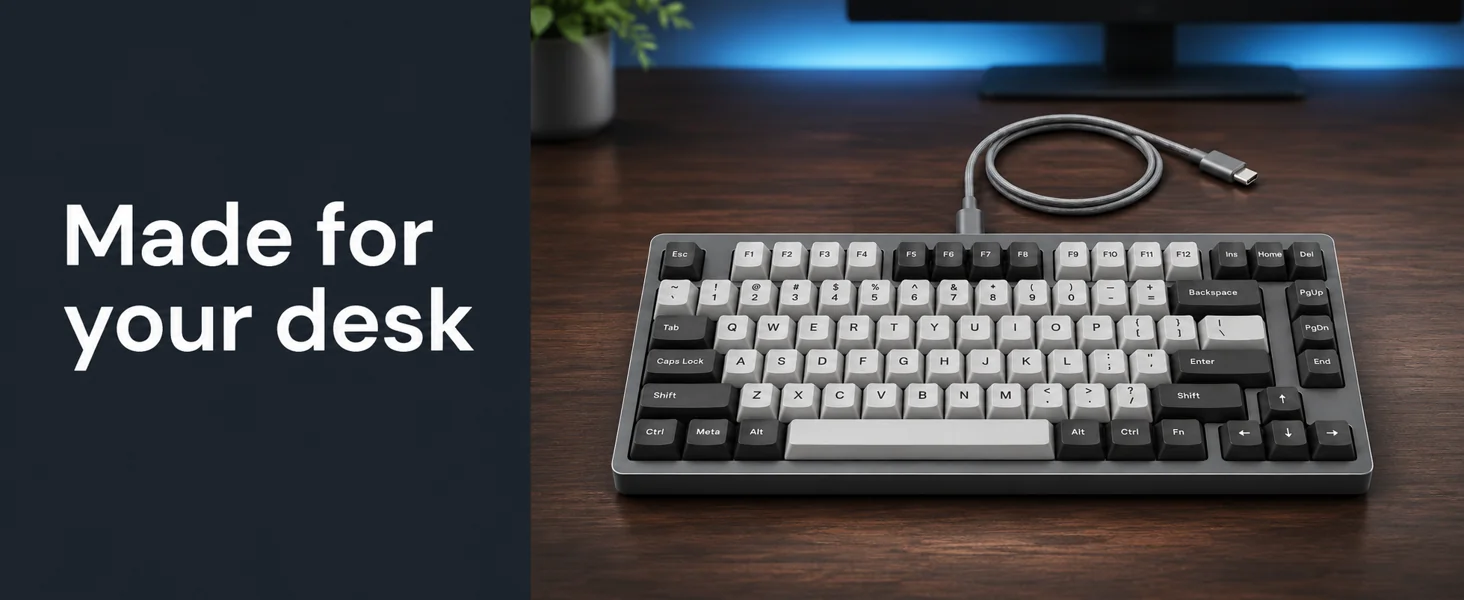
Wide banner of the compact keyboard on a gaming desk with a heading panel on the left
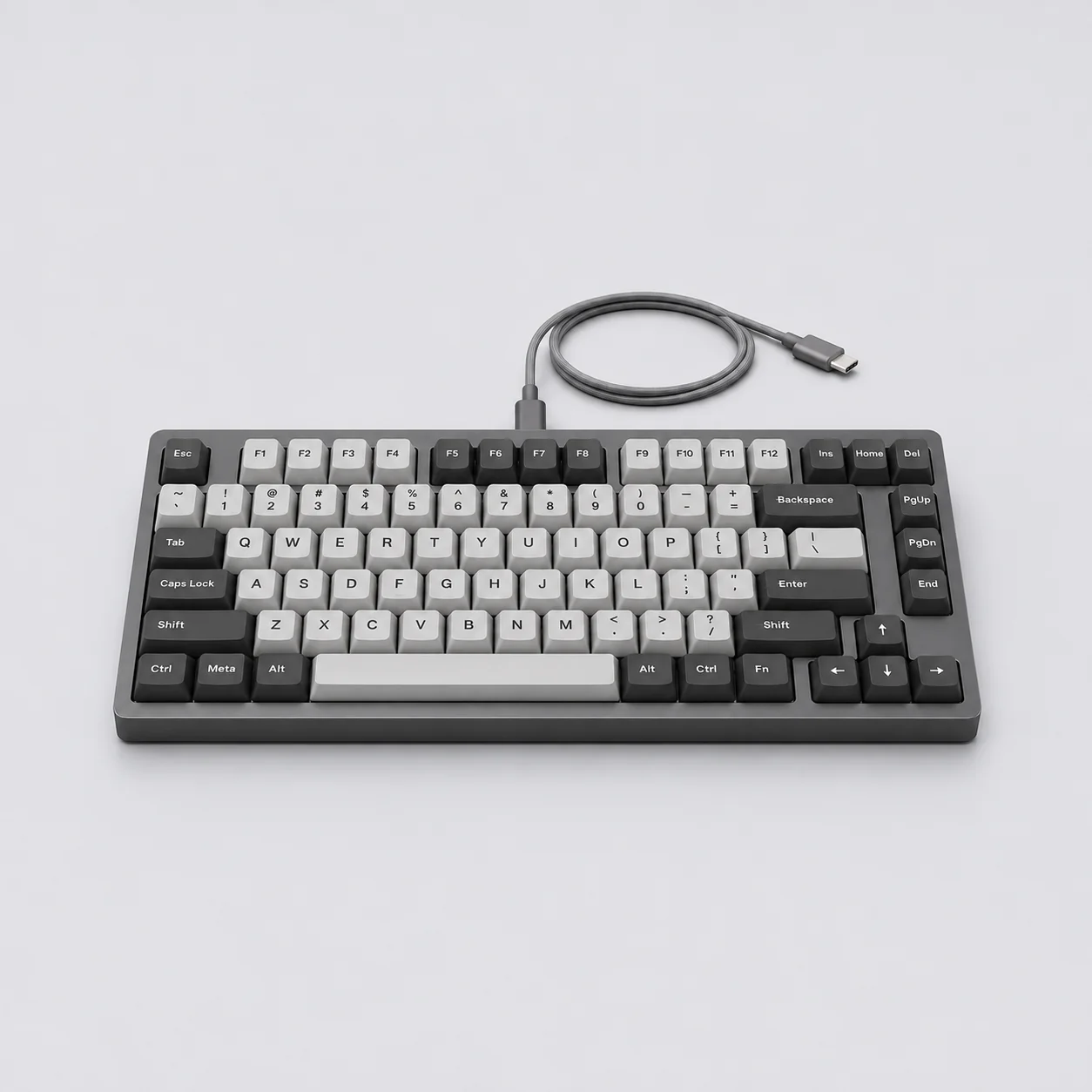
Unbranded compact mechanical keyboard with gray keycaps photographed from above on a white background
Before

Compare the original photo with the model result. Review product details before use.

Amazon AI Listing Studio

Banners and collages at the exact size you choose

A+ modules use wide images that tell a short story below the listing. This page has two modes. Single banner generates one landscape image from your product photo, with an optional heading set by code in a reserved panel. Multi-image collage arranges three or four images you already have into columns or a grid, entirely in your browser: no upload, no image model and no credits. Both export a PNG at the exact pixel size you select.

Make an A+ image

A+ examples from real inputs

The banner was generated from the product photo shown; the collage combines images that already existed.

Wide banner of the compact keyboard on a gaming desk with a heading panel on the left
Unbranded compact mechanical keyboard with gray keycaps photographed from above on a white backgroundSingle banner · GPT ImageBefore · Gaming desk

How to make an Amazon A+ image

  1. Step 1

    Choose banner or collage

    Single banner creates a new image from your product photo. Multi-image collage arranges three or four existing images without generating anything.

  2. Step 2

    Set the canvas and content

    Pick a canvas preset or a custom size. For a banner, choose a theme and optional heading; for a collage, add an image to each cell and adjust its crop.

  3. Step 3

    Preview and download

    The preview is the exact file. Banners cost the credits shown on the button; collages are free to export at the selected pixel size.

Tips for clear A+ images

01

Confirm the module size first

A+ modules differ in their image dimensions, and requirements change over time. The 970 × 600 and 1464 × 600 presets are examples for common wide modules, not a size every module requires. Check the current specification for the module you plan to use, then pick a preset or enter a custom width and height. The exported file always has exactly the size you selected; enlarging a canvas does not add real photographic detail.

02

Let one banner say one thing

A wide banner works best with one clear idea: the product in its setting and a short heading. The heading and subtitle are set in a reserved side panel, so they never cover the product and can be edited after generating without another charge. If the copy does not fit at a readable size, the tool asks you to shorten it rather than shrinking or cutting it.

03

Build collages from images you trust

Collages reuse images you already approved, such as earlier lifestyle and in-use results or your own photography. Because no image model is involved, every cell shows the image exactly as it is, cropped but never redrawn or stretched. Choose Fill to cover the cell and set the crop alignment, or Fit to show the whole image with neutral space around it.

04

Keep labels short and consistent

Cell labels sit in a strip under each image so they never cover the product. Two or three words per label read well at A+ display sizes, and a consistent pattern such as At the desk, On the go, At the beach helps buyers scan the row. The overall title is optional; leave it out when the images already tell the story.

05

Replace one cell at a time

Every cell has its own image, crop and label, so you can swap a weak image without rebuilding the collage. The cell count is fixed by the layout you choose, three columns or two by two, so the exported file always has the number of cells you see in the preview.

06

Pick a banner theme that matches the listing

Banner themes reuse the same scenes as the Lifestyle tool, such as a gaming desk or a beach table, plus a clean studio backdrop. Choose the theme that matches the images already in your listing so the A+ section feels like part of the same story. The model generates the picture at the closest supported shape for the image area, and code fits it into your exact canvas.

07

Keep a calm side for the heading

When Add text is on, a landscape banner reserves a panel on the left for the heading and subtitle, and the image fills the rest. Because the panel is reserved by code rather than requested in the prompt, the text never lands on the product. Choose an accent color for the panel that suits your brand; it changes the panel only, never the product color.

08

Prepare collage images at a similar quality

A collage looks uneven when one image is much darker, softer or smaller than the others. Choose images with similar light and resolution, and crop them so the product appears at a similar size in each cell. If one image is too small for its cell, the exported file will look soft there, because enlarging does not add detail.

Amazon A+ Image Maker FAQ

What are Amazon A+ images?

They are the images used in A+ content modules below a product listing: wide banners, image-and-text blocks and comparison rows. This page makes image files for those modules; you upload and publish them in your seller account.

Does the collage mode cost credits?

No. Collages are composed in your browser from images you choose. Nothing is uploaded and no image model is called. Single banners use the credit cost shown on the Generate button.

Can it publish to my Amazon account?

No. The tool exports image files only. It does not connect to seller accounts, publish A+ content or guarantee that content is approved.

Which sizes can I export?

Use the 970 × 600 or 1464 × 600 example presets, or enter a custom width and height between 300 and 3000 pixels. The downloaded PNG matches the selected size exactly.

Will my images be stretched in a collage?

No. Fill crops the image to the cell using the alignment you choose, and Fit shows the whole image inside the cell. Proportions are always preserved.

Can the banner include my text?

Yes. Turn on Add text under Advanced to set a heading and a subtitle. They are rendered by code in a panel beside the image and can be edited after generating without a new charge.

Are my collage images uploaded?

No. Collage images are read and arranged inside your browser and never leave your device. Only single banners send your product photo for generation.

Can I edit the banner text later?

Yes. Heading, subtitle and accent color recompose the existing banner instantly at no charge. Changing the theme, canvas or product photo needs a new generation.

Why is there no option to generate all collage cells automatically?

Generating three or four scenes at once would charge for several images before you have seen any of them, and each would still need review. Instead, make each scene with the Lifestyle or Product in Use tool, keep the ones you approve, and arrange them here for free. You stay in control of every cell and every credit.

Finish your A+ module

Generate one banner from your product photo, or arrange the images you already have into a collage. Either way, the file you download has exactly the pixel size you selected.

Make an A+ image