AI Product-in-Use Image Generator

Show someone holding, wearing, operating or carrying your product. Choose the action, upload a photo and generate.

1.Product image

Use a clear, well-lit photo that shows the whole product. Sign in before choosing a file: uploads cannot carry across sign-in, but your text and choices do.

2.In-use template

Hands holding the controller in a natural play grip. Game controllers

Person
3.Aspect ratio
Advanced
Visual style
Another angle of the same product (optional)
Style reference (optional)

Affects composition and look only. Its product, brand and claims are never applied to yours.

Model

15 credits · Fast · Medium

Sign in to generate.

Choose GPT Image, Nano Banana or Seedream. Free signup credits support GPT Image Fast at eligible quality levels; other models require a paid plan or credit pack. View plans

GPT ImageTwo-hand grip
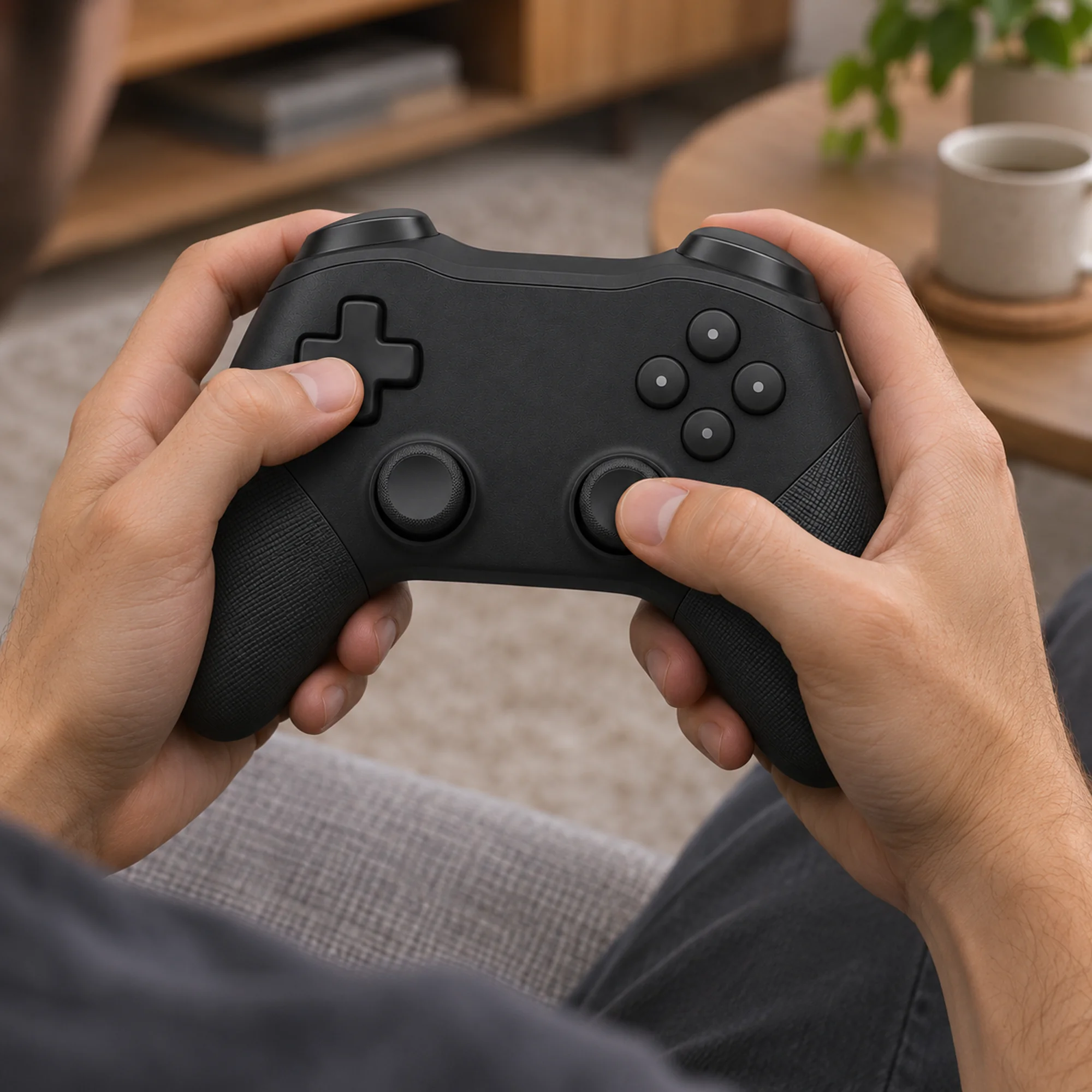
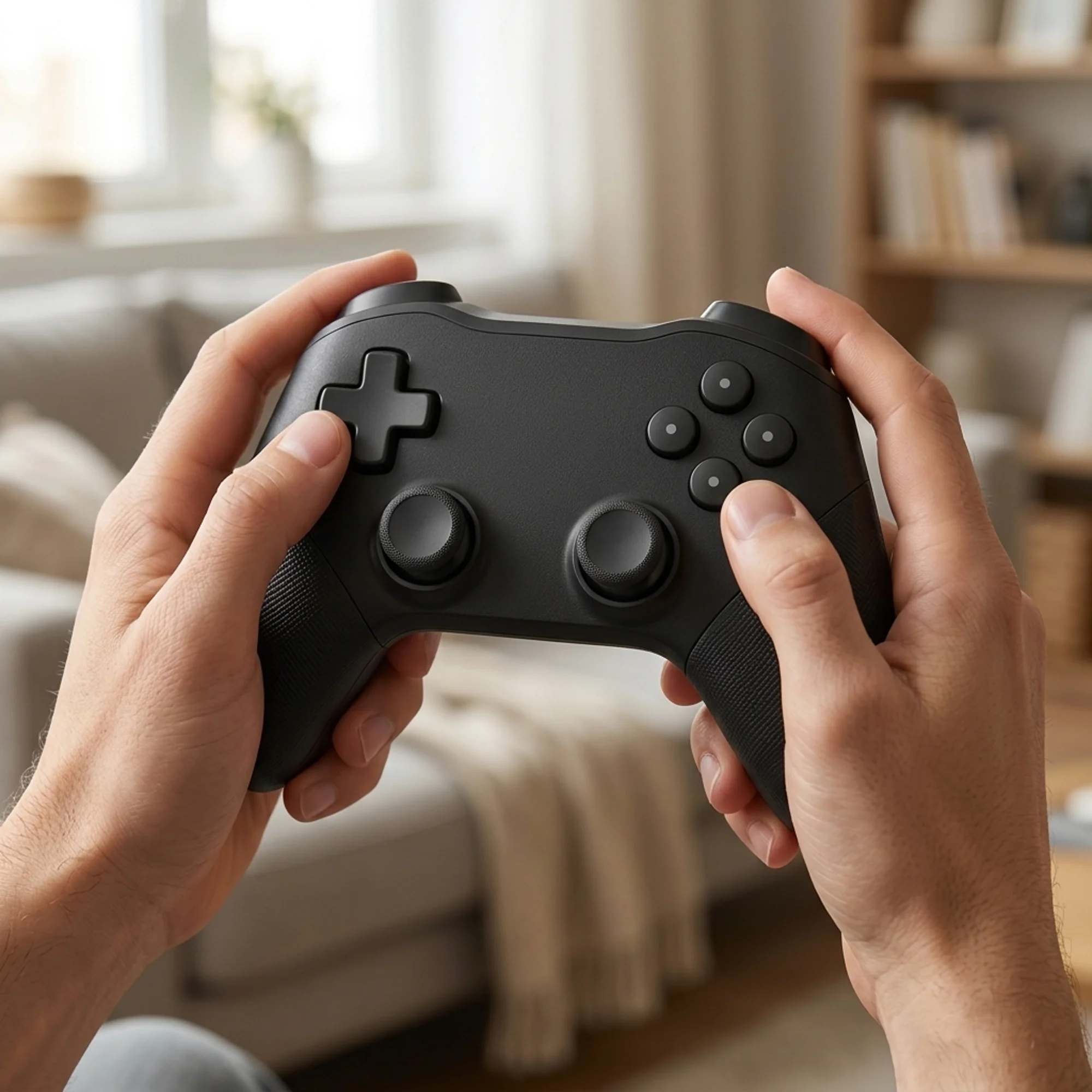
Two hands holding the black game controller in a natural play grip
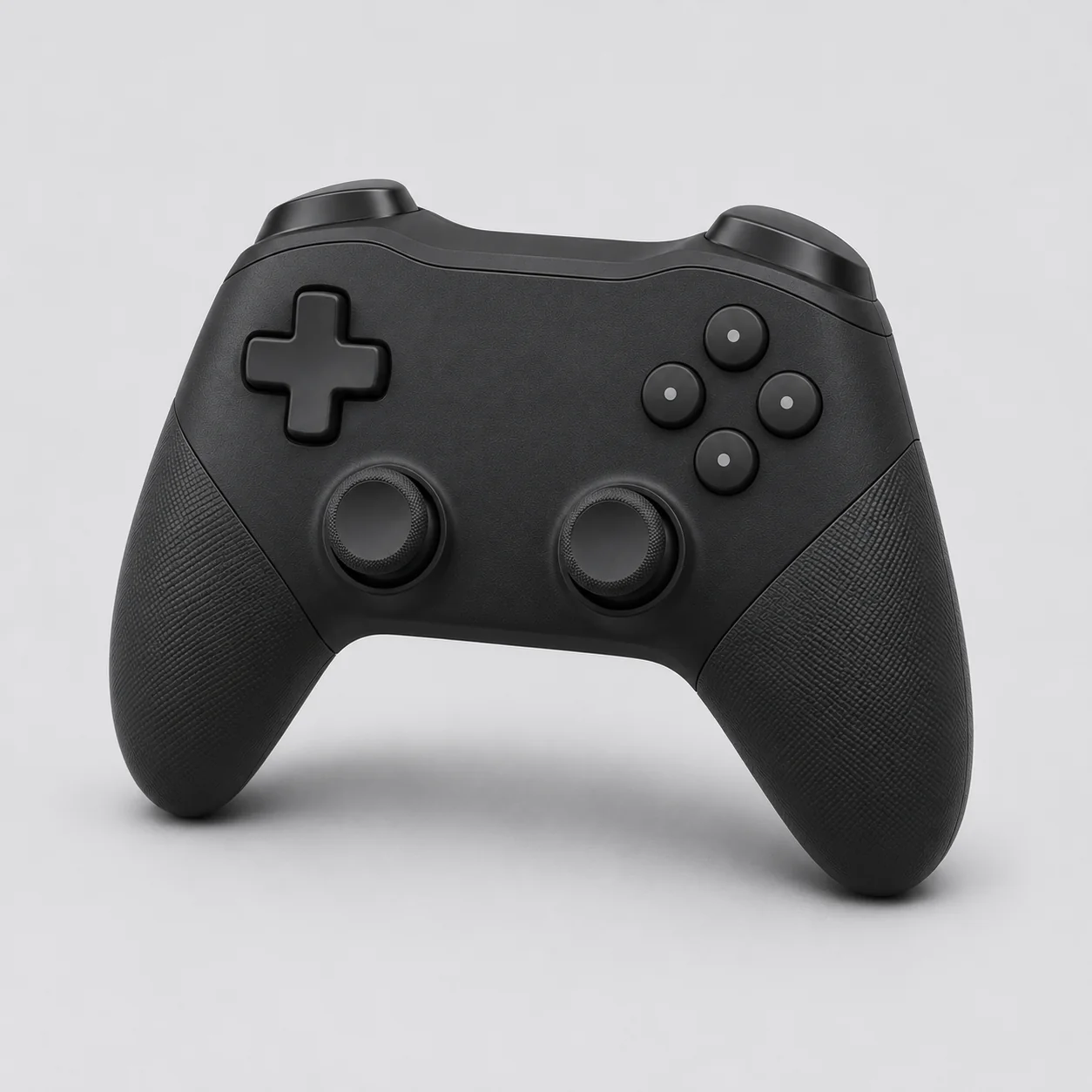
Unbranded matte black wireless game controller on a plain light background
Before

Compare the original photo with the model result. Review product details before use.

Amazon AI Listing Studio

Show how the product is actually used

Buyers understand size and handling faster when they see a hand, a pocket or an ear next to the product. Choose an in-use template, upload a clear product photo and pick an aspect ratio. Each template describes one action that real products of that kind support, such as a two-hand controller grip or a charging case slipping into a pocket. The action is the main input; you do not need to write a selling point, and no text is printed on the image.

Create an in-use image

In-use examples from real inputs

Each example shows the product photo that went in and the in-use image produced from it with the named template.

Two hands holding the black game controller in a natural play grip
Unbranded matte black wireless game controller on a plain light backgroundTwo-hand grip · GPT ImageBefore · Two-hand grip
Two hands holding the black game controller in a natural play grip
Unbranded matte black wireless game controller on a plain light backgroundTwo-hand grip · Nano BananaBefore · Two-hand grip
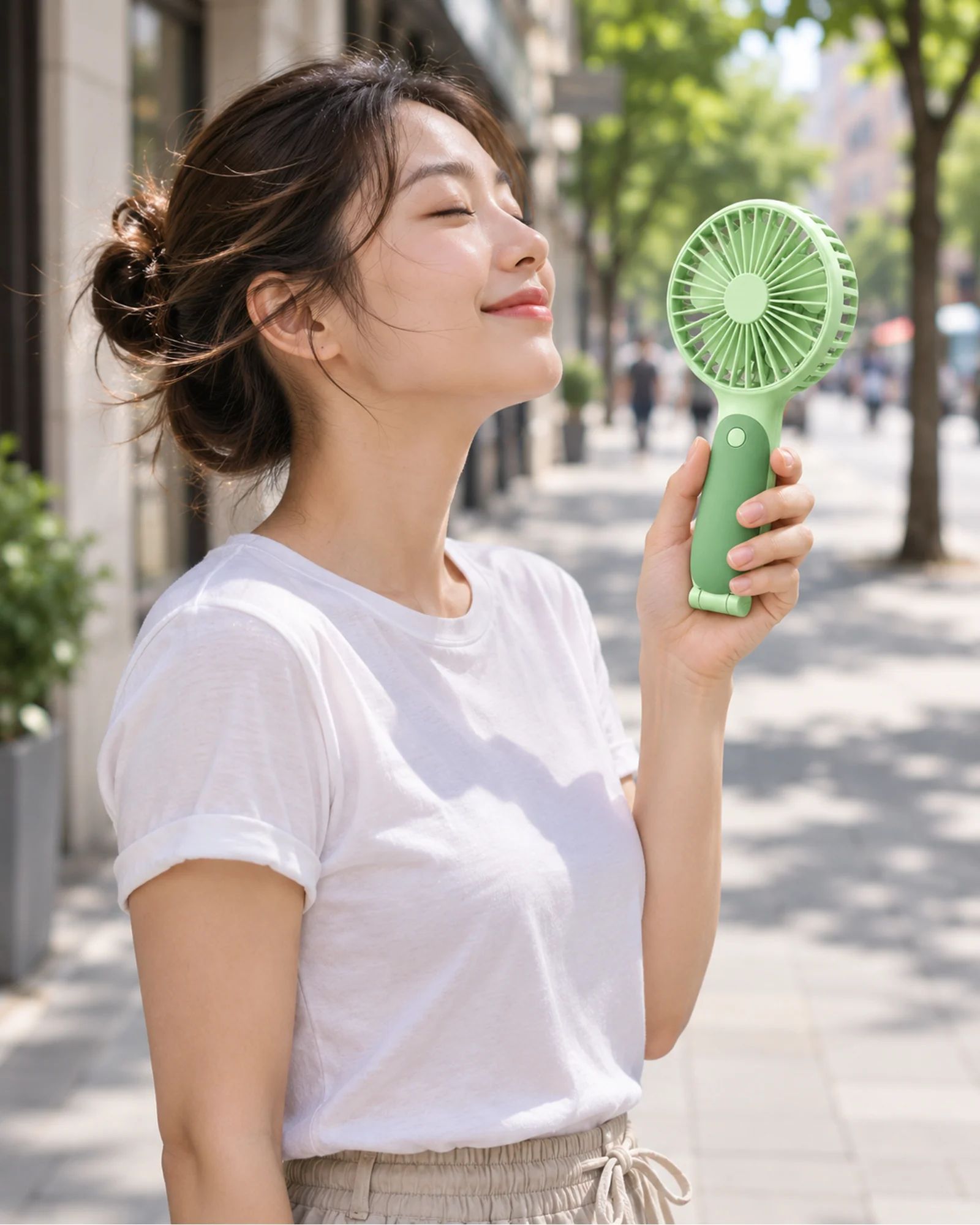
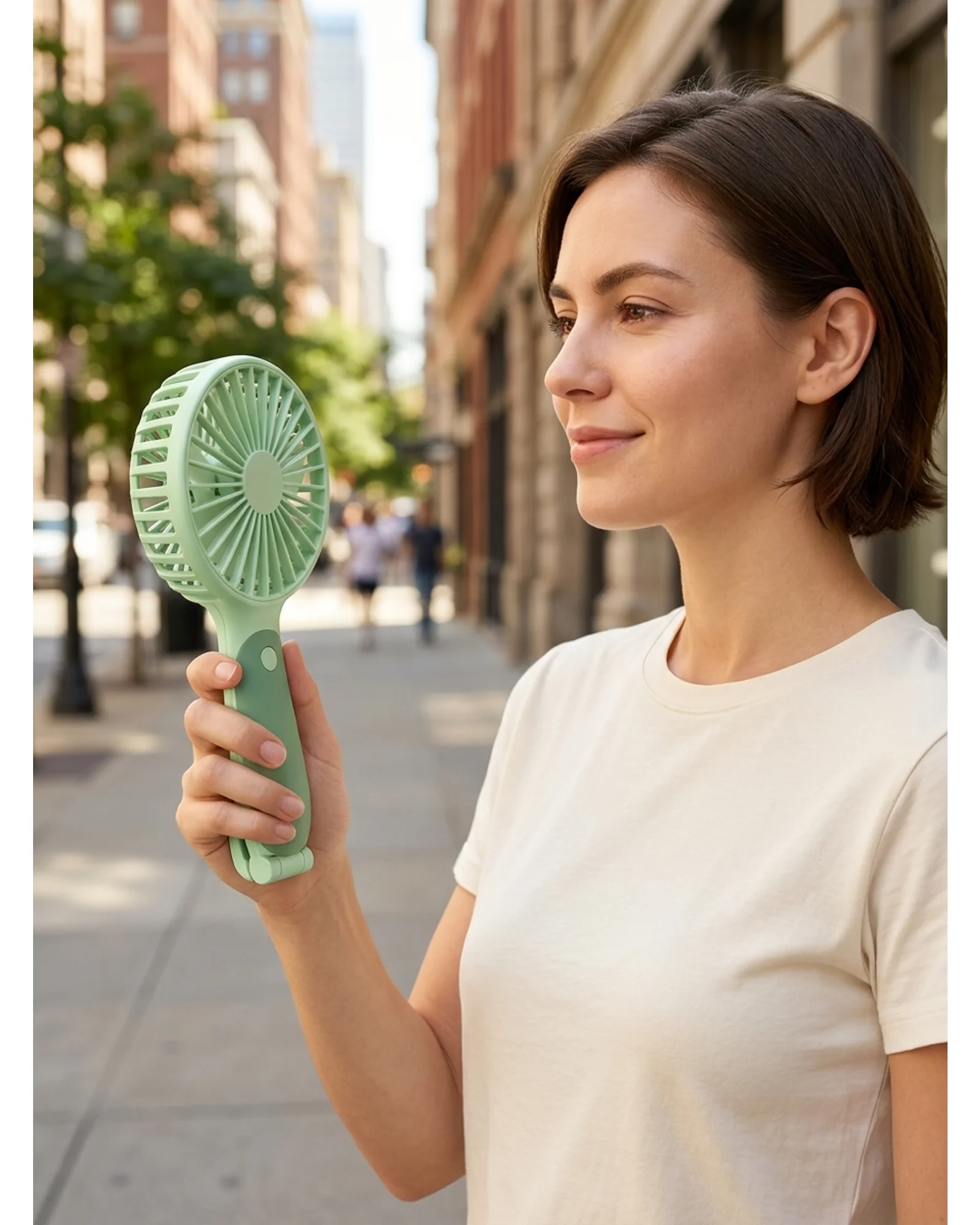
An adult on a sunny street holding the mint-green fan toward their face
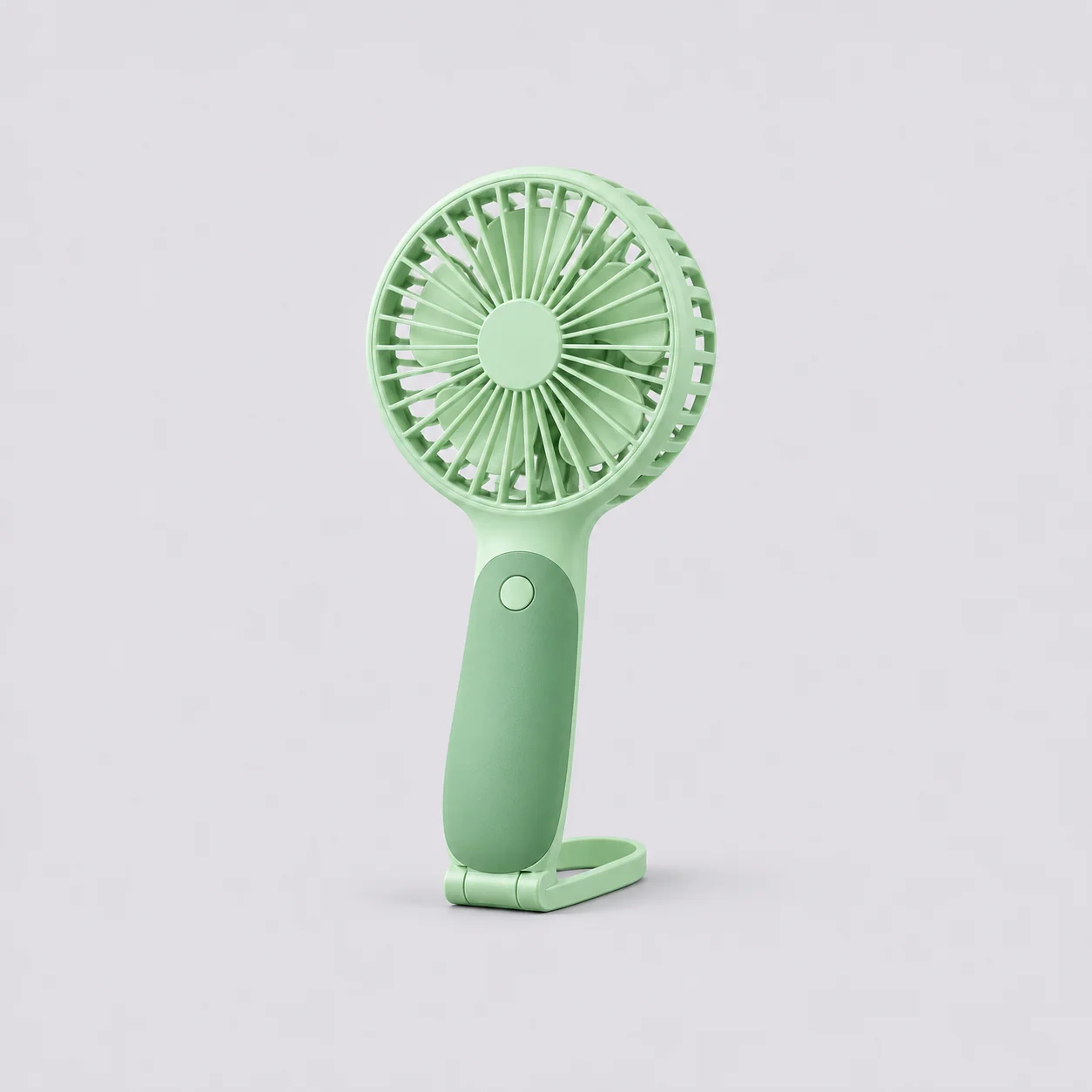
Unbranded mint-green handheld fan with a folding base on a plain light backgroundHandheld use · GPT ImageBefore · Handheld use
An adult on a sunny street holding the mint-green fan toward their face
Unbranded mint-green handheld fan with a folding base on a plain light backgroundHandheld use · Nano BananaBefore · Handheld use
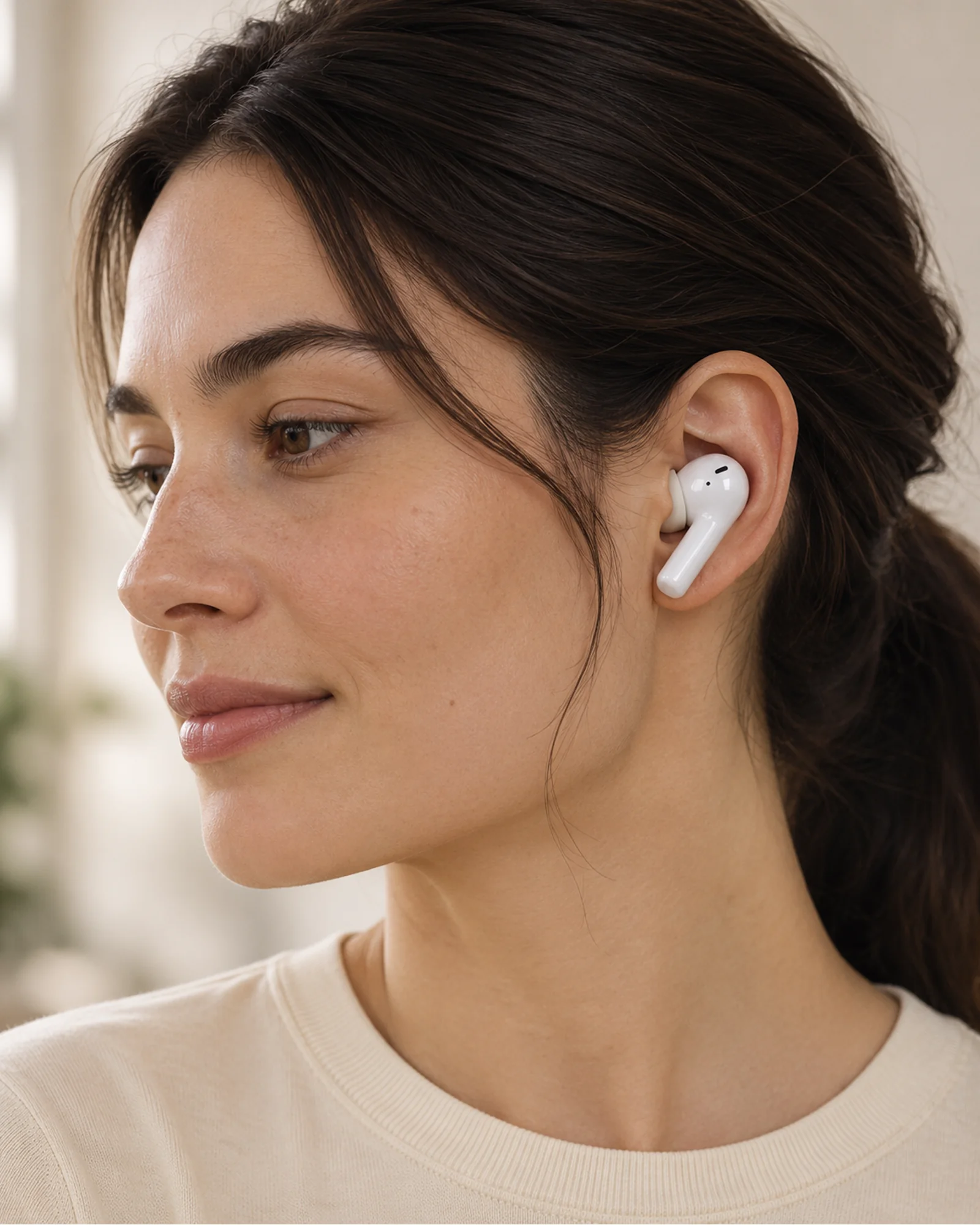
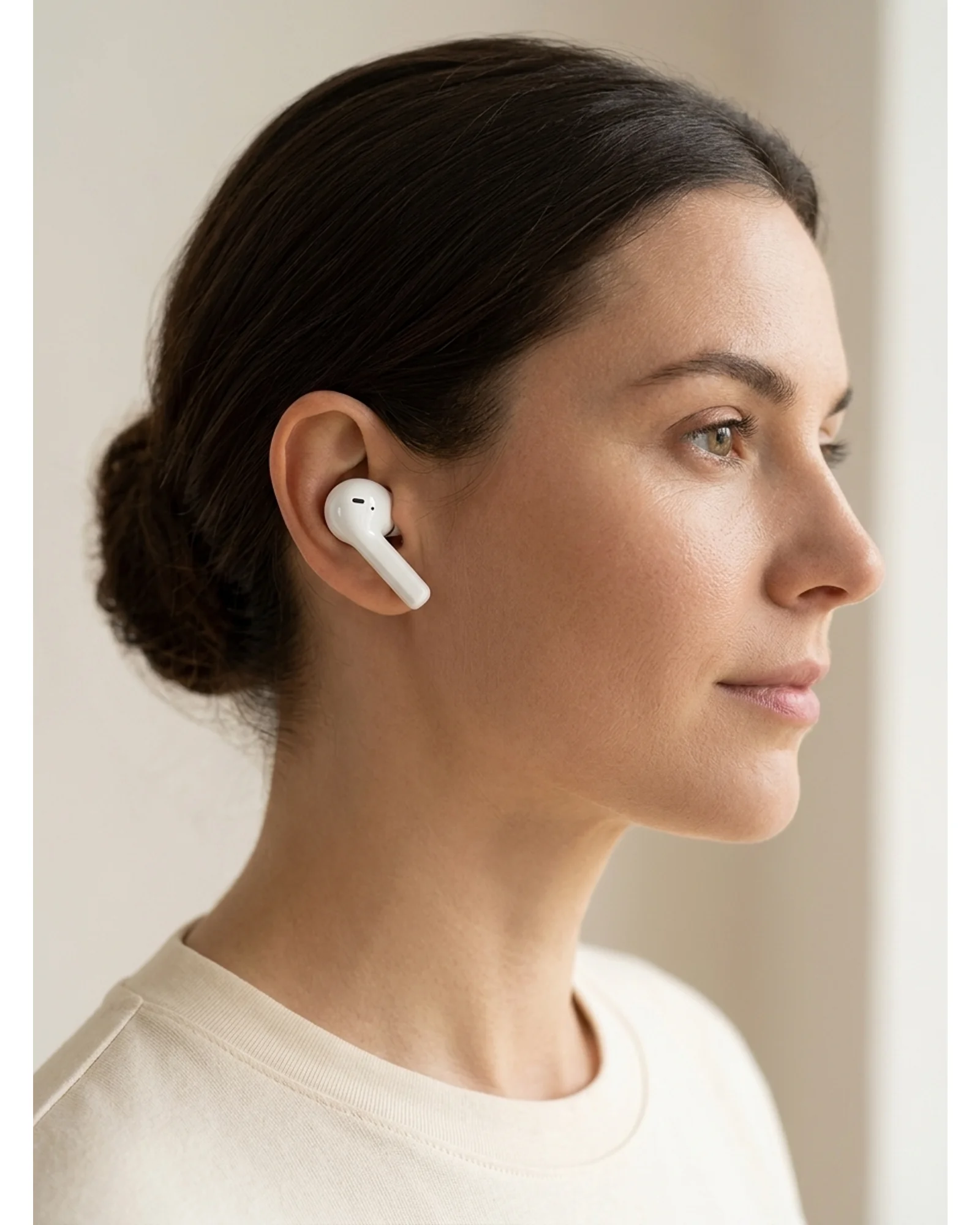
Side view of an adult wearing the white wireless earbud in soft daylight
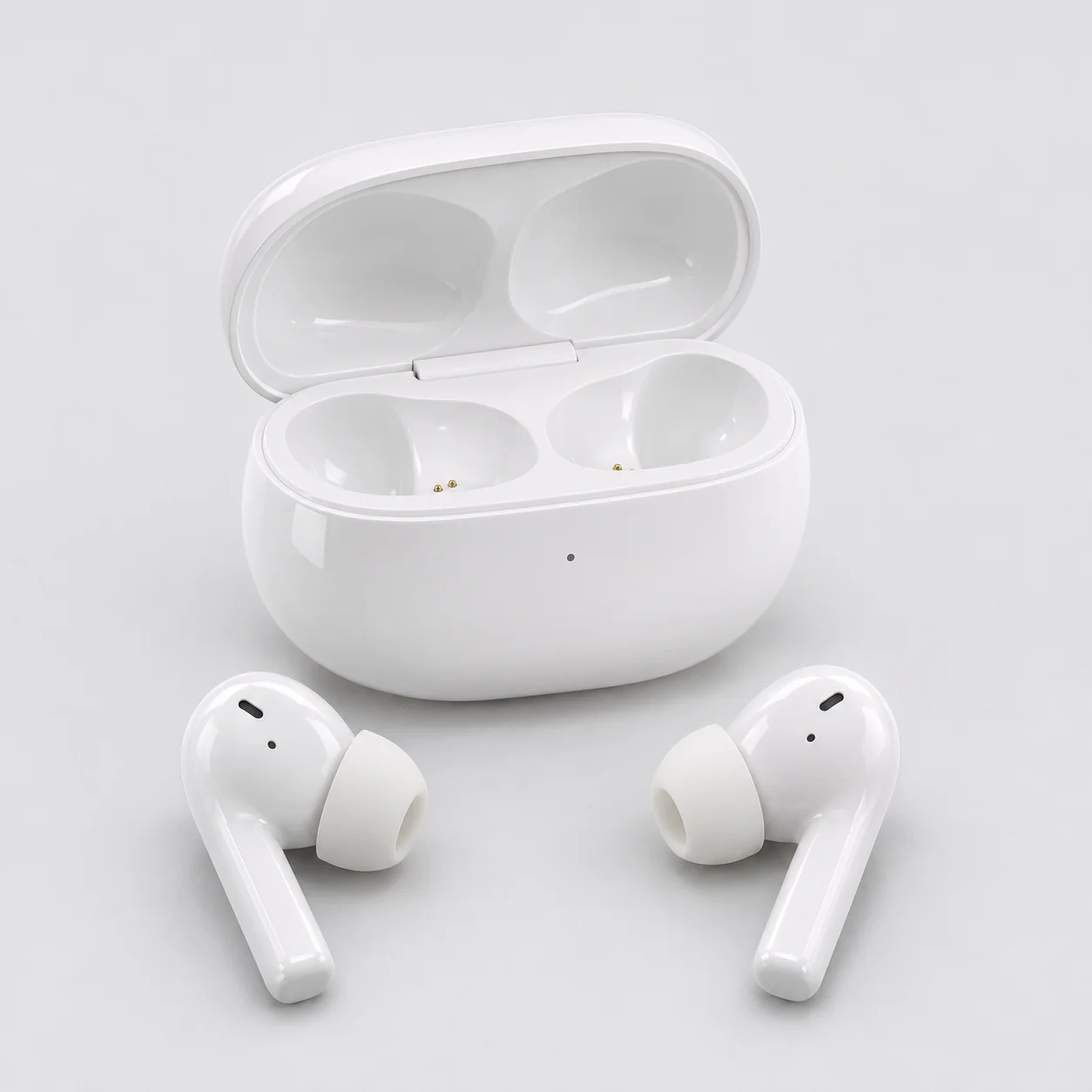
Unbranded white wireless earbuds beside their open charging case on a plain light backgroundWearing earbuds · GPT ImageBefore · Wearing earbuds
Side view of an adult wearing the white wireless earbud in soft daylight
Unbranded white wireless earbuds beside their open charging case on a plain light backgroundWearing earbuds · Nano BananaBefore · Wearing earbuds

How to make a product-in-use image

  1. Step 1

    Choose the action

    Pick the template that matches how your product is used: held in two hands, held in one hand, worn, or carried in a pocket.

  2. Step 2

    Upload and set the frame

    Upload a clear product photo, choose a ratio and, when the template allows, a person option such as hands only or an adult.

  3. Step 3

    Generate and check the details

    Generate one image at the credit cost shown. Check fingers, contact and scale, then download the PNG at its exact export size.

Guidelines for believable in-use images

01

Choose an action your product supports

Each template assumes a specific use. A neck-worn fan template only fits fans designed to be worn that way, and the tool never adds a strap or lanyard that your product does not have. Earbud templates distinguish between the earbuds and the charging case: you wear the earbuds and carry the case. If none of the actions match your product, it is better to skip the template than to show a use buyers cannot reproduce.

02

Get the scale right

Hands and bodies reveal size instantly, which is why in-use images are useful and why a wrong scale is so noticeable. Compare the product with the hand or the person in the result. If the product looks too large or too small, regenerate rather than accepting it. Never change a depicted age or body to disguise a scale problem; the age shown must match the product instructions.

03

Keep people secondary

The person exists to explain the product. Hands-only compositions keep attention on the product and avoid questions about who is shown. When a full person appears, the template asks for natural, unposed adults with realistic anatomy. Person options are creative choices, not statements about who a marketplace requires or who your customers are.

04

Inspect hands and contact points

Fingers that bend the wrong way, a thumb fused with a button or an earbud floating beside an ear are the most common generation errors. Look at each place where the person touches the product before you download. Regenerating produces a new candidate from your original photo, not an edit of the previous result, so a second attempt often fixes a hand.

05

Check publishing rules for people

Some marketplaces and categories have specific rules for images that show people or AI-generated content. This tool does not automate disclosure or approval. Read the current guidance for the marketplace and category where you sell before you publish an in-use image.

06

Use a photo that shows how it is held

The model needs to see the parts a hand or body will touch: the grips of a controller, the clip of a fan or the shape of an earbud. A front-on photo of the whole product on a plain background works for most actions. If the selected model accepts more than one reference, add another angle under Advanced so the model understands the back or the side that will face the camera.

07

Choose a ratio that fits the action

Hands-only actions such as a pocket shot or a controller grip read well in 1:1 and 4:5. Wearing shots that include a face or upper body often work better in 4:5 or 9:16, which leave room above and below. The ratio decides the shape of the picture the model creates, so choose it before you generate rather than cropping later.

08

Pair in-use images with the rest of the listing

An in-use image shows handling; it does not explain features. Pair it with a feature callout image for the facts and a lifestyle scene for the setting. Each tool makes one image per request, so you can build the set gradually and only pay for the images you keep.

AI Product-in-Use Image Generator FAQ

What is a product-in-use image?

It shows someone holding, wearing, operating or carrying a product, so buyers can judge its size, grip and everyday use. It is usually a secondary listing image rather than the main image.

Do I need to write a selling point?

No. The selected action is the main input. If you want to explain one benefit with text on the image, use the In-use benefit type on the Feature Images page.

Can I choose who appears in the image?

Where the template allows, you can choose hands only, any adult, an adult woman or an adult man. Some actions, such as wearing earbuds, need a full face and do not offer hands only.

Are children shown?

Only templates designed for children’s products can include a child, and they ask for an age and use consistent with the product. Review those results with particular care before publishing.

How many credits does it cost?

The Generate button shows the exact credit cost for the selected model and references. One request makes one image. Switching templates or ratios does not charge credits.

Will the product match my photo?

The prompt asks the model to keep the shape, color, buttons and labels from your photo, but generated images can still change details. Compare every result with the real product before you use it.

What if my product needs an action that is not listed?

Choose the closest template and describe the difference in the notes field under Advanced. If no template describes a use your product really supports, it is better not to generate an in-use image than to show one buyers cannot reproduce.

Can I add text to an in-use image?

In-use images are exported without text. For a single benefit with a heading, use the In-use benefit type on the Feature Images page, which sets text with code in a reserved panel.

Why do some templates offer fewer person options?

Person options follow the action. A pocket shot only needs a hand, so it offers hands only. Wearing earbuds needs an ear and part of a face, so it never offers hands only. A family pool game needs more than one person, so it keeps the template's own casting. Limiting the choices keeps every combination realistic and avoids actions the product cannot support.

Help buyers picture the product in their hands

Choose an in-use template, upload your product photo and generate one image. Check the hands, scale and contact points, then download the exact file you previewed.

Create an in-use image